
TiviMate Playlist Not Updating After Refresh

Quick answer
If your TiviMate playlist isn't updating after you hit refresh, it usually means the app isn't able to download or recognize the latest version of your playlist. This can stem from networking issues, problems on the playlist server side, or local app interference like caching....
Reviewed Against
• TiviMate playlist, EPG, and player-setting workflows
• M3U and M3U Plus playlist URLs, refreshes, and import behavior
• Server-URL formatting, HTTP response handling, and account-entry failure patterns
Applies To
• TiviMate setups on Android TV, Google TV, or Fire OS style streaming devices
• Playlist-based IPTV setups that rely on M3U or M3U Plus links for channel data
• Errors caused by malformed URLs, wrong credentials, expired tokens, or unreachable playlist endpoints
Does not apply when
• Your app uses a different menu layout or naming scheme than TiviMate.
• Your app is using a portal or stalker-style workflow instead of a playlist URL.
• The provider confirms the service is down or the account has been deliberately blocked upstream.
Corroborating Resources
HTTP response status codesUseful when an IPTV app surfaces 401, 403, 404, or 5xx style errors during login or playlist refreshes.
URL structure referenceHelpful for checking server URLs, source links, and path/query mistakes in portal or playlist setups.
Topic Cluster
Part of the IPTV cluster
Browse practical IPTV articles about IPTV, including setup choices, troubleshooting paths, and follow-on guides. This page sits in more in this topic for that topic path.
On this page
TiviMate Playlist Not Updating After Refresh
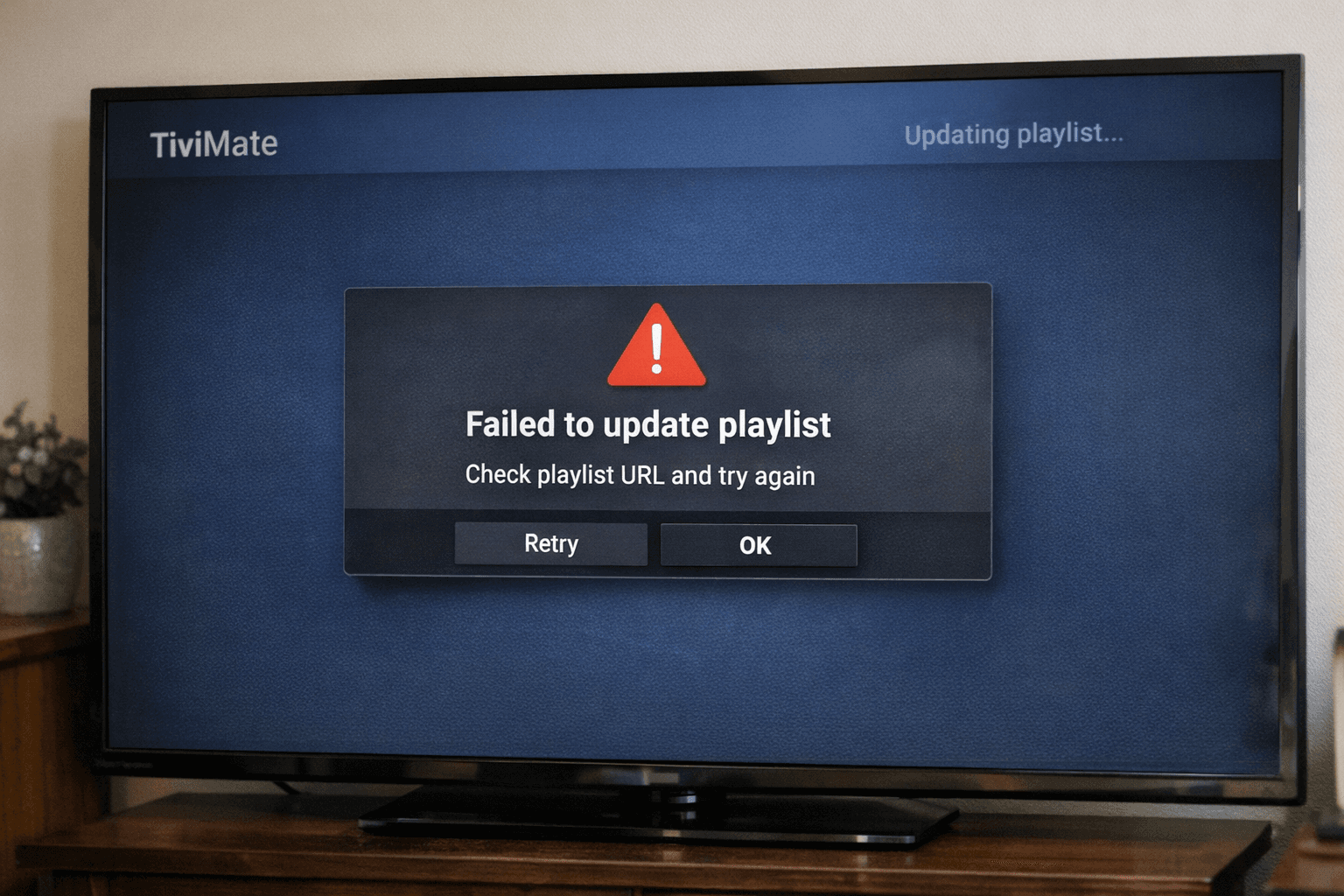
If your TiviMate playlist isn't updating after you hit refresh, it usually means the app isn't able to download or recognize the latest version of your playlist. This can stem from networking issues, problems on the playlist server side, or local app interference like caching. Understanding how TiviMate reads and updates playlists helps you quickly troubleshoot why the content fails to refresh.
What you'll learn
- Why TiviMate might fail to update playlists after refresh
- How to check connection and playlist source status
- Clearing cache and resetting playlists within the app
- How VPNs and DNS settings affect playlist updates
- Steps to rule out app bugs or outdated versions
How TiviMate Updates Playlists
TiviMate relies on playlists—often in M3U format—which are basically text files containing channel streaming URLs and metadata. When you refresh your playlist, TiviMate downloads the playlist file anew and loads updated streams and channel info. If this reload fails, your playlist appears stagnant.
Common fresh failures come from these core areas:
- Network (device cannot connect to playlist URL)
- Playlist source (URL is outdated, inaccessible, or moved)
- App interference (caching or bugs preventing refresh)
Knowing this guides targeted troubleshooting.
Diagnosing Network and Playlist Source Issues
A failing refresh often starts with a network problem:
Check Your Internet Connection
Ensure your streaming device has a stable Internet connection. You can:
- Open a browser or another app to verify connectivity
- Use a network speed test app if possible
Verify Playlist URL Accessibility
If your URL is incorrect or down, TiviMate cannot retrieve the latest content:
- Open the playlist URL in a browser to see if it downloads or responds
- Confirm the URL matches what your playlist provider gave
Look for HTTP Errors
Errors like 404 (not found) or 512 (server error) indicate source problems. See our article on Fixing Playlist Import Errors (404, 512) When Using a VPN with IPTV for guidance.
Clearing App Cache and Resetting Playlists
Sometimes TiviMate's cached data conflicts with fresh downloads. Resetting app data can help:
Steps to Clear Cache/Data
- Close TiviMate app
- Go to your device’s Settings > Apps > TiviMate
- Find options for cache clearing and/or data clearing
- Clear cache first, then test refresh again
- If issues continue, clear app data (this removes all playlists and settings)
Re-Add Your Playlist
After clearing data, re-add your playlist:
- Open TiviMate
- Select to add a new playlist
- Enter or paste your playlist URL
- Allow the app to load channels freshly
This forces the app to reset stored playlist info fully.
VPN, DNS, and Network Configuration Considerations
VPN or Proxy Impact
VPN or proxy use can block or delay playlist downloads:
- Temporarily disable VPN and retry the playlist refresh
- If refresh works without VPN, check VPN settings or contact provider
Custom DNS Issues
Some custom DNS servers block access to certain IPTV playlist hosts:
- Switch back to default DNS (usually provided by your ISP)
- Test playlist updating with default settings
For detailed DNS-related IPTV issues, see the DNS topic.
Updating TiviMate and Device
An outdated or buggy version of TiviMate might mishandle playlist updates:
- Check the app store for TiviMate updates
- Install any available updates
- Restart your device after update
If the device firmware is old, also consider updating it.
Common Mistakes and Troubleshooting Summary
| Common Issue | Symptom | Suggested Action |
|---|---|---|
| Incorrect playlist URL | Playlist never updates | Verify and correct the URL |
| Temporary network outage | Refresh fails or times out | Check connection; retry after network stable |
| App caching stale playlist data | No visible update after refresh | Clear cache or app data |
| VPN or DNS blocking playlist access | Playlist import errors | Disable VPN/DNS or adjust configuration |
| Outdated TiviMate app version | Failed playlist refreshs or crashes | Update app and restart device |
How to Fix TiviMate Playlist Not Updating After Refresh
Follow these clear steps to resolve the issue:
- Confirm your internet connection is working.
- Open the playlist URL in a browser to check accessibility.
- Clear the TiviMate cache from the device settings.
- Remove and re-add the playlist URL inside TiviMate.
- Restart your streaming device completely.
- Disable VPN or proxy temporarily and retry refreshing.
- Update TiviMate app to the latest version.
- If problems persist, contact your playlist provider for status.
FAQ
Why does my TiviMate playlist not update after refreshing?
Sometimes connection issues, outdated URLs, or cached app data prevent updates. Checking the network and resetting app data usually resolves this.
How do I refresh the playlist properly in TiviMate?
Use the playlist refresh option in app settings. If that fails, clearing cache and re-adding the playlist ensures a clean refresh.
Can VPNs cause TiviMate playlist update problems?
Yes, VPNs can block or slow playlist URLs. Temporarily disabling the VPN helps diagnose this.
What if my playlist URL returns errors when updating?
Verify the URL and test it directly in a browser. Consult your playlist provider if errors persist.
Conclusion
When TiviMate’s playlist doesn’t update after refresh, the root causes are usually a connection problem, playlist URL issues, or local app caching. Following a systematic troubleshooting approach—checking network, verifying URLs, clearing app cache, managing VPN/DNS settings, and updating the app—will restore proper playlist updates. Keeping these steps handy helps maintain a smooth TiviMate viewing experience.
For related issues, explore our guides on Playlist Loads But EPG Missing in TiviMate and TiviMate Playlist Updates But Guide Does Not.
Keep exploring
More explainers that connect naturally to this setup, workflow, or troubleshooting path.
Using a VPN (Virtual Private Network) on your Amazon Firestick can sometimes slow down IPTV streaming, resulting in frustrating buffering issues.

If your TiviMate EPG (Electronic Program Guide) source URL is not working, it means TiviMate cannot retrieve the program guide data from the specified web address. This usually results in missing or empty channel grids inside the app.
If you are experiencing lag or buffering while watching IPTV on your Fire TV Stick, one common culprit is limited device storage. When the Fire TV Stick's internal memory fills up or gets fragmented, the IPTV app performance can degrade.