
Fire TV Cube vs Fire TV Stick 4K Max for IPTV Streaming

Quick answer
If you're deciding between the Fire TV Cube and the Fire TV Stick 4K Max for IPTV, the choice hinges largely on your preferences for control, hardware features, and budget. Both support 4K HDR streaming and have strong enough processors for IPTV apps, but the Cube adds hands-f...
Reviewed Against
• Fire TV and Fire OS device capabilities, networking, and storage limits
Applies To
• Fire TV Stick, Fire TV Cube, and Fire OS playback or networking questions
Does not apply when
• You are troubleshooting a smart-TV app or set-top box with a different hardware and settings path.
Corroborating Resources
Fire TV device specifications overviewHelpful for checking Fire TV hardware families, platform differences, and device-level constraints.
Fire TV streaming media player specsUseful for codec, storage, Wi-Fi, and Ethernet-adapter expectations on Fire TV sticks and boxes.
Topic Cluster
Part of the Amazon Fire TV cluster
Browse practical IPTV articles about Amazon Fire TV, including setup choices, troubleshooting paths, and follow-on guides. This page sits in compare options for that topic path.
On this page
Fire TV Cube vs Fire TV Stick 4K Max for IPTV Streaming
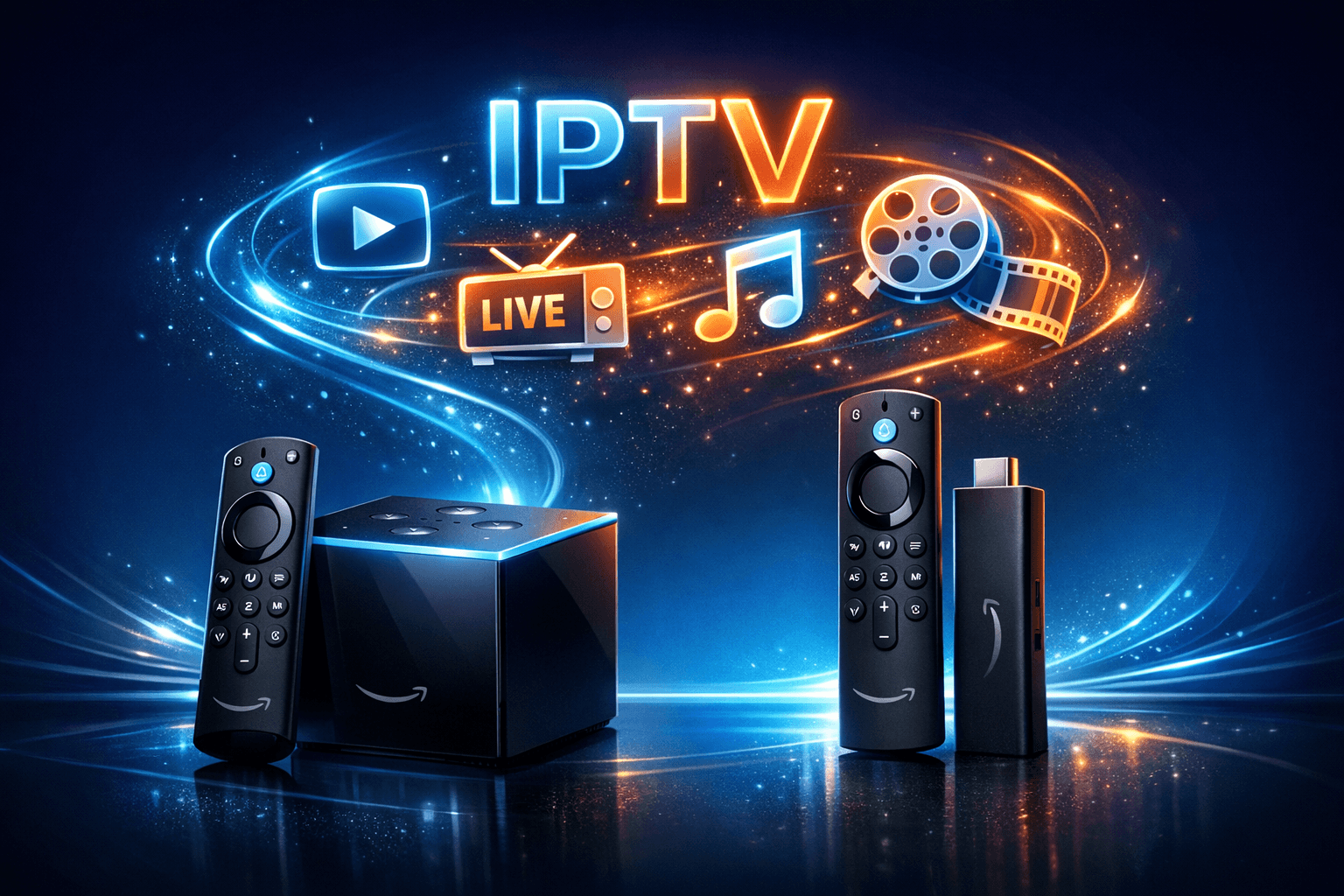
If you're deciding between the Fire TV Cube and the Fire TV Stick 4K Max for IPTV, the choice hinges largely on your preferences for control, hardware features, and budget. Both support 4K HDR streaming and have strong enough processors for IPTV apps, but the Cube adds hands-free Alexa control and a built-in speaker, while the Stick 4K Max offers a cost-effective, compact design. This article compares them in detail to help you pick the best fit for your IPTV setup.
What you'll learn
- Key hardware differences relevant to IPTV streaming
- How setup and connectivity compare between devices
- IPTV app performance and usability
- When hands-free control matters
- Common pitfalls and troubleshooting tips for IPTV streaming
Hardware Overview and Streaming Performance
Processor and Memory
The Fire TV Cube uses a Hexa-core (6-core) processor and 2GB RAM, while the Fire TV Stick 4K Max features a Quad-core (4-core) CPU but also 2GB RAM. The Cube’s faster processor provides slightly quicker app launches and navigation, which can matter when juggling IPTV apps or multiple streaming sources.
Storage
Both devices come with 8GB of internal storage, which mostly holds the operating system and apps. Storage constraints can impact IPTV players with large cache needs but typically don't limit live IPTV streaming.
Video and Audio Capabilities
Both devices support up to 4K UHD resolution with HDR10, HDR10+, HLG, and Dolby Vision. Audio support includes Dolby Atmos and 7.1 surround sound passthrough. For IPTV streaming, picture and sound quality will be comparable assuming a stable network.
Setup and Connectivity
Physical Setup
- Fire TV Cube: Plugs directly into an outlet, connects via HDMI cable to your TV. The cube form factor sits on your media shelf.
- Fire TV Stick 4K Max: A compact stick plugs directly into an HDMI port on your TV.
Network Options
The Cube supports both Ethernet (via included adapter) and dual-band Wi-Fi. The Stick 4K Max supports dual-band Wi-Fi (2.4 GHz/5 GHz) but requires a separate adapter for Ethernet.
Ethernet connections tend to offer more stable IPTV streams, reducing buffering risks.
IPTV App Installation and User Experience
Installing IPTV Apps
Both devices run Fire OS and access the Amazon Appstore. Most IPTV apps like TiviMate or IPTV Smarters are installable on either device.
Performance in IPTV Apps
Both deliver smooth video playback under good network conditions. The Cube's more powerful processor can help with heavier multitasking or faster navigation.
Voice Control and Remote
- Fire TV Cube: Hands-free Alexa voice control and a remote with additional volume/mute buttons. The Cube also listens for voice commands across the room.
- Fire TV Stick 4K Max: Remote includes Alexa voice but requires button press to activate.
For IPTV users, hands-free voice control can simplify switching channels or opening apps.
Common Problems and Troubleshooting for IPTV on Fire TV Devices
Buffering and Lag
Often caused by network issues or device overload. Tips include:
- Use Ethernet connection when possible (Cube has adapter; Stick requires one)
- Limit background apps running
- Check Wi-Fi signal strength and router settings best Wi-Fi settings guide
App Crashes or Freezes
Clearing app cache or reinstalling the IPTV app can help. Also, update your Fire OS to the latest version.
Missing Channel Logos
A known issue in IPTV apps like TiviMate. Ensure your EPG source is properly configured to fix this how to fix missing channel logos.
Which One Should You Choose?
| Feature | Fire TV Cube | Fire TV Stick 4K Max |
|---|---|---|
| Processor | Hexa-core (6-core), faster navigation | Quad-core (4-core), slightly less powerful |
| RAM | 2GB | 2GB |
| Storage | 8GB | 8GB |
| Alexa Voice Control | Hands-free, wake word supported | Press-to-talk voice remote only |
| Network Connectivity | Wi-Fi + included Ethernet adapter | Wi-Fi only (Ethernet adapter sold separately) |
| Physical Size | Cube form factor, sits beside TV | Compact plug-in stick |
| Price | Higher cost | More affordable |
| IPTV Streaming Performance | Excellent, better multitasking potential | Excellent, efficient IPTV playback |
When the Cube makes more sense: If you want hands-free Alexa, Ethernet easily included, and a more powerful processor for multitasking.
When the Stick 4K Max makes more sense: If you prefer a more budget-friendly, plug-and-play device and use Wi-Fi or can add Ethernet adapter.
Who Should Follow This Guidance?
This article is tailored for IPTV users choosing between Fire TV Cube and Fire TV Stick 4K Max. It assumes basic familiarity with setting up streaming devices and IPTV apps.
If you use a different device (like Fire TV Stick Lite, Fire TV Stick 4K original) or different IPTV apps with unique requirements, you should consult device- or app-specific troubleshooting guides.
Also, for users focused on maximum storage or different operating systems, these devices may not fit your use case.
Conclusion
Both the Fire TV Cube and the Fire TV Stick 4K Max are solid choices for IPTV streaming, supporting 4K and a range of IPTV apps. The Cube excels with hands-free Alexa, Ethernet support out-of-the-box, and a faster processor, justifying its higher price. The Stick 4K Max offers excellent performance in a compact, cost-effective package ideal for users who prioritize simplicity and don't require hands-free control.
Your IPTV experience will depend heavily on network quality and IPTV app setup, so investing in good connectivity and app configuration is equally important regardless of your device choice.
Frequently Asked Questions
Can I use the Fire TV Stick 4K Max with Ethernet?
Yes, but you'll need to purchase a separate Ethernet adapter since it is not included.
Does the Fire TV Cube's hands-free Alexa improve IPTV navigation?
Yes, it allows voice commands without pressing buttons, easing channel switching and app control.
Is the picture quality noticeably better on the Cube?
No, both devices can stream IPTV in 4K HDR with comparable quality.
What should I do if IPTV streams buffer frequently?
Try using a wired connection, limit other network usage, and ensure your IPTV app settings are optimized.
Are all IPTV apps compatible with both devices?
Most IPTV apps from the Amazon Appstore are compatible with both Fire TV Cube and Stick 4K Max.
For more detailed IPTV app troubleshooting, see How to Fix Channel Logos Missing in TiviMate and Wi-Fi setup tips at Best WiFi Settings for IPTV Streaming on Fire TV Stick.
How to Set Up Your Fire TV Device for IPTV Streaming
- Connect your Fire TV Cube or Stick 4K Max to your TV via HDMI.
- Power on the device and follow on-screen Wi-Fi setup, or connect Ethernet if available.
- Navigate to the Amazon Appstore and search/install your IPTV app.
- Open the IPTV app and log into your IPTV subscription/service.
- Configure any IPTV app preferences, such as electronic program guide (EPG) sources or buffer settings.
- Start watching your IPTV channels.
- Use voice commands or the remote to navigate channels and apps smoothly.
Following these steps will optimize your IPTV viewing experience on either device.
Keep exploring
More explainers that connect naturally to this setup, workflow, or troubleshooting path.
When watching IPTV on your Firestick, the speed and reliability of how your device connects to IPTV servers greatly affect stream quality.



If you use TiviMate to watch IPTV channels, you rely on an EPG (Electronic Program Guide) source URL to show TV program schedules inside the app. When that URL stops working, your program guide goes blank or fails to load entirely.