
Best Wi-Fi Settings for IPTV on Fire TV Stick

Quick answer
The best Wi-Fi settings for IPTV on your Fire TV Stick can significantly improve streaming quality by minimizing buffering, reducing lag, and avoiding disconnections. IPTV streams continuously, so a stable and fast Wi-Fi connection tailored for the Fire TV Stick is essential f...
Reviewed Against
• Fire TV and Fire OS device capabilities, networking, and storage limits
• Home-network checks such as Wi-Fi strength, Ethernet fallback, DNS changes, congestion, and local storage pressure
Applies To
• Fire TV Stick, Fire TV Cube, and Fire OS playback or networking questions
• Playback problems that change with connection quality, device load, app cache state, or time of day
Does not apply when
• You are troubleshooting a smart-TV app or set-top box with a different hardware and settings path.
• Only one channel, event, or provider-side endpoint is failing while the rest of the service stays stable.
Corroborating Resources
Fire TV device specifications overviewHelpful for checking Fire TV hardware families, platform differences, and device-level constraints.
Fire TV streaming media player specsUseful for codec, storage, Wi-Fi, and Ethernet-adapter expectations on Fire TV sticks and boxes.
Android TV video and game troubleshootingUseful for Wi-Fi, updates, app cache, and playback troubleshooting steps that also mirror IPTV failure paths.
Android TV storage helpHelpful when playback issues point to low storage, cache pressure, or app-data cleanup decisions.
On this page
Introduction
The best Wi-Fi settings for IPTV on your Fire TV Stick can significantly improve streaming quality by minimizing buffering, reducing lag, and avoiding disconnections. IPTV streams continuously, so a stable and fast Wi-Fi connection tailored for the Fire TV Stick is essential for a smooth viewing experience.
If you configure your wireless network correctly, prioritizing your Fire TV Stick's traffic and selecting optimal frequencies and channels, you'll enjoy sharper video and fewer playback problems.
What you'll learn
- How Wi-Fi frequency bands affect IPTV streaming on Fire TV Stick
- The importance of router placement and signal strength
- How to choose the best Wi-Fi channel to avoid interference
- Setting Quality of Service (QoS) on your router to prioritize IPTV traffic
- Troubleshooting common Wi-Fi issues affecting IPTV streaming
Understanding Wi-Fi Frequency Bands for Fire TV Stick IPTV
Wi-Fi routers broadcast on different frequency bands: primarily 2.4 GHz and 5 GHz. Each affects IPTV streaming differently:
2.4 GHz Band
- Offers longer range but is more crowded and prone to interference
- Slower maximum speeds and more congestion from devices like microwaves or neighbor networks
- Generally suitable if your Fire TV Stick is far from the router but may cause buffering
5 GHz Band
- Shorter range but faster speeds and less interference
- Ideal for IPTV streaming on Fire TV Stick located near your router or with minimal walls in between
For IPTV, the 5 GHz band is usually the best choice because it supports the bandwidth needed for smooth video streaming.
Optimizing Router Placement to Improve IPTV Streaming
Wi-Fi signal strength depends heavily on where your router is located relative to your Fire TV Stick.
- Place your router as close as possible to your Fire TV Stick's location.
- Avoid physical barriers such as thick walls, metal objects, or large appliances between router and device.
- Keep the router elevated and away from interference sources like cordless phones or microwaves.
If relocating the router is not feasible, consider upgrading your router's antennas or using a mesh Wi-Fi system to extend strong coverage.
Choosing the Best Wi-Fi Channel and Reducing Interference
Wi-Fi routers operate on various channels within the frequency bands. Interference from other networks on the same or overlapping channels can degrade IPTV streaming quality.
How to select a Wi-Fi channel:
- Use Wi-Fi analyzer apps on your smartphone or software on your PC to scan nearby wireless networks.
- Identify the least congested channels, especially in the 5 GHz band, which offers wider channels and less overlap.
- Manually set your router to use these least crowded channels in its administration settings.
Automatic channel selection by routers may not always pick the best channel for IPTV, so manual adjustment can improve performance.
Setting Up QoS to Prioritize IPTV Streaming Traffic
Quality of Service (QoS) is a router feature that prioritizes certain types of traffic or specific devices, ensuring your IPTV stream receives sufficient bandwidth.
Steps to configure QoS:
- Log in to your router's web interface.
- Locate the QoS settings (may be under advanced, traffic control, or bandwidth management).
- Identify your Fire TV Stick by its MAC or IP address.
- Set high priority or allocate guaranteed bandwidth for this device.
Enabling QoS ensures other devices such as smartphones or downloads do not degrade IPTV performance.
Fire TV Stick Software and IPTV App Updates
Outdated software may cause connectivity issues, including poor Wi-Fi performance.
- Regularly check for system updates in the Fire TV Stick's settings.
- Keep your IPTV app updated to its latest version for optimized streaming protocols.
These updates often include network improvements that enhance Wi-Fi handling.
Troubleshooting Common Wi-Fi Issues Affecting IPTV Streaming
Even with optimized settings, you may encounter problems. Here's how to resolve typical issues:
- Buffering or lag during playback: Confirm you are on the 5 GHz band; reduce IPTV app streaming quality if needed.
- Wi-Fi disconnects or weak signal: Verify router placement and reduce physical obstructions.
- Multiple devices causing congestion: Enable QoS prioritization for your Fire TV Stick.
- Slow Wi-Fi speed tests: Restart your router and Fire TV Stick; consider upgrading your ISP plan.
When to consider a different troubleshooting path
This guidance applies specifically to Wi-Fi connectivity on Fire TV Stick devices streaming IPTV. If you use Ethernet adapters, smart TVs, or other streaming devices, consult device-specific network optimization guides. IPTV apps themselves can also have unique network requirements addressed in their troubleshooting documentation.
Summary Checklist for Best Wi-Fi Settings on Fire TV Stick IPTV
| Setting | Recommendation | Benefit |
|---|---|---|
| Frequency Band | Use 5 GHz | Faster speeds, less interference |
| Router Placement | Close, line of sight to device | Stronger, stable signal |
| Wi-Fi Channel | Choose least congested channel | Reduce interference |
| QoS Configuration | Prioritize Fire TV Stick traffic | Bandwidth reliability |
| Device/Software Updates | Keep Fire TV Stick and apps updated | Optimized network usage |
FAQ
Q: Why is 5 GHz recommended over 2.4 GHz for IPTV on Fire TV Stick?
A: 5 GHz offers faster speeds and less interference, which helps prevent streaming hiccups.
Q: Can I use an Ethernet adapter for my Fire TV Stick?
A: Yes, a wired connection can provide even more stable performance than Wi-Fi.
Q: What should I do if my IPTV stream buffers despite good Wi-Fi?
A: Lower the streaming quality and check for background network activity. Restart devices if needed.
Q: Does router brand or model affect IPTV streaming?
A: While brand matters less, routers that support advanced QoS and 5 GHz bands improve IPTV reliability.
Conclusion
Optimizing Wi-Fi settings on your Fire TV Stick is crucial for a seamless IPTV streaming experience. Prioritize using the 5 GHz band, place your router strategically, select the best channel to avoid interference, and configure QoS to ensure your device gets sufficient bandwidth. Regularly updating software and troubleshooting common issues reinforces a smooth streaming environment. Following these focused steps leads to reduced buffering and superior IPTV enjoyment on your Fire TV Stick.
For device comparisons and further tuning, see our guide on Fire TV Cube vs Fire TV Stick 4K Max for IPTV Streaming and troubleshooting tips in the Buffering topic.
Article Tags: Fire TV Stick, IPTV, Wi-Fi Settings, Streaming Optimization, 5 GHz Band
Internal Links:
Frequently Asked Questions
Why is 5 GHz Wi-Fi better for IPTV on Fire TV Stick?
5 GHz Wi-Fi provides faster speeds and is less prone to interference than 2.4 GHz, which improves IPTV streaming quality on Fire TV Stick.
Can a Wi-Fi extender improve IPTV streaming on Fire TV Stick?
Yes, a Wi-Fi extender can help if the Fire TV Stick is far from the router and signal is weak, but wired connections are generally more stable.
What Wi-Fi channel should I use for IPTV streaming?
You should use the least congested channel on your 5 GHz band, which you can find by scanning with Wi-Fi analyzer apps or router tools.
What if IPTV keeps buffering despite good Wi-Fi settings?
Try lowering streaming quality in the IPTV app, rebooting devices, or checking for network congestion elsewhere on your network.
Keep exploring
More explainers that connect naturally to this setup, workflow, or troubleshooting path.
Organizing favorites and groups in TiviMate makes navigating large IPTV channel lists more intuitive and personalized. TiviMate, a popular IPTV player app for Android TV and Fire TV devices, provides features that let you categorize.


When you switch channels on your IPTV service, the stream sometimes freezes or stalls. This interruption usually happens because your device or app needs to buffer the new channel stream, but something delays or disrupts that process.

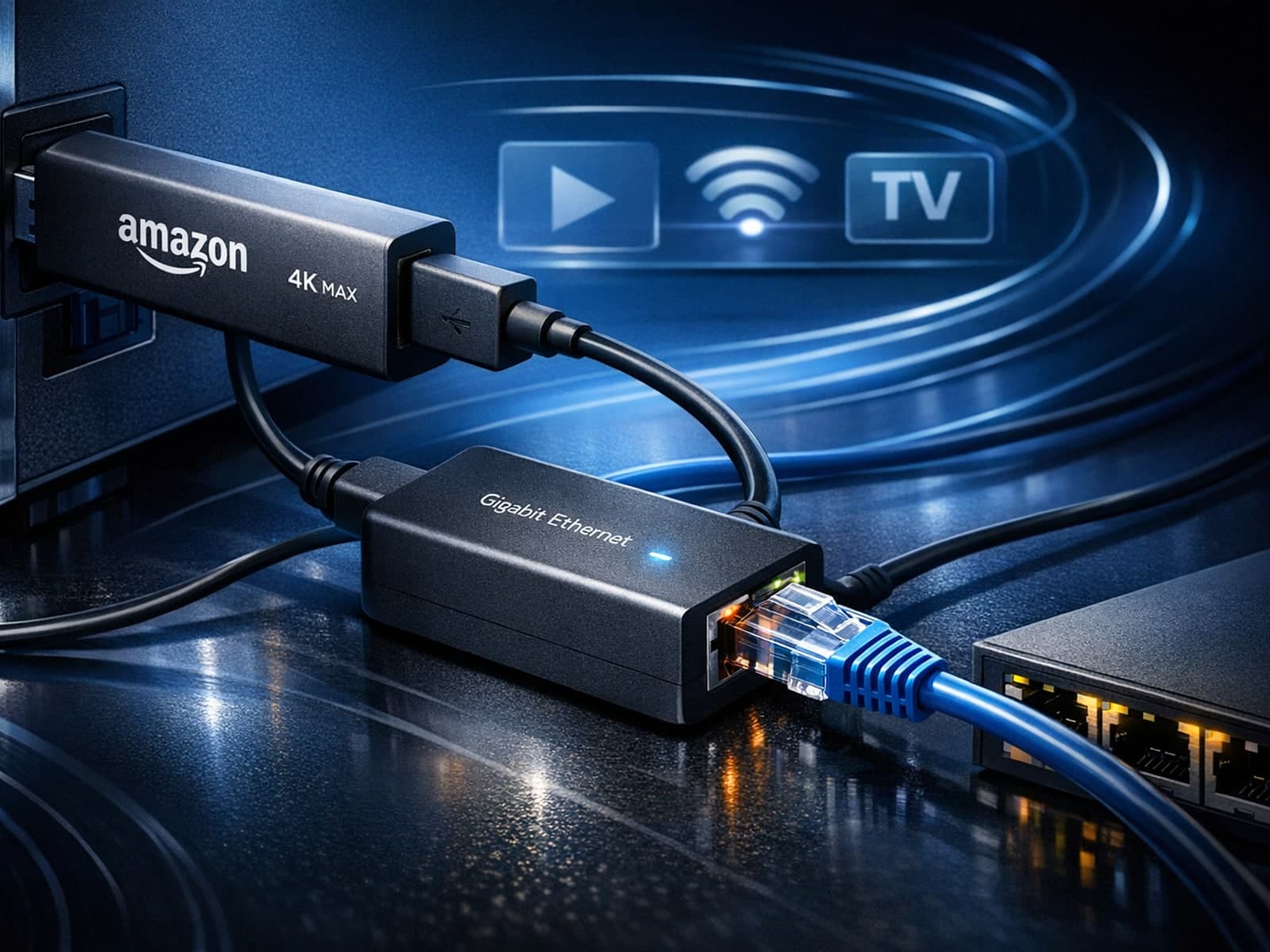
Using a wired Ethernet connection with your Fire TV Stick 4K Max can improve streaming stability and speed, reducing buffering and lag. However, not all Ethernet adapters are compatible with this device.
