
IPTV Smarters Invalid Details Error: Causes and Fixes

Quick answer
If you see the "Invalid Details" error when logging into your IPTV Smarters app, it means the app cannot authenticate your login credentials with your IPTV service provider. This error typically points to incorrect username or password information, subscription inactivity, or...
Reviewed Against
• IPTV Smarters login, playlist, and account-entry screens
• Server-URL formatting, HTTP response handling, and account-entry failure patterns
Applies To
• IPTV Smarters sign-in, playlist import, or account-detail errors
• Errors caused by malformed URLs, wrong credentials, expired tokens, or unreachable playlist endpoints
Does not apply when
• The account itself is disabled or expired on the provider side.
• The provider confirms the service is down or the account has been deliberately blocked upstream.
Corroborating Resources
HTTP response status codesUseful when an IPTV app surfaces 401, 403, 404, or 5xx style errors during login or playlist refreshes.
URL structure referenceHelpful for checking server URLs, source links, and path/query mistakes in portal or playlist setups.
Topic Cluster
Part of the IPTV Smarters cluster
Browse practical IPTV articles about IPTV Smarters, including setup choices, troubleshooting paths, and follow-on guides. This page sits in troubleshoot and fix for that topic path.
On this page
IPTV Smarters Invalid Details Error: Causes and Fixes
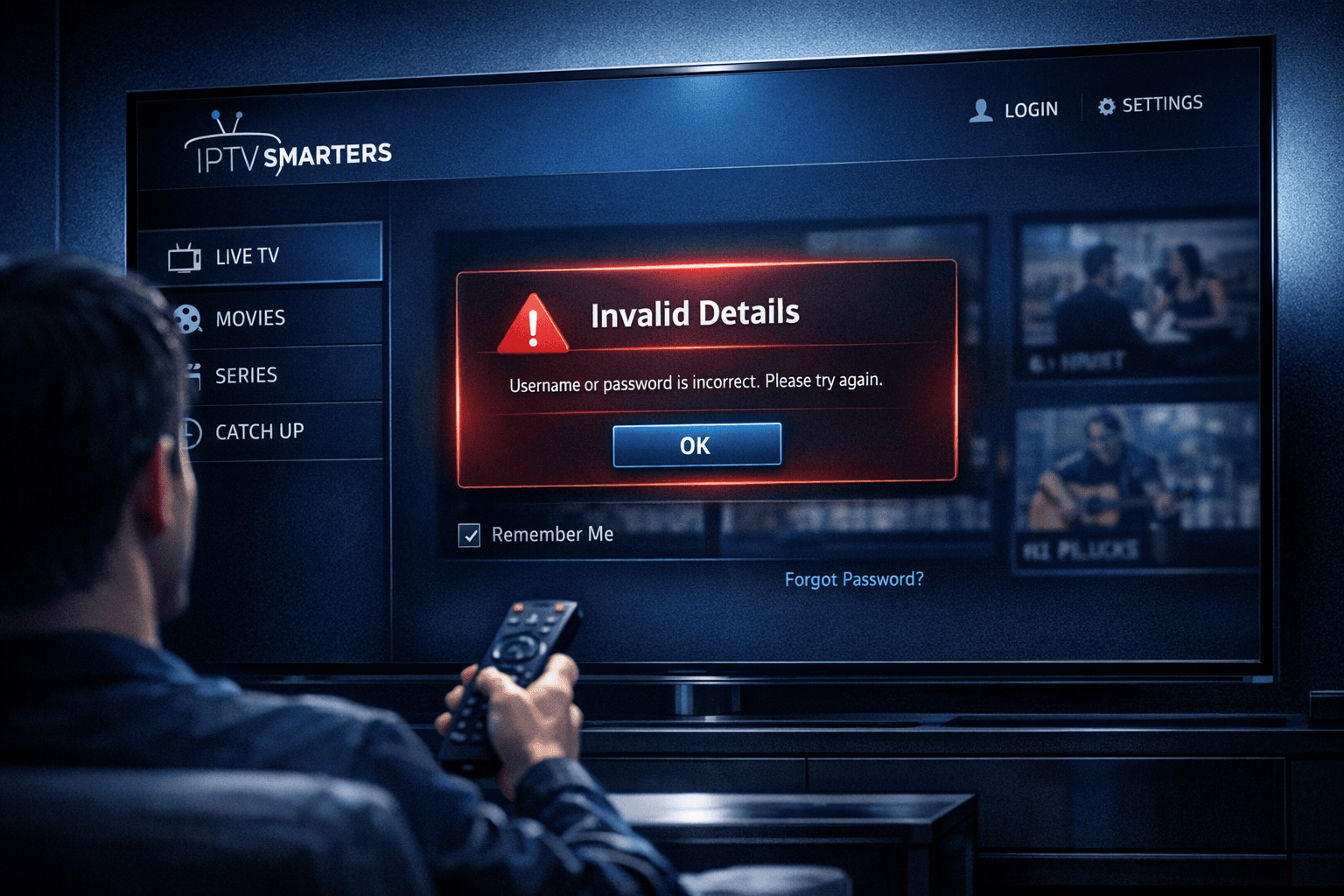
If you see the "Invalid Details" error when logging into your IPTV Smarters app, it means the app cannot authenticate your login credentials with your IPTV service provider. This error typically points to incorrect username or password information, subscription inactivity, or connectivity issues with the IPTV server.
You don't need to feel stuck: with some straightforward checks and steps, you can identify and resolve the problem quickly.
What you'll learn
- Why IPTV Smarters shows an "Invalid Details" error
- How to verify and correct your login credentials
- Checking your IPTV subscription status
- Ensuring your device and network connection support authentication
- Steps to update, restart, and troubleshoot the app
- When to contact your IPTV provider for help
Understanding the "Invalid Details" Error in IPTV Smarters
The "Invalid Details" message appears during the login step of IPTV Smarters, an Android and iOS app commonly used to stream IPTV content via m3u URLs or Xtream Codes API credentials.
Why does this error occur?
- Incorrect username or password: Even minor typos, case sensitivity, or missing characters can cause authentication failure.
- Expired or inactive subscription: Your IPTV service may no longer be active or permitted.
- Server issues: The IPTV provider’s authentication server may be down or inaccessible.
- Network problems: Unreliable or restricted internet connections can disrupt the login process.
This error is specific to the IPTV Smarters app interface and its process of verifying your account credentials with your IPTV provider's servers.
Step 1: Confirm Your IPTV Smarters Login Credentials
Checking your username and password is the most common and fastest fix.
- Use the exact credentials your IPTV provider gave you: including capitalization and punctuation.
- If your IPTV provider sent a combined URL or used the Xtream Codes API format (server URL, username, password), ensure you haven't confused these parts.
- Avoid pasting extra spaces before or after the credentials.
- If you’re logging in with M3U URLs, note that this method typically bypasses login credentials and may not even show this error.
Common mistakes:
- Swapping username and password fields.
- Including or excluding extra characters like slashes or colons.
How to verify:
Contact your IPTV provider support or consult the welcome email or user dashboard where credentials are listed.
Step 2: Check Your IPTV Subscription Status
Invalid login details might be because the IPTV subscription tied to your credentials has expired or been canceled.
- Log into your IPTV provider's customer portal (if available) using your username or account email to check subscription status.
- Check for recent payment issues or flagged suspensions.
- Confirm no changes occurred such as account upgrades or service migrations that require updated credentials.
If unsure or unable to verify online, your IPTV provider’s support team can confirm your subscription condition.
Step 3: Ensure Network Connectivity and App Functionality
Poor internet or app problems can cause login validation to fail intermittently.
Test your network:
- Open a browser or another app on the device to confirm internet access.
- Switch between Wi-Fi and mobile data where possible.
- Disable VPNs or firewalls that might block IPTV traffic.
Check your IPTV Smarters app:
- Update the app from your device’s app store to the latest version.
- Force close and reopen the app.
- Restart your device to clear temporary glitches.
Sometimes outdated or corrupted app installations interfere with authentication.
Step 4: Re-enter Credentials Carefully
After confirming correct credentials and subscription, carefully re-input your login info:
- Open IPTV Smarters app.
- Choose Xtream Codes API login or whichever login method your provider uses.
- Copy and paste username and password from verified source; avoid manual typing errors.
- Confirm the server URL is correctly entered (some providers require a specific domain or IP).
This step eliminates typos and formatting errors.
Step 5: Contact IPTV Provider Support if Problem Persists
If after all the above steps you still see "Invalid Details":
- Contact your IPTV provider support to verify your login credentials’ validity.
- Ask if there are server or account issues affecting authentication.
- Confirm if any changes such as server migrations or credentials resets have taken place.
Your provider’s support is the ultimate source for resolving authentication problems specific to your account.
Who This Guidance Applies To
This article and troubleshooting apply specifically to the IPTV Smarters app login using official IPTV provider credentials (Xtream Codes API format or username/password).
When to follow a different path:
- If you use IPTV via M3U links without login prompts, this error isn’t relevant.
- If you are using other IPTV apps or hardware like MAG boxes, Smart TVs, or different OTT receivers, refer to device/app-specific troubleshooting guides.
When dealing with device-specific error codes or IPTV client variations, adjust the process accordingly.
Checklist: Quick Verification Before Login
| Step | Action |
|---|---|
| Credentials | Check exact username and password |
| Subscription | Confirm your subscription is active |
| Connectivity | Verify stable and unrestricted internet |
| App | Update and restart IPTV Smarters |
| Credentials re-entry | Paste carefully avoiding typos |
| Provider contact | Reach out for support if still failing |
FAQ
What causes the "Invalid Details" error in IPTV Smarters?
The error usually occurs due to incorrect login info, expired subscription, or server connection issues with your IPTV provider.
Can network issues cause "Invalid Details" errors?
Yes, unstable or blocked internet connections can prevent successful authentication.
How do I check if my IPTV Smarters credentials are correct?
Compare your input with the username and password provided by your IPTV service, ensuring every character matches exactly.
Is updating IPTV Smarters necessary to fix login errors?
It's often recommended as updates can resolve bugs affecting login and authentication.
What if none of the troubleshooting steps work?
Contact your IPTV provider’s customer support for account or server related assistance.
Conclusion
The "Invalid Details" error in IPTV Smarters is most often caused by incorrect login credentials or subscription issues. Begin by verifying your username and password, confirm your service is active, check your network and app version, then carefully re-enter your details. If these steps do not resolve the problem, your IPTV provider’s support team will guide you further. Following this logical troubleshooting sequence saves time and restores access to your IPTV streams efficiently.
For related authentication and IPTV error troubleshooting, see our Authentication and Authorization Error guides.
For app-specific fixes, visit Fix Missing Channel Logos in TiviMate for additional insights.
Keep exploring
More explainers that connect naturally to this setup, workflow, or troubleshooting path.
If your TiviMate playlist does not update after hitting refresh, the issue is usually related to either the playlist source itself, your network connection, or the way the app handles refreshing.

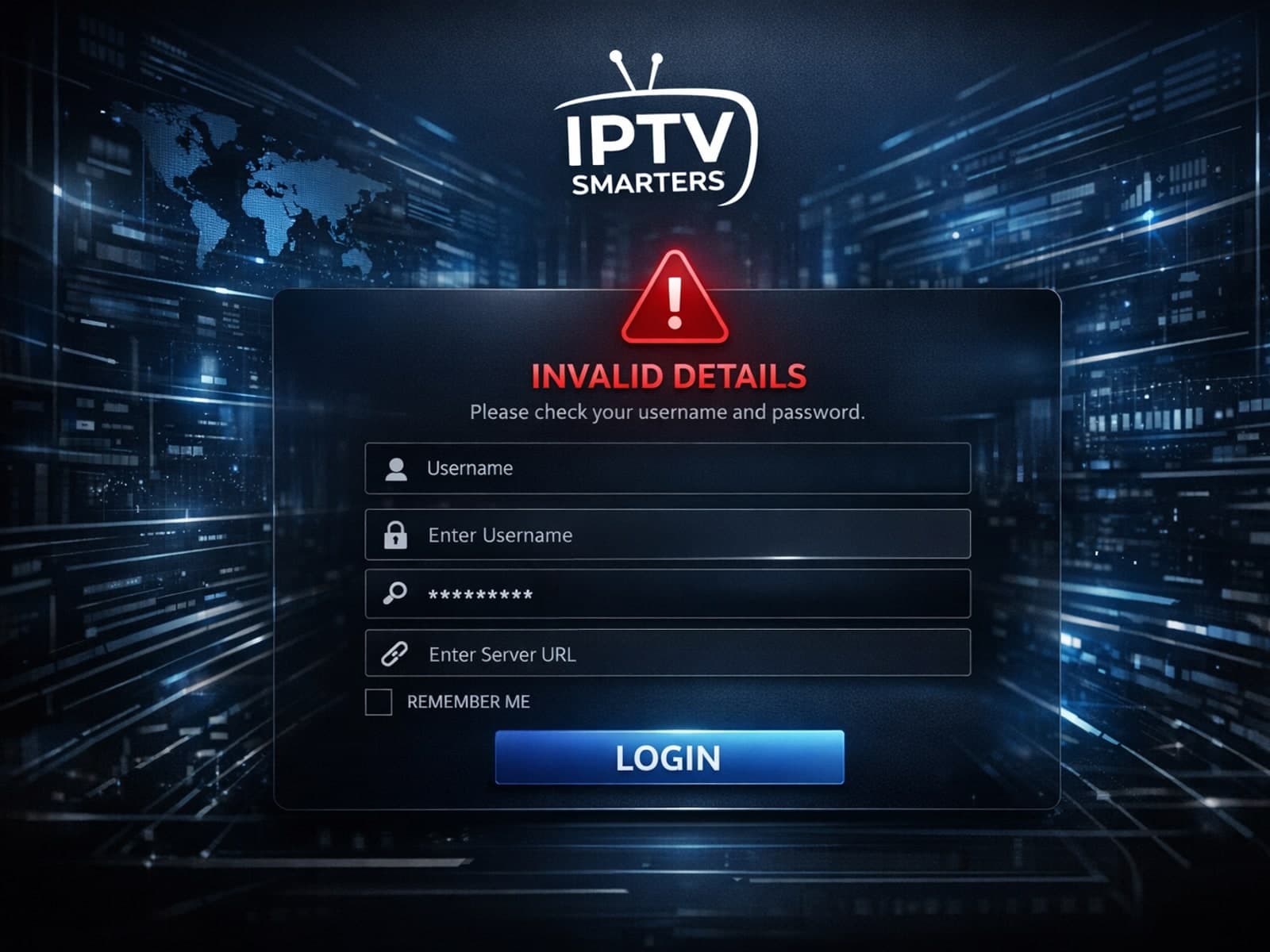
When you see the Invalid Details error on IPTV Smarters, it means the app cannot verify your login information. This usually happens if your username, password, or playlist URL is incorrect or outdated.

If your TiviMate EPG (Electronic Program Guide) source URL is not working, it means TiviMate cannot retrieve the program guide data from the specified web address. This usually results in missing or empty channel grids inside the app.
