
How to Fix Catch-Up Not Working in TiviMate

Quick answer
If catch-up (the ability to watch past broadcasts on demand) is not working in your TiviMate app, the issue is usually related to your IPTV playlist's support for catch-up, connection hiccups, or app configuration. This article shows you exactly what to check and how to fix co...
Reviewed Against
• TiviMate playlist, EPG, and player-setting workflows
Applies To
• TiviMate setups on Android TV, Google TV, or Fire OS style streaming devices
Does not apply when
• Your app uses a different menu layout or naming scheme than TiviMate.
Topic Cluster
Part of the Xtream Codes cluster
Login errors, URL format confusion, authorization failures, and when Xtream Codes makes more sense than M3U. This page sits in troubleshoot and fix for that topic path.
Start here in this topic
On this page
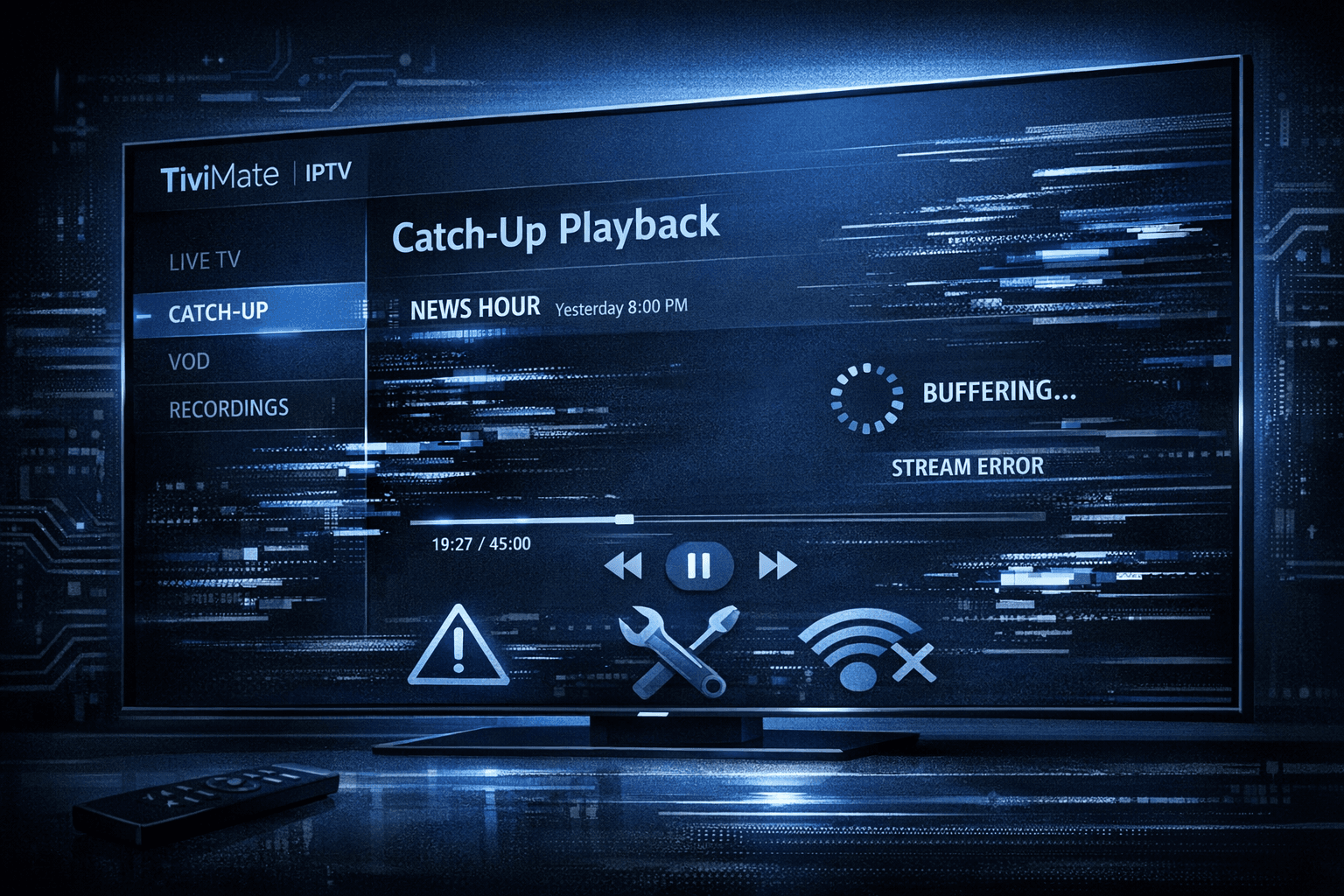
How to Fix Catch-Up Not Working in TiviMate
If catch-up (the ability to watch past broadcasts on demand) is not working in your TiviMate app, the issue is usually related to your IPTV playlist's support for catch-up, connection hiccups, or app configuration. This article shows you exactly what to check and how to fix common catch-up problems step-by-step for TiviMate running on Android TV, Fire TV devices, or other smart TV platforms.
What you'll learn
- How to verify if your IPTV playlist supports catch-up playback
- The correct way to refresh your playlist to update catch-up data
- Why connectivity and app cache matter for catch-up functionality
- Which playlist formats and login types can enable catch-up
- Common mistakes users make when troubleshooting catch-up
- When to seek provider or app support instead
Understanding Catch-Up in TiviMate
Catch-up refers to the feature that allows you to watch TV programs after their live broadcast period, usually available for a limited time window. In TiviMate, catch-up depends heavily on your IPTV provider including this functionality within the playlist metadata using specific APIs or Xtream Codes. If your playlist does not contain catch-up data or your server restricts access, catch-up will not work even if your app supports it.
Confirm Your IPTV Playlist Supports Catch-Up
Why This Matters
Not all IPTV playlists include catch-up functionality. Even if your provider advertises catch-up, your specific subscription or playlist URL might not have it enabled. TiviMate cannot add catch-up if the data isn’t supplied by the provider.
How to Check
- Contact your IPTV provider or check their documentation to confirm if your subscription and playlist offer catch-up.
- If using an Xtream Codes or similar API login, verify catch-up material is included for your channels.
- Use TiviMate's built-in playlist info:
- Go to Settings > Playlists > select your playlist > Info
- Look for catch-up support notes or flags.
If no catch-up support is indicated, this is likely the cause and you’ll need an updated playlist or subscription.
Refresh Your Playlist Correctly
The Role of Refreshing
TiviMate caches channel and content metadata to improve performance. Sometimes cached data prevents catch-up from showing newly available content.
Step-by-Step Refresh
- Open TiviMate and go to Settings > Playlists & Guides.
- Select your playlist.
- Tap Refresh and confirm.
- Wait for the process to complete fully without interruption.
Refreshing forces TiviMate to reload catch-up information. Regular refreshes help maintain up-to-date catch-up availability.
Check Your Network Connection
Why Connectivity Affects Catch-Up
Catch-up streams are often served from separate servers or CDN nodes. Network issues can block or delay access, leading to errors or missing catch-up options.
Troubleshooting Network Issues
- Ensure your device has a stable internet connection, preferably over Wi-Fi or Ethernet.
- Perform a speed test to confirm you have at least 5 Mbps download speed.
- Restart your router or modem.
- Disable any VPN or proxy temporarily to test if they interfere.
If network instability resolves, try catch-up again.
Clear TiviMate App Cache and Data
Why This Helps
Corrupted or outdated cached data within TiviMate can cause interface glitches or prevent catch-up from loading properly.
Clearing Cache
- On Android TV or Fire TV:
- Go to Settings > Applications > TiviMate > Clear cache.
- Optionally, choose Clear data but this will reset app settings and require re-adding your playlists.
After clearing, reopen TiviMate and refresh your playlist.
Use the Correct Playlist Format and Login
Playlist Types Explained
- Xtream Codes login: Provides dynamic playlist management with integrated catch-up data.
- M3U playlists: Usually static file lists, often lacking catch-up metadata.
If your catch-up isn’t working and you're using an M3U URL, switching to an Xtream Codes login or a similar provider-supported format may be necessary.
Checklist: Which Playlist Formats Support Catch-Up?
| Playlist Type | Catch-Up Likely Supported | Notes |
|---|---|---|
| Xtream Codes API | Yes | Requires provider support |
| M3U (Static File) | Rarely | Usually lacks catch-up metadata |
| Enigma2 | Varies | Depends on specific server setup |
Common Mistakes and When to Seek Help
- Assuming catch-up always works for every channel: Some channels don’t provide catch-up.
- Not refreshing playlists after updates: Catch-up info may be stale.
- Ignoring network issues: Connectivity is essential.
- Using outdated TiviMate versions: Always update the app.
- Trying to fix provider-side limitations locally: Some problems require provider intervention.
If these checks don’t resolve the issue, contact your IPTV provider or consult TiviMate support channels.
Who This Guide Applies To
This troubleshooting applies to users of TiviMate on Android TV devices, Amazon Fire TV, or similar smart TV platforms using IPTV playlists with the catch-up feature. If you use other IPTV apps or hardware without TiviMate, refer to device- or app-specific guides. For playlist update errors or authorization issues, consider related troubleshooting resources.
FAQ
Q: Why is catch-up not working on some channels in TiviMate?
A: Catch-up depends on whether your IPTV provider supports it for specific channels. If unsupported, catch-up will be unavailable despite TiviMate settings.
Q: Can catch-up issues be fixed by reinstalling TiviMate?
A: Reinstalling can help if app data is corrupted, but often the root cause lies in the playlist or server settings, so review those first.
Q: Does catch-up work with all playlist types in TiviMate?
A: No. Catch-up generally requires playlists delivered via Xtream Codes or provider URLs that include proper catch-up metadata. M3U playlists often lack this.
Conclusion
Fixing catch-up not working in TiviMate involves verifying that your IPTV playlist includes catch-up support, refreshing your playlist within the app, ensuring your internet connection is solid, clearing app cache, and confirming you use the correct playlist format. By following the outlined steps, most catch-up issues can be diagnosed and fixed efficiently without guesswork. If problems persist, the root cause often lies with your IPTV provider or the playlist source rather than TiviMate itself.
For related issues, see TiviMate Playlist Not Updating After Refresh and Xtream Codes Authorization Failed in TiviMate.
Frequently Asked Questions
Why is catch-up not working on some channels in TiviMate?
Catch-up depends on whether your IPTV provider supports it for specific channels. If unsupported, catch-up will be unavailable despite TiviMate settings.
Can catch-up issues be fixed by reinstalling TiviMate?
Reinstalling can help if app data is corrupted, but often the root cause lies in the playlist or server settings, so review those first.
Does catch-up work with all playlist types in TiviMate?
No. Catch-up generally requires playlists delivered via Xtream Codes or provider URLs that include proper catch-up metadata. M3U playlists often lack this.
Keep exploring
More explainers that connect naturally to this setup, workflow, or troubleshooting path.
When TiviMate displays an "Xtream Codes Authorization Failed" message, it means the app cannot successfully log in to your IPTV provider’s server using the Xtream Codes credentials you entered.

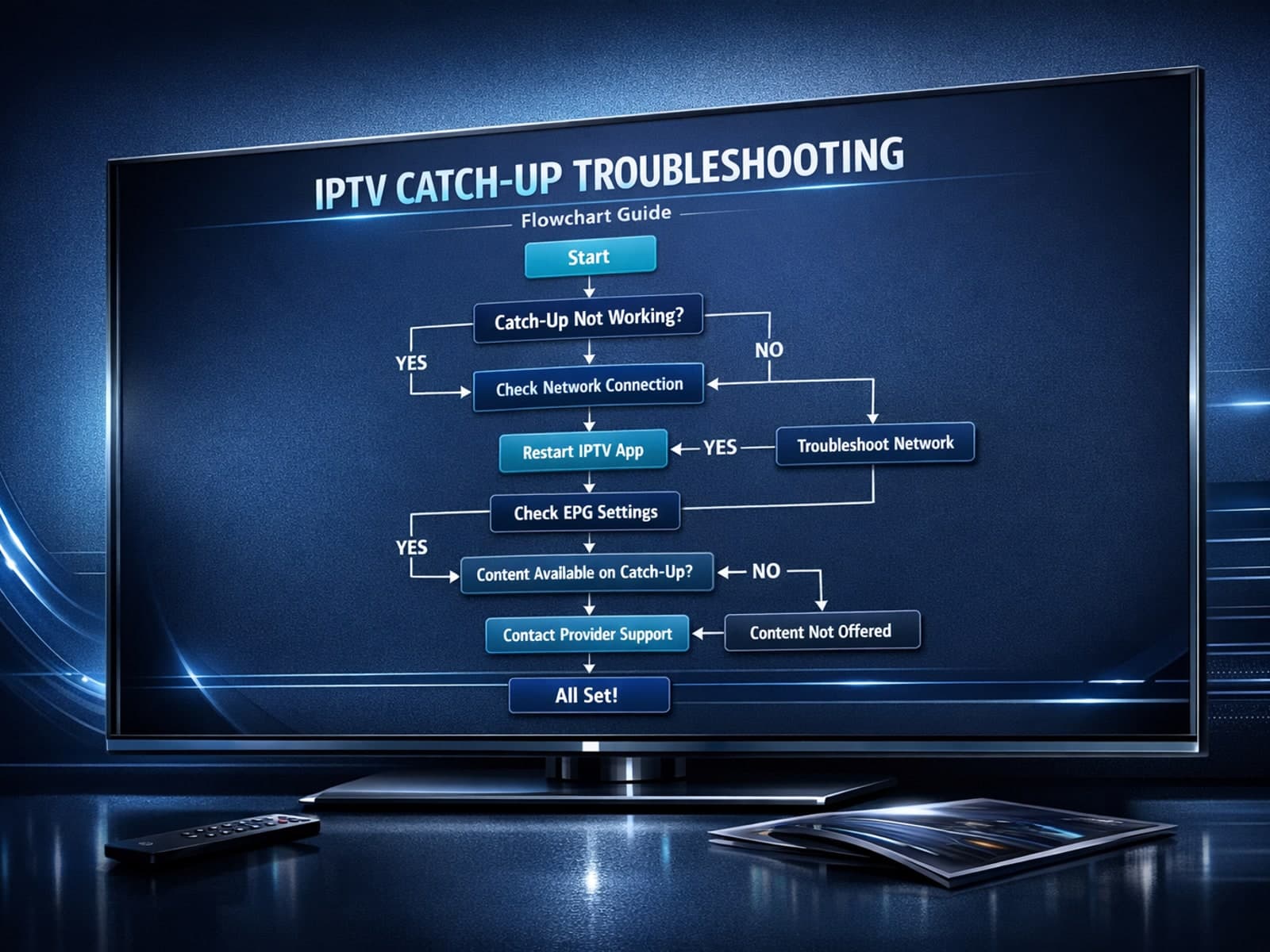
If you use the TiviMate IPTV player, you might occasionally find that the catch-up TV feature isn't working as expected. Catch-up allows you to watch previously aired content on demand, making it a valuable part of your viewing experience.

If you've hit "Refresh" in TiviMate but your IPTV playlist doesn't update, you are not alone. This is a common problem that can stem from multiple causes including network hiccups, playlist URL issues, corrupted cache, or server downtime.
