
IPTV Smarters Invalid Details Error: How to Verify and Fix Login and Server Settings

Quick answer
When using IPTV Smarters, encountering an "Invalid Details" error during login signals that the app cannot validate your user credentials or server information. This prevents access to your IPTV content until fixed. Usually, this error results from mistyped or outdated usernam...
Reviewed Against
• IPTV Smarters login, playlist, and account-entry screens
• Server-URL formatting, HTTP response handling, and account-entry failure patterns
Applies To
• IPTV Smarters sign-in, playlist import, or account-detail errors
• Errors caused by malformed URLs, wrong credentials, expired tokens, or unreachable playlist endpoints
Does not apply when
• The account itself is disabled or expired on the provider side.
• The provider confirms the service is down or the account has been deliberately blocked upstream.
Corroborating Resources
HTTP response status codesUseful when an IPTV app surfaces 401, 403, 404, or 5xx style errors during login or playlist refreshes.
URL structure referenceHelpful for checking server URLs, source links, and path/query mistakes in portal or playlist setups.
Topic Cluster
Part of the IPTV Smarters cluster
Browse practical IPTV articles about IPTV Smarters, including setup choices, troubleshooting paths, and follow-on guides. This page sits in troubleshoot and fix for that topic path.
On this page
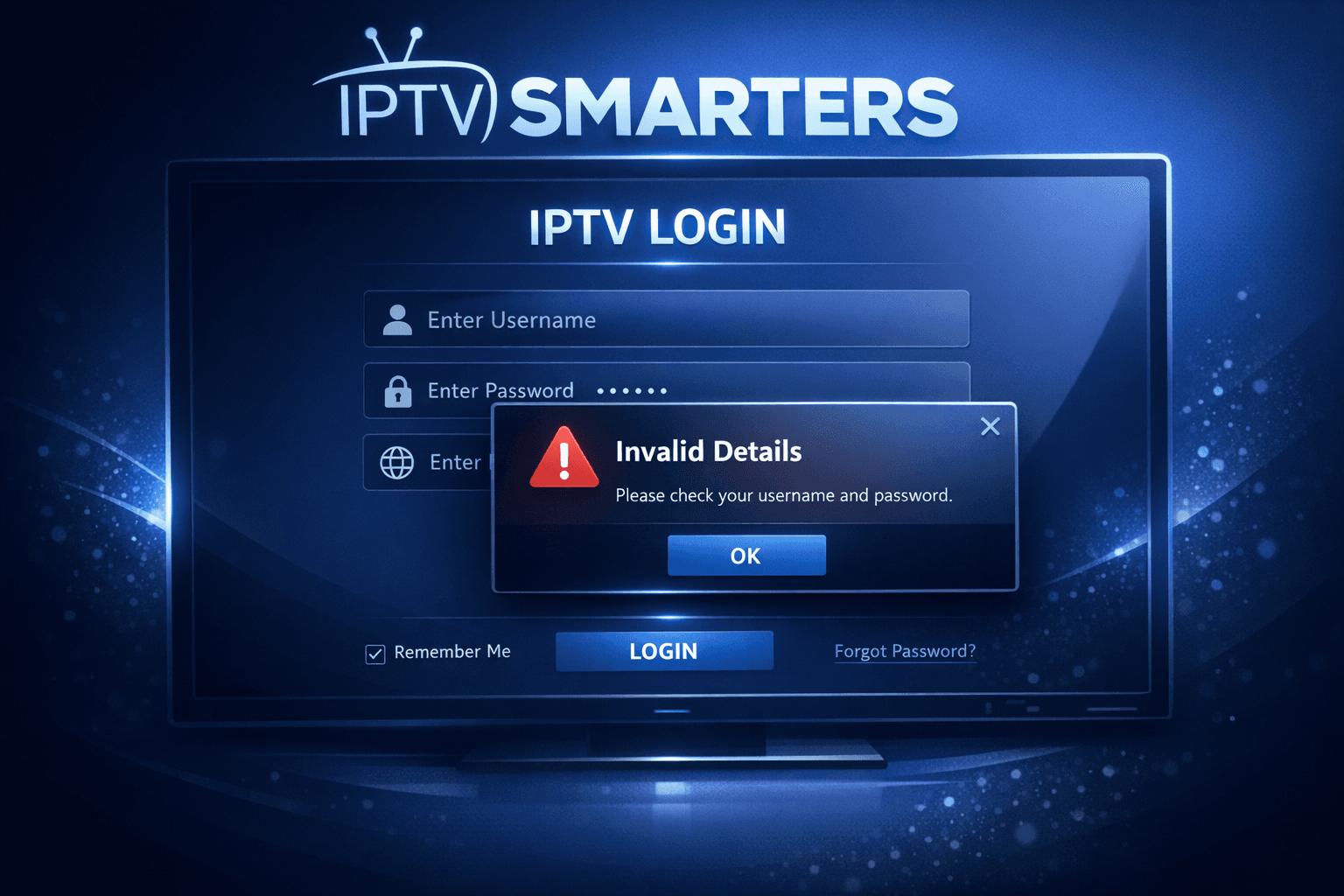
IPTV Smarters Invalid Details Error: How to Verify and Fix Login and Server Settings
When using IPTV Smarters, encountering an "Invalid Details" error during login signals that the app cannot validate your user credentials or server information. This prevents access to your IPTV content until fixed. Usually, this error results from mistyped or outdated username, password, or URL details, or sometimes connectivity or subscription issues.
This article walks you through how to systematically verify and correct your login information and server settings in IPTV Smarters, with step-by-step instructions for resolving the invalid details error.
What you'll learn
- The main reasons IPTV Smarters shows an "Invalid Details" error
- How to verify your IPTV account credentials and subscription status
- Proper input of your username, password, and server URL
- Checking app version and connectivity issues that affect login
- When to contact your IPTV provider or try a different troubleshooting path
Understanding the IPTV Smarters Invalid Details Error
IPTV Smarters relies on accurate account information and server URLs to authenticate your connection and stream IPTV channels. The "Invalid Details" error is an authentication failure message indicating one or more of the following:
- Your username or password is incorrect or has typos
- The server URL (portal) is missing, incorrect, or formatted improperly
- Your IPTV subscription has expired or been deactivated
- There are connectivity problems preventing access to the IPTV server
- The IPTV Smarters app version is outdated or incompatible with the IPTV provider's server
This error usually appears on the login screen after entering account info and attempting to sign in.
How to Correct Username and Password in IPTV Smarters
Step 1: Confirm Your Credentials with the IPTV Provider
Always start by verifying your IPTV account username and password with the official provider or reseller from whom you purchased your subscription. Note exact spelling, capitalization, and no extra spaces.
Step 2: Carefully Enter the Username and Password
- When logging into IPTV Smarters, input the username and password exactly as provided.
- Avoid auto-correct errors or accidental spaces before or after your credentials.
- IPTV Smarters is case sensitive. Ensure you enter uppercase and lowercase letters correctly.
Step 3: Re-enter If Unsure
If you suspect typos, delete and manually re-type your username and password instead of copy-pasting.
Verifying and Correctly Formatting Your Server URL (Portal)
The server URL is critical as it tells IPTV Smarters where to authenticate and get the channel list.
What is a Server URL?
Your IPTV provider gives a web address or portal URL, usually starting with https:// or http://. It points the app to the IPTV streaming server.
Common Server URL Format Mistakes:
- Missing or wrong protocol prefix (http:// vs https://)
- Extra spaces or trailing slashes
- Typing the URL incorrectly
How to Verify Correct URL:
- Use the exact URL provided by your IPTV service.
- Copy and paste carefully into IPTV Smarters.
- Ensure no spaces before, inside, or after the URL.
Example of a valid IPTV Smarters URL:
http://123.45.67.89:8080/get.php
Checking Your IPTV Subscription Status
Why It Matters
Even perfectly entered login details won’t work if your subscription is expired, suspended, or canceled.
How to Check
- Log into your IPTV provider’s web portal or account dashboard.
- Contact their customer support to confirm active status.
If your subscription has expired, your account will be rejected with an "Invalid Details" style error in IPTV Smarters.
Troubleshooting Connection and App Issues
Step 1: Test Internet Connectivity
Make sure your device running IPTV Smarters is online and can access websites or other streaming services.
Step 2: Check for App Updates
An outdated IPTV Smarters app may have bugs or incompatibility with your provider’s server.
- Visit your device's app store
- Check for IPTV Smarters updates and install the latest version
Step 3: Remove and Re-add Your Profile
- Delete the current login profile within IPTV Smarters
- Restart the app
- Add your IPTV account freshly by entering username, password, and URL again
When to Use a Different Troubleshooting Path or Device-Specific Guide
This guide applies mainly to users who log in to IPTV Smarters on:
- Android devices (phones, tablets, Android TV boxes)
- iOS devices (iPhones, iPads)
- Windows PCs using IPTV Smarters Player
If you use a custom IPTV Smarters version or other IPTV apps (like TiviMate or Perfect Player), this guide won't fully apply.
Also, if you see an error related to EPG loading, channel logos, or general buffering unrelated to login credentials, consult targeted articles such as How to Fix Channel Logos Missing in TiviMate.
Common Mistakes Causing Invalid Details Errors
- Typing username or password with wrong characters or letter cases
- Using an expired or inactive IPTV subscription
- Entering the server URL with formatting errors
- Copy-pasting details with invisible spaces
- Not updating IPTV Smarters app
Avoid these to save time and frustration.
Summary Checklist: Confirm These To Fix IPTV Smarters Invalid Details
| Item | Action |
|---|---|
| Username & Password | Verify exact spelling and accuracy |
| Server URL | Confirm correct, full URL with protocol |
| Subscription Status | Ensure active and not expired |
| Device Connectivity | Check internet connection and firewall settings |
| App Version | Update IPTV Smarters to latest release |
Frequently Asked Questions
What causes the 'Invalid Details' error in IPTV Smarters?
It typically means the username, password, or server URL entered are incorrect or the subscription has expired.
Can incorrect URL formatting cause invalid details error?
Yes, even small mistakes like missing prefixes or extra spaces can cause login failures.
Does IPTV Smarters require an active subscription to login?
Yes, you must have an active subscription with valid credentials to access content.
Can app versions cause login issues?
Older app versions might have compatibility problems; updating often helps fix errors.
What should I do if I forget my IPTV login details?
Contact your IPTV service provider to recover or reset your username and password.
Conclusion
The IPTV Smarters "Invalid Details" error is nearly always due to issues with username, password, or server URL entry, or an expired subscription. Carefully verifying each of these elements usually resolves the problem quickly. If problems persist after checking all credentials and your internet connection, updating the app, and re-adding your profile, reach out to your IPTV provider to confirm your subscription and credentials. Following these steps prevents login troubles and keeps your IPTV Smarters viewing uninterrupted.
Step-by-step process
- Confirm your IPTV service credentials and subscription status with your provider.
- Open IPTV Smarters app and navigate to login screen.
- Re-enter your username, password, and service URL exactly as provided, avoiding extra spaces or characters.
- Check your internet connection to ensure connectivity to IPTV servers.
- If error persists, try removing the current user profile and re-adding it fresh.
- Verify that your IPTV subscription is active and supports the credentials you're using.
- Ensure the IPTV Smarters app version is updated to latest release to avoid compatibility issues.
- If all else fails, contact your IPTV provider to confirm your login details and server status.
Keep exploring
More explainers that connect naturally to this setup, workflow, or troubleshooting path.
If your m3u playlist is not loading in IPTV Smarters, this often results from issues with the playlist URL or file, app settings, or network connectivity.

When watching IPTV on your Firestick, the speed and reliability of how your device connects to IPTV servers greatly affect stream quality.
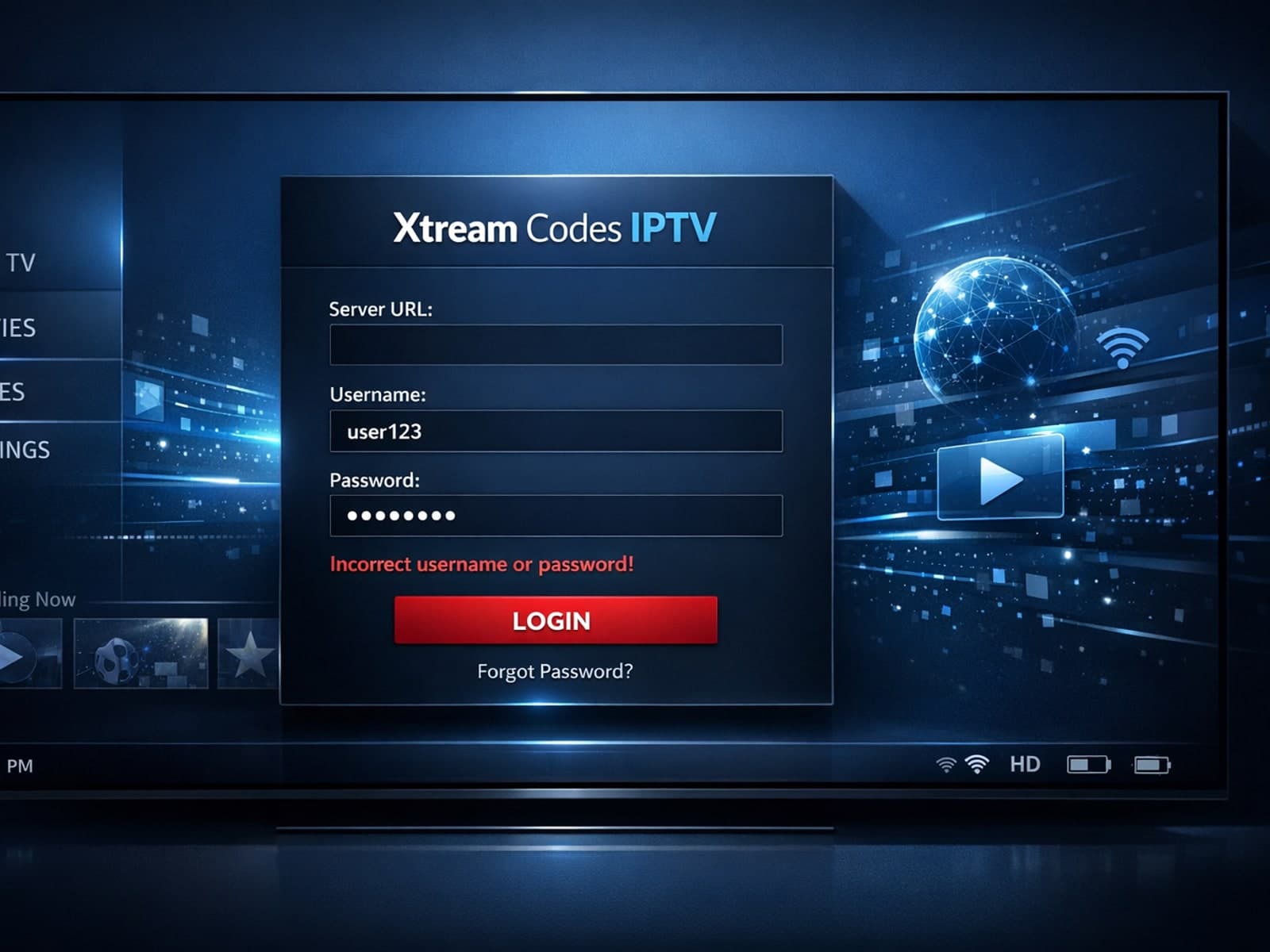
When you encounter an "Xtream Codes username password incorrect" error, it means the IPTV client app is unable to authenticate your login credentials with the server.
