
Best WiFi Settings for IPTV on Fire TV Stick

Quick answer
If you're using a Fire TV Stick to stream IPTV content, optimizing your WiFi settings is key to achieving smooth, high-quality video playback. IPTV streaming requires consistent high bandwidth and low latency, so your wireless network setup can make a noticeable difference in...
Reviewed Against
• Fire TV and Fire OS device capabilities, networking, and storage limits
• Home-network checks such as Wi-Fi strength, Ethernet fallback, DNS changes, congestion, and local storage pressure
Applies To
• Fire TV Stick, Fire TV Cube, and Fire OS playback or networking questions
• Playback problems that change with connection quality, device load, app cache state, or time of day
Does not apply when
• You are troubleshooting a smart-TV app or set-top box with a different hardware and settings path.
• Only one channel, event, or provider-side endpoint is failing while the rest of the service stays stable.
Corroborating Resources
Fire TV device specifications overviewHelpful for checking Fire TV hardware families, platform differences, and device-level constraints.
Fire TV streaming media player specsUseful for codec, storage, Wi-Fi, and Ethernet-adapter expectations on Fire TV sticks and boxes.
Android TV video and game troubleshootingUseful for Wi-Fi, updates, app cache, and playback troubleshooting steps that also mirror IPTV failure paths.
Android TV storage helpHelpful when playback issues point to low storage, cache pressure, or app-data cleanup decisions.
Topic Cluster
Part of the 5 GHz WiFi cluster
Browse practical IPTV articles about 5 GHz WiFi, including setup choices, troubleshooting paths, and follow-on guides. This page sits in devices and network gear for that topic path.
On this page
Best WiFi Settings for IPTV on Fire TV Stick
If you're using a Fire TV Stick to stream IPTV content, optimizing your WiFi settings is key to achieving smooth, high-quality video playback. IPTV streaming requires consistent high bandwidth and low latency, so your wireless network setup can make a noticeable difference in performance. The best WiFi setting for IPTV on Fire TV Stick is to connect via the 5 GHz band, position your router near the device with minimal obstructions, and apply router configuration tweaks such as selecting less congested channels and enabling Quality of Service (QoS). This approach enhances signal strength, reduces interference, and prioritizes IPTV traffic to minimize buffering and lag.
What you'll learn
- Why 5 GHz WiFi is preferable over 2.4 GHz for IPTV on Fire TV Stick
- How to position your router and Fire TV Stick for optimal signal
- Router settings changes that improve IPTV streaming reliability
- How to troubleshoot common WiFi-related IPTV streaming issues
- When to look beyond WiFi for IPTV playback problems
Why Choose the 5 GHz Band for IPTV Streaming
Fire TV Sticks support dual-band WiFi, meaning they can connect to either 2.4 GHz or 5 GHz networks if your router broadcasts both.
Benefits of 5 GHz for IPTV
- Higher Speeds: 5 GHz generally offers faster throughput, helpful for streaming high-definition IPTV.
- Less Interference: The 5 GHz band has fewer competing devices like Bluetooth or microwaves, reducing signal noise.
- More Channels: A greater number of non-overlapping channels helps avoid congestion in dense wireless environments.
Limitations to consider
- Shorter Range: 5 GHz signals don’t penetrate walls as well as 2.4 GHz, so distance and obstructions matter.
Practical tip: If your Fire TV Stick is located near your router or in the same room, 5 GHz is almost always the better choice for IPTV viewing.
Optimizing Router and Fire TV Stick Placement
Physical placement impacts WiFi signal quality and streaming stability.
Steps to improve placement
- Place your WiFi router as close as possible to the Fire TV Stick.
- Avoid physical obstacles like thick walls, metal objects, or large electronic devices between the router and the Fire TV Stick.
- Elevate your router rather than placing it on the floor.
Why it matters
WiFi signals weaken when passing through solid materials, and interference can lead to packet loss degrading IPTV stream quality.
Router Settings to Enhance IPTV Streaming
Many routers include configurable settings that help IPTV performance.
Key settings to check or configure
| Setting | Purpose | Recommendation |
|---|---|---|
| Quality of Service (QoS) | Prioritize IPTV or streaming traffic | Enable QoS and tag Fire TV Stick's MAC address or IPTV ports |
| WiFi Channel Selection | Avoid overlapping WiFi networks | Use a tool to select least congested 5 GHz channel |
| Firmware Updates | Ensure router stability and feature updates | Keep firmware up to date |
How to change these settings
Access your router's web admin using its IP address (commonly 192.168.1.1) and navigate to wireless and QoS sections.
Troubleshooting Common WiFi Issues for IPTV on Fire TV Stick
Even when settings appear correct, problems can occur.
Common Issues and Solutions
- Buffering or lag: Check signal strength on Fire TV Stick by navigating to Settings > Network > Current Network. Weak signals may require moving the router or switching to Ethernet.
- Random disconnects: Restart your router and Fire TV Stick to clear temporary glitches.
- WiFi interference: Change WiFi channel if neighbors use the same channel.
When WiFi optimization isn't enough
If buffering or freezing persist after WiFi tweaks, investigate Fire TV Stick storage limitations or IPTV app settings. See our Fire TV Stick Storage Issues Causing IPTV Lag article for guidance.
Who Benefits Most from This WiFi Guidance?
This advice applies specifically to users with:
- Fire TV Stick or Fire TV Stick 4K using WiFi for IPTV streaming.
- Routers that support dual-band WiFi (both 2.4 GHz and 5 GHz).
If you are using Ethernet with your Fire TV Stick or a different streaming device, consult device-specific guides.
Also, if your IPTV issues stem from the app or subscription, network optimization will have limited impact.
Summary Checklist: Best WiFi Settings for IPTV on Fire TV Stick
| Step | Yes/No | Notes |
|---|---|---|
| Router supports 5 GHz band | Check model specs | |
| Connect Fire TV Stick to 5 GHz | Use Fire TV network settings | |
| Router placed near Fire TV Stick | Aim for minimal physical obstructions | |
| QoS enabled focusing on IPTV | Router admin setup required | |
| WiFi channel optimized | Use WiFi analyzer tools to assist | |
| Router firmware updated | Check router manufacturer website | |
| Perform test streaming after changes | Verify improved playback |
FAQ
Q: Why does 5 GHz WiFi provide a better IPTV experience on Fire TV Stick?
A: The 5 GHz band offers higher speeds and less interference, essential for uninterrupted IPTV streaming, but it is effective mostly when the device is close to the router.
Q: Can physical barriers affect my IPTV streaming on Fire TV Stick?
A: Yes. Walls, furniture, and other obstacles can significantly weaken WiFi signals leading to buffering or dropped streams.
Q: Is Ethernet better than WiFi for Fire TV Stick IPTV streaming?
A: Generally, yes. Ethernet connections offer more consistent speeds and lower latency, though they require additional hardware like an adapter.
Q: What if my Fire TV Stick won’t connect to the 5 GHz network?
A: Ensure your router broadcasts a 5 GHz network, and your Fire TV Stick is within range. Also, confirm the network is not hidden or uses unsupported security settings.
Q: How do I identify the least congested WiFi channel?
A: Use WiFi analyzer apps on smartphones or computers to scan nearby networks and pick channels with fewer users, preferably in the 36-48 or 149-165 range for 5 GHz.
Conclusion
For IPTV streaming on Fire TV Stick, the best WiFi settings combine connecting to the 5 GHz band, strategically placing your router, and tuning router features like QoS and channel selection. These steps help ensure fast, stable wireless connections essential for smooth IPTV playback. While WiFi cannot always match the stability of Ethernet, optimizing these settings minimizes interruptions and enhances your viewing experience. If problems continue after WiFi optimization, consider troubleshooting Fire TV Stick storage or IPTV app issues next.
Leverage this guide to get the most from your Fire TV Stick IPTV streams with a practical approach tailored to your setup.
For further reading, explore our articles on Fire TV Stick Storage Issues Causing IPTV Lag, 5 GHz Band topic, and Buffering topic to deepen your IPTV streaming knowledge.
Step-by-step process
- Check your WiFi router supports dual-band and enable 5 GHz band for your Fire TV Stick connection.
- Place your WiFi router close to your Fire TV Stick with minimal obstructions to strengthen signal.
- Connect Fire TV Stick to the 5 GHz WiFi network instead of 2.4 GHz via its settings menu.
- Adjust your router settings to prioritize IPTV traffic using QoS features if available.
- Reduce interference by changing your WiFi channel to a less congested one using router admin tools.
- Restart your router and Fire TV Stick to apply new settings and refresh connections.
- Test IPTV streaming performance and make further adjustments if buffering or lag persists.
Frequently Asked Questions
Why is the 5 GHz WiFi band better for IPTV on Fire TV Stick?
The 5 GHz band provides faster data speeds and less interference than 2.4 GHz, reducing buffering and improving IPTV streaming quality on Fire TV Stick.
Can WiFi signal interference affect IPTV streaming on Fire TV Stick?
Yes, interference from other wireless devices or thick walls can degrade WiFi signals, causing IPTV streams to buffer or lag on Fire TV Stick.
Should I use a wired Ethernet connection instead of WiFi for IPTV on Fire TV Stick?
A wired Ethernet connection generally offers more stable and faster speeds for IPTV, but if wiring is inconvenient, optimized WiFi settings can still provide good performance.
What router settings help IPTV streaming on Fire TV Stick?
Enabling QoS to prioritize IPTV traffic, selecting a less congested WiFi channel, and ensuring your firmware is updated can improve IPTV streaming on Fire TV Stick.
When should I consider troubleshooting beyond WiFi settings for IPTV issues?
If optimized WiFi settings don’t resolve buffering or lag, consider checking IPTV app configurations, Fire TV Stick storage, or your IPTV service quality.
Keep exploring
More explainers that connect naturally to this setup, workflow, or troubleshooting path.
TiviMate is a popular IPTV player app for Android TV and similar devices, known for its advanced channel management options. Organizing favorites and groups in TiviMate lets you customize your IPTV watching experience by categorizing.

When you switch channels on your IPTV service and the screen freezes or lags, it’s frustrating and disrupts your viewing experience. IPTV freezing during channel switching is most often caused by network delays, buffering, or the IPTV.

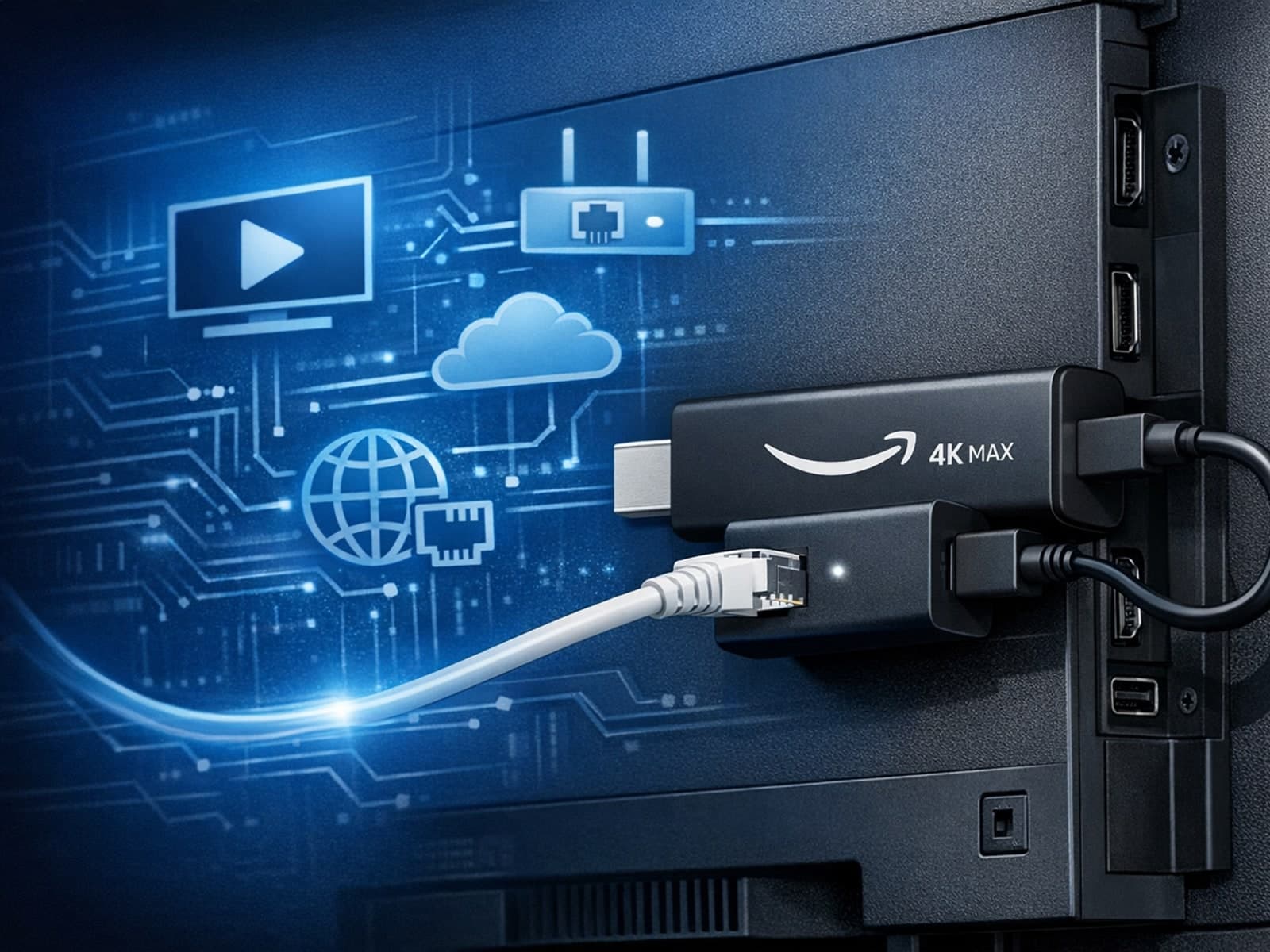
The Amazon Fire TV Stick 4K Max offers a powerful streaming experience with improved hardware and faster Wi-Fi connectivity. However, some users prefer the stability and reliability of a wired Ethernet connection over Wi-Fi.