
Fire TV Stick Storage Issues Causing IPTV Lag

Quick answer
If you are experiencing lag or buffering issues while streaming IPTV on your Fire TV Stick, one common but often overlooked cause is storage limitations on the device. Insufficient free space can slow down app performance, prevent smooth caching of streaming data, and lead to...
Reviewed Against
• Fire TV and Fire OS device capabilities, networking, and storage limits
• Home-network checks such as Wi-Fi strength, Ethernet fallback, DNS changes, congestion, and local storage pressure
Applies To
• Fire TV Stick, Fire TV Cube, and Fire OS playback or networking questions
• Playback problems that change with connection quality, device load, app cache state, or time of day
Does not apply when
• You are troubleshooting a smart-TV app or set-top box with a different hardware and settings path.
• Only one channel, event, or provider-side endpoint is failing while the rest of the service stays stable.
Corroborating Resources
Fire TV device specifications overviewHelpful for checking Fire TV hardware families, platform differences, and device-level constraints.
Fire TV streaming media player specsUseful for codec, storage, Wi-Fi, and Ethernet-adapter expectations on Fire TV sticks and boxes.
Android TV video and game troubleshootingUseful for Wi-Fi, updates, app cache, and playback troubleshooting steps that also mirror IPTV failure paths.
Android TV storage helpHelpful when playback issues point to low storage, cache pressure, or app-data cleanup decisions.
Topic Cluster
Part of the IPTV cluster
Browse practical IPTV articles about IPTV, including setup choices, troubleshooting paths, and follow-on guides. This page sits in troubleshoot and fix for that topic path.
On this page
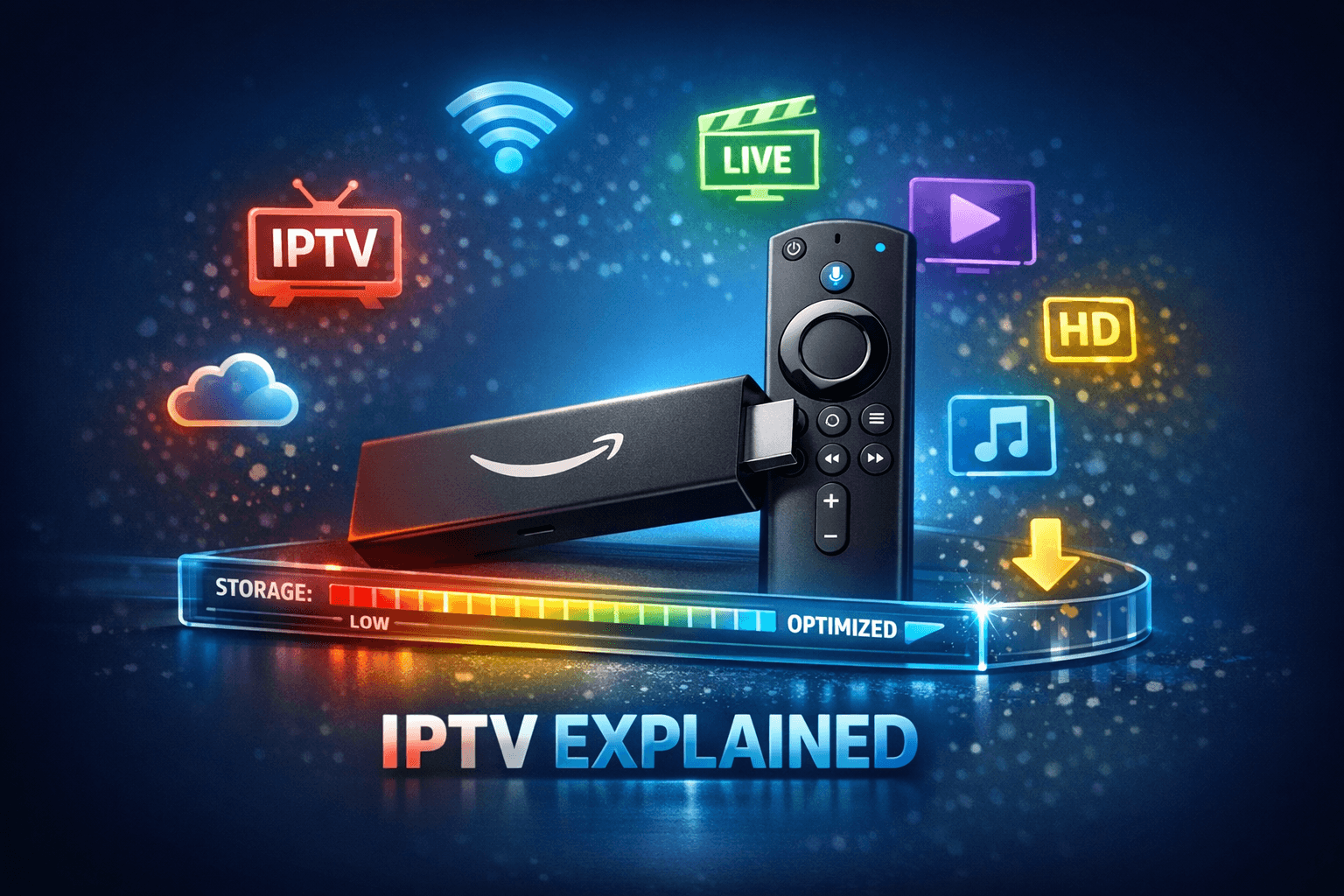
Fire TV Stick Storage Issues Causing IPTV Lag
If you are experiencing lag or buffering issues while streaming IPTV on your Fire TV Stick, one common but often overlooked cause is storage limitations on the device. Insufficient free space can slow down app performance, prevent smooth caching of streaming data, and lead to frustrating interruptions.
This article explains how Fire TV Stick storage issues cause IPTV lag and offers practical steps to identify and fix them. By managing storage effectively, you can improve your IPTV experience and reduce buffering.
What you'll learn
- How to check free storage space on your Fire TV Stick
- The impact of storage limitations on IPTV streaming
- How clearing cache and app data can improve performance
- Best practices for managing apps and storage
- When alternative devices or external storage might be necessary
Understanding Fire TV Stick Storage and IPTV Lag
Your Fire TV Stick has a limited amount of internal storage, often ranging from 8 GB to 16 GB depending on the model. This space is shared by the system, apps (including IPTV apps), cached data, and downloads.
Why Storage Matters for IPTV
IPTV apps buffer and cache parts of the streaming video to provide smooth playback. If the Fire TV Stick does not have enough free storage, the app may struggle to create or manage these cache files, leading to stuttered video or pauses.
Additionally, limited storage can slow down the Fire TV's overall performance because the operating system has less room to manage background processes and temporary files.
How to Check Storage on Your Fire TV Stick
Knowing how much space is free is the starting point in troubleshooting IPTV lag related to storage.
Steps to Check Storage:
- From your Fire TV Stick home screen, select Settings.
- Navigate to My Fire TV or Device & Software.
- Select About.
- Choose Storage. This screen shows how much space is used and free.
If free space is less than 1 GB, storage constraints may be the cause of IPTV lag.
Clearing Cache and Data of IPTV Apps
IPTV apps accumulate cache which can become large and, over time, corrupt or obsolete, impacting streaming smoothness.
How to Clear Cache and Data:
- Open Settings > Applications > Manage Installed Applications.
- Select your IPTV app.
- Click Clear cache to remove temporary files.
- If issues persist, choose Clear data to reset the app (note: this may delete login info).
Clearing cache should be your first attempt since it frees space without affecting app settings.
Uninstalling and Managing Apps to Free Storage
Unused apps and games consume valuable storage.
What to Consider:
- Identify apps you rarely or never use.
- Some apps run background tasks affecting performance even if you don't open them frequently.
How to uninstall:
- Navigate to Settings > Applications > Manage Installed Applications.
- Select the app to remove.
- Choose Uninstall.
Aim to keep at least 1 GB of free space to ensure IPTV apps have room to cache and run smoothly.
When to Restart or Reset Your Fire TV Stick
Restarting the Fire TV Stick clears temporary memory and can resolve lag caused by prolonged uptime or memory fragmentation.
Restarting Steps:
- Long press the Home button and select Settings > My Fire TV > Restart.
If problems continue, consider resetting the device to factory defaults after backing up important data. Resetting is a last resort and can affect all settings and app data.
Using External Storage or Upgrading Device
The Fire TV Stick supports USB OTG adapters with USB drives on some models, which can help with storage-intensive tasks.
External Storage:
- Use external USB drives to store media or expand space for some apps.
- Note this method’s effectiveness varies; not all apps support storing data externally.
Upgrading Device:
- More recent Fire TV models with greater internal storage (like Fire TV Stick 4K Max or Fire TV Cube) reduce storage-related IPTV lag.
Troubleshooting Summary: Who Should Follow This Guide?
This guide applies primarily to:
- Users streaming IPTV on Fire TV Stick models with limited storage (standard 8GB or 8/16 GB variants).
- Those noticing consistent IPTV buffering alongside messages about storage.
Use device-specific troubleshooting if:
- You have an external Fire TV device (e.g., Fire TV Cube) with different hardware.
- Your IPTV lag appears unrelated to storage (e.g., network outages).
Cross-reference with network or IPTV app troubleshooting if storage clearance doesn't help.
Common Mistakes Causing Persistent IPTV Lag
- Ignoring free storage warnings on Fire TV Stick.
- Clearing cache infrequently.
- Running multiple heavy apps simultaneously.
- Not restarting the Fire TV Stick regularly.
Avoid these to maintain good IPTV streaming performance.
FAQ
Q: How much free storage should I keep on Fire TV Stick to avoid IPTV lag?
A: At least 500 MB to 1 GB free helps IPTV apps cache data properly and prevents lag.
Q: Can clearing cache on the Fire TV Stick fix IPTV buffering issues?
A: Yes, clearing cache removes excess temporary files, often smoothing playback.
Q: Does using an external USB drive improve IPTV streaming on Fire TV Stick?
A: External drives can help with storage but won’t fix CPU or network-related issues.
Q: Is IPTV lag always caused by storage issues on Fire TV Stick?
A: No; other factors like Wi-Fi quality or IPTV service issues can cause lag.
Conclusion
Fire TV Stick storage issues often cause IPTV lag by limiting app caching and overall system responsiveness. Regularly checking free space, clearing caches, managing apps, and restarting can help maintain smooth IPTV playback. If storage remains a bottleneck, consider external storage options or upgrading to a Fire TV device with more memory.
Following these focused steps will ensure your IPTV streams on Fire TV Stick remain as lag-free as possible within your device's storage capabilities.
| Troubleshooting Step | Why it Helps | When to Use |
|---|---|---|
| Check Storage | Identifies storage limitations | First step in diagnosing lag |
| Clear Cache & Data | Frees space, removes corrupted files | When lag or buffering happens |
| Uninstall Unused Apps | Frees internal storage | If storage is below 1 GB |
| Restart Fire TV Stick | Clears memory and temp files | When issues persist after clearing storage |
| External Storage or New Device | Expands storage capabilities | For persistent problems despite cleaning |
Consider cross-linking with guides on Best WiFi Settings for IPTV on Fire TV Stick and IPTV Smarters Invalid Details Error: Causes and How to Fix It for network and app-specific troubleshooting.
Frequently Asked Questions
How much free storage should I keep on Fire TV Stick to avoid IPTV lag?
Keeping at least 500 MB to 1 GB free storage helps IPTV apps function smoothly by allowing them to cache and process data properly.
Can clearing cache on the Fire TV Stick fix IPTV buffering issues?
Yes, clearing cache removes temporary files that might be corrupted or excessive, improving IPTV app responsiveness and reducing lag.
Does using an external USB drive improve IPTV streaming on Fire TV Stick?
Using external storage can help by offloading app data or recording content, but it may not eliminate lag if internal storage remains low or CPU is overloaded.
Is IPTV lag always caused by storage issues on Fire TV Stick?
No, IPTV lag can also result from poor network connection or server-side problems; storage is one common cause but not the only one.
Keep exploring
More explainers that connect naturally to this setup, workflow, or troubleshooting path.
TiviMate is a popular IPTV player app for Android TV and similar devices, known for its advanced channel management options. Organizing favorites and groups in TiviMate lets you customize your IPTV watching experience by categorizing.

When you switch channels on your IPTV service and the screen freezes or lags, it’s frustrating and disrupts your viewing experience. IPTV freezing during channel switching is most often caused by network delays, buffering, or the IPTV.

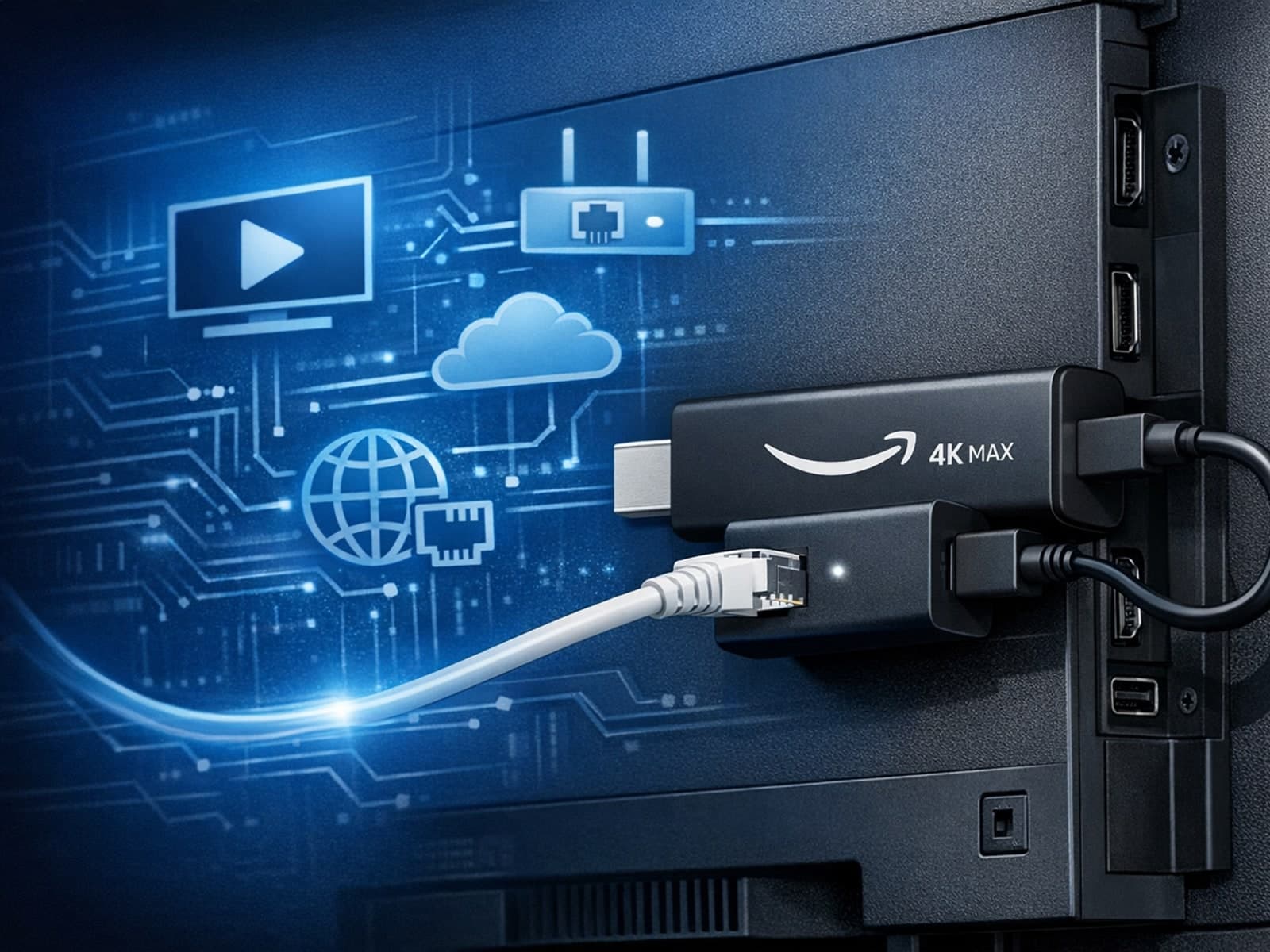
The Amazon Fire TV Stick 4K Max offers a powerful streaming experience with improved hardware and faster Wi-Fi connectivity. However, some users prefer the stability and reliability of a wired Ethernet connection over Wi-Fi.