
Best WiFi Settings for IPTV on Fire TV Stick

Quick answer
When streaming IPTV on a Fire TV Stick, having optimal Wi-Fi settings is crucial to ensure smooth, buffer-free video playback. This article cuts straight to the best configuration practices for Wi-Fi to enhance your IPTV experience on the Fire TV Stick. By focusing on frequenc...
Reviewed Against
• Fire TV and Fire OS device capabilities, networking, and storage limits
• Home-network checks such as Wi-Fi strength, Ethernet fallback, DNS changes, congestion, and local storage pressure
Applies To
• Fire TV Stick, Fire TV Cube, and Fire OS playback or networking questions
• Playback problems that change with connection quality, device load, app cache state, or time of day
Does not apply when
• You are troubleshooting a smart-TV app or set-top box with a different hardware and settings path.
• Only one channel, event, or provider-side endpoint is failing while the rest of the service stays stable.
Corroborating Resources
Fire TV device specifications overviewHelpful for checking Fire TV hardware families, platform differences, and device-level constraints.
Fire TV streaming media player specsUseful for codec, storage, Wi-Fi, and Ethernet-adapter expectations on Fire TV sticks and boxes.
Android TV video and game troubleshootingUseful for Wi-Fi, updates, app cache, and playback troubleshooting steps that also mirror IPTV failure paths.
Android TV storage helpHelpful when playback issues point to low storage, cache pressure, or app-data cleanup decisions.
On this page
Introduction
When streaming IPTV on a Fire TV Stick, having optimal Wi-Fi settings is crucial to ensure smooth, buffer-free video playback. This article cuts straight to the best configuration practices for Wi-Fi to enhance your IPTV experience on the Fire TV Stick. By focusing on frequency band selection, channel settings, security protocols, and physical setup, you can reduce interruptions and maximize streaming quality.
What you'll learn
- Why 5GHz Wi-Fi is preferable for IPTV on Fire TV Stick
- How to select the best Wi-Fi channel to minimize interference
- Security settings that impact IPTV streaming stability
- How physical placement affects Wi-Fi signal strength
- Common issues and mistakes when configuring Wi-Fi for IPTV
Why 5GHz Wi-Fi Is Ideal for IPTV on Fire TV Stick
Wi-Fi routers typically operate on two frequency bands: 2.4GHz and 5GHz. While 2.4GHz covers a larger area and penetrates walls better, it is often crowded due to many devices using this frequency, which causes interference.
Advantages of 5GHz for IPTV
- Higher Speeds: 5GHz supports faster data transfer, which is important for high-quality IPTV streams.
- Less Interference: Fewer devices use 5GHz, leading to a clearer signal and fewer connection drops.
- Lower Latency: IPTV streaming benefits from low latency, which 5GHz can provide due to less congestion.
How to Switch to 5GHz
- Check your router to ensure it supports dual-band Wi-Fi.
- Access your router settings via a web interface.
- Enable the 5GHz band if disabled.
- Use a separate SSID (network name) for 5GHz to easily identify it.
- Connect your Fire TV Stick to the 5GHz network from its Wi-Fi settings.
Selecting the Right Wi-Fi Channel
Even on 5GHz, channels may be crowded. Using the wrong channel can cause interference and degrade IPTV quality.
How to Identify the Best Channel
- Use Wi-Fi Analyzer Apps: These tools show which channels are crowded nearby.
- Select a Less Crowded Channel: Choose channels with minimal neighboring signals.
- Router Auto-Channel Feature: Some routers allow automatic channel selection based on traffic.
Changing Your Wi-Fi Channel
- Log in to your router's management console.
- Navigate to the wireless settings.
- Manually select the channel with the least interference.
- Save changes and restart the router.
Security Settings That Affect IPTV Streaming
Security protocols like WPA2 ensure that your Wi-Fi connection is stable and secure.
Recommended Security Settings
- Use WPA2 Personal encryption to avoid compatibility issues.
- Avoid open or WEP encryption as they reduce speed and security.
- Update router firmware regularly to maintain security and performance.
Optimizing Physical Placement for Strong Wi-Fi Signal
Wi-Fi signal strength depends heavily on the physical position of your router and Fire TV Stick.
Placement Tips
- Place the router in a central location nearer to your Fire TV Stick.
- Avoid obstacles such as walls, metal objects, and microwaves between devices.
- Elevate the router off the floor to reduce interference.
- Keep other wireless devices away from the router to prevent signal disruption.
Common Mistakes and Troubleshooting Wi-Fi Issues
Even with good settings, IPTV streaming can have issues if common pitfalls are overlooked.
Common Mistakes
- Connecting the Fire TV Stick to 2.4GHz instead of 5GHz.
- Using default or crowded Wi-Fi channels.
- Ignoring router firmware updates.
- Incorrect security settings causing intermittent drops.
Basic Troubleshooting Steps
- Restart your router and Fire TV Stick.
- Verify the Fire TV Stick is connected to the 5GHz network.
- Check signal strength in the Fire TV network settings.
- Change Wi-Fi channels if interference is detected.
- Reset network settings on the Fire TV Stick if problems persist.
When to Use a Different Guide
- If you use Ethernet instead of Wi-Fi, this guide doesn't apply.
- If streaming on another device brand or IPTV app, consult device-specific instructions.
- For advanced network setups (mesh Wi-Fi, VLANs), a specialized guide is recommended.
Summary Checklist for Best Wi-Fi Settings
| Task | Recommended Action | Purpose |
|---|---|---|
| Wi-Fi Frequency | Use 5GHz band | Faster speed, less interference |
| Channel Selection | Choose least congested channel | Avoids signal overlap |
| Security | Use WPA2 Personal | Ensures stable and secure access |
| Router Placement | Place centrally, elevated | Maximizes signal strength |
| Device Connection | Connect Fire TV Stick to 5GHz | Utilize higher speeds |
FAQ
Q: Why is 5GHz better than 2.4GHz for IPTV on Fire TV Stick?
A: 5GHz offers faster speeds and less interference, reducing buffering and improving stream quality.
Q: Can I use Wi-Fi extenders to improve IPTV streaming on Fire TV Stick?
A: Extenders can help extend signal range but may introduce latency. Proper placement and testing are essential.
Q: What happens if I use the wrong Wi-Fi channel?
A: It can result in interference, causing IPTV streaming to buffer or disconnect frequently.
Conclusion
Optimizing Wi-Fi settings on your Fire TV Stick specifically for IPTV streaming means prioritizing the 5GHz band, carefully selecting Wi-Fi channels, ensuring proper encryption, and placing your equipment to maximize signal strength. These focused steps significantly reduce buffering and interruptions, improving your IPTV viewing experience without expensive hardware upgrades. Follow the outlined steps and troubleshooting tips to tune your network effectively for IPTV streaming on Fire TV Stick.
Frequently Asked Questions
Why is 5GHz better than 2.4GHz for IPTV on Fire TV Stick?
5GHz offers faster speeds and less interference than 2.4GHz, which helps prevent IPTV buffering and stream stalling on Fire TV Stick.
Can I use WiFi extenders to improve IPTV streaming on Fire TV Stick?
WiFi extenders can help if the router signal is weak, but they may introduce latency or reduce speed, so place them carefully and test performance.
What happens if I use the wrong WiFi channel?
Using a congested WiFi channel causes interference and poorer IPTV streaming quality, leading to buffering and interruptions.
Related guides on IPTV Explained
Keep exploring
More explainers that connect naturally to this setup, workflow, or troubleshooting path.
TiviMate is a popular IPTV player app for Android TV and similar devices, known for its advanced channel management options. Organizing favorites and groups in TiviMate lets you customize your IPTV watching experience by categorizing.

When you switch channels on your IPTV service and the screen freezes or lags, it’s frustrating and disrupts your viewing experience. IPTV freezing during channel switching is most often caused by network delays, buffering, or the IPTV.

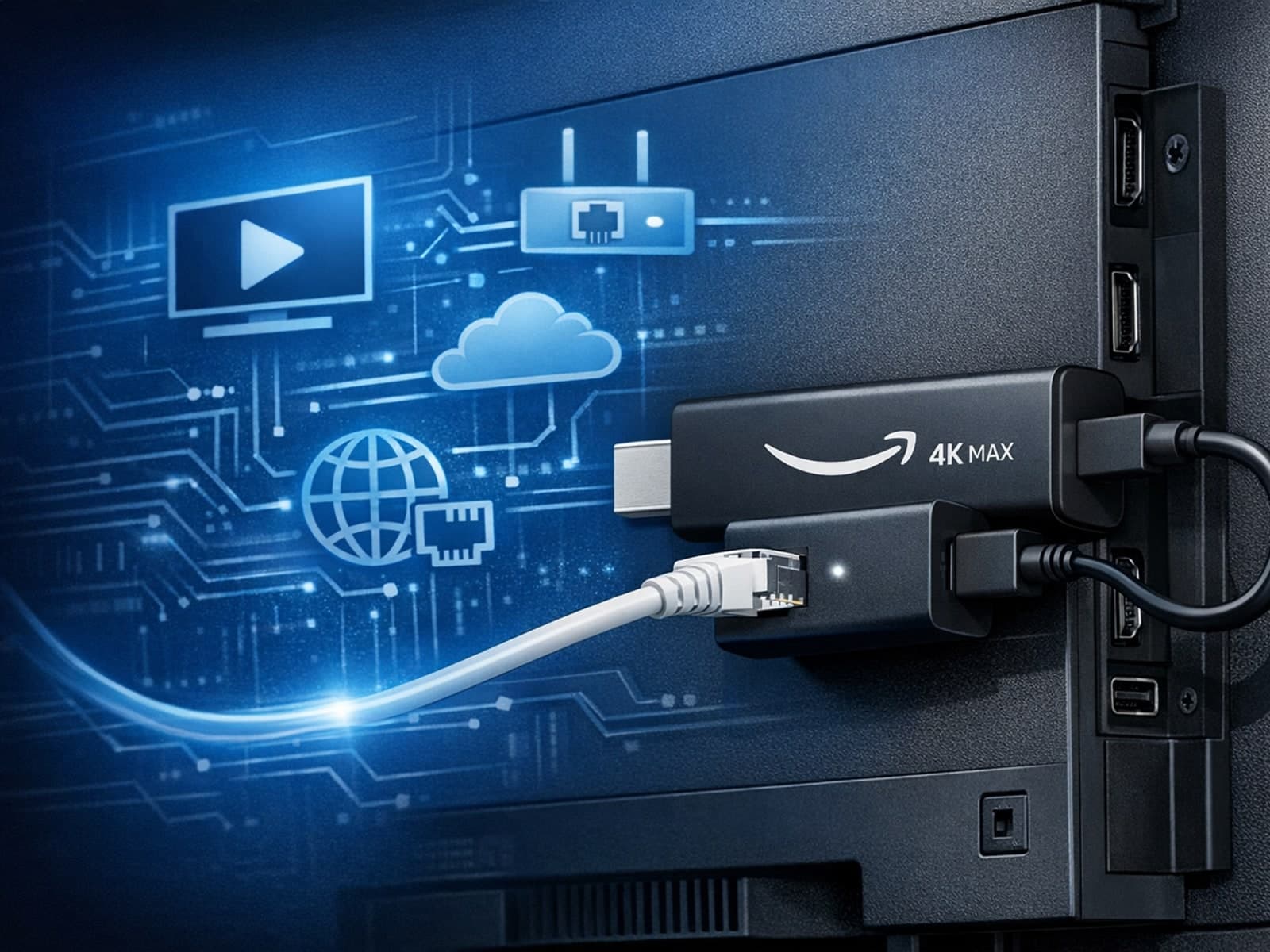
The Amazon Fire TV Stick 4K Max offers a powerful streaming experience with improved hardware and faster Wi-Fi connectivity. However, some users prefer the stability and reliability of a wired Ethernet connection over Wi-Fi.