
Fire TV Cube vs Fire TV Stick 4K Max for IPTV Streaming

Quick answer
When choosing between the Fire TV Cube and the Fire TV Stick 4K Max for IPTV streaming, both devices can deliver excellent results, but they differ in design, connectivity, and user experience. The Fire TV Stick 4K Max is a compact, powerful streaming stick that supports smoot...
Reviewed Against
• Fire TV and Fire OS device capabilities, networking, and storage limits
Applies To
• Fire TV Stick, Fire TV Cube, and Fire OS playback or networking questions
Does not apply when
• You are troubleshooting a smart-TV app or set-top box with a different hardware and settings path.
Corroborating Resources
Fire TV device specifications overviewHelpful for checking Fire TV hardware families, platform differences, and device-level constraints.
Fire TV streaming media player specsUseful for codec, storage, Wi-Fi, and Ethernet-adapter expectations on Fire TV sticks and boxes.
Topic Cluster
Part of the Fire TV cluster
Browse practical IPTV articles about Fire TV, including setup choices, troubleshooting paths, and follow-on guides. This page sits in compare options for that topic path.
On this page
Fire TV Cube vs Fire TV Stick 4K Max for IPTV Streaming
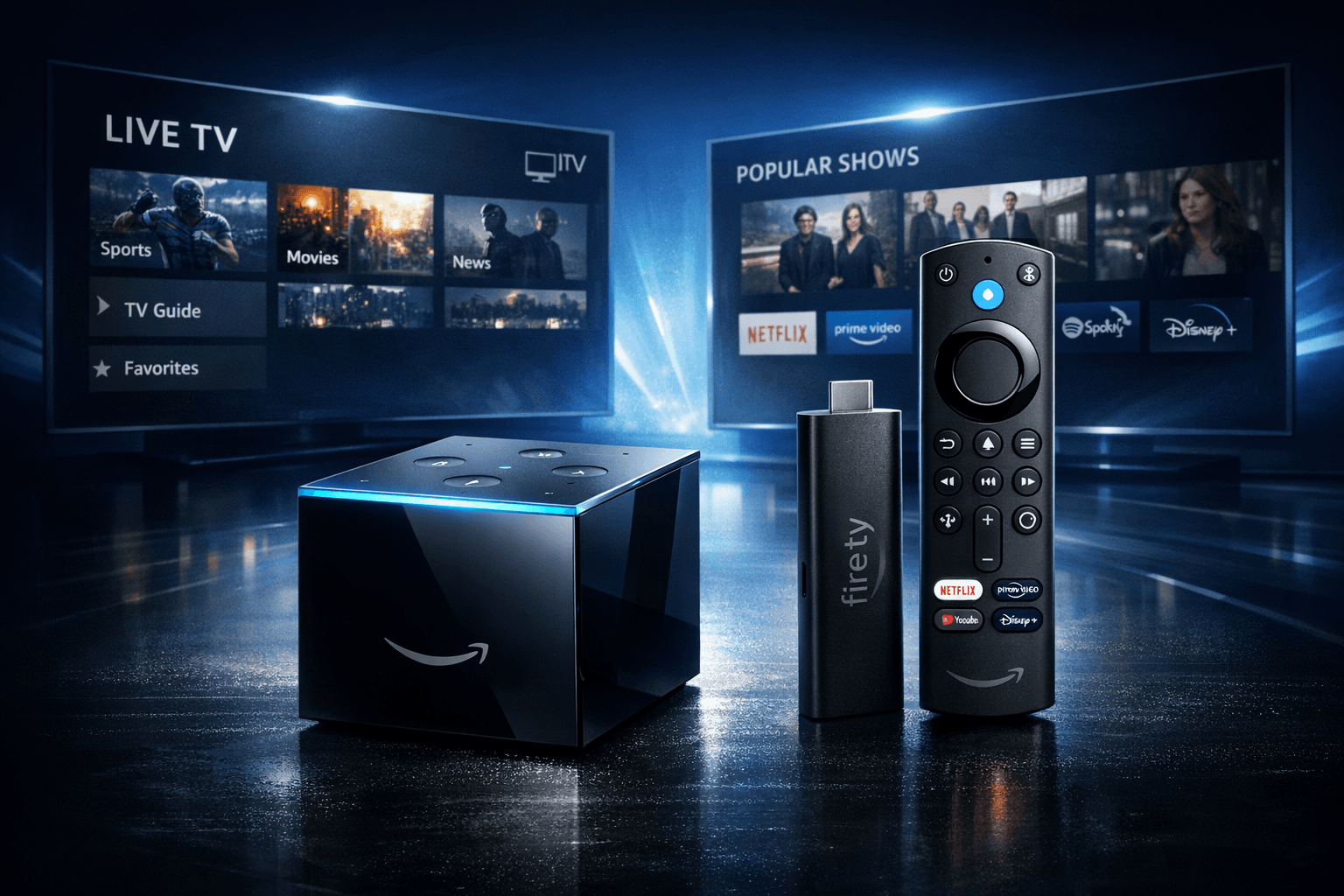
When choosing between the Fire TV Cube and the Fire TV Stick 4K Max for IPTV streaming, both devices can deliver excellent results, but they differ in design, connectivity, and user experience. The Fire TV Stick 4K Max is a compact, powerful streaming stick that supports smooth 4K playback and quick app launching, making it ideal for users seeking straightforward IPTV use. The Fire TV Cube combines streaming with hands-free Alexa voice control, featuring a more robust processor and Ethernet support, which can improve IPTV stability and navigation. Your choice depends on whether you prioritize voice control and wired networking or prefer a smaller, cost-effective stick.
What you'll learn
- Key hardware and feature differences between Fire TV Cube and Fire TV Stick 4K Max
- How these affect IPTV app performance and usability
- Setup considerations for each device
- Network connectivity impacts on IPTV streaming
- Troubleshooting and common mistakes specific to each device
Understanding Device Hardware and Performance
Fire TV Stick 4K Max Overview
The Fire TV Stick 4K Max is powered by a 1.8 GHz quad-core processor and includes 2 GB of RAM, offering responsive navigation and swift app loading times. It supports 4K Ultra HD streaming with Dolby Vision, HDR10+, and Dolby Atmos.
Fire TV Cube Overview
The Fire TV Cube combines a Hexa-core processor, 3 GB RAM, and a built-in microphone array enabling voice commands without remote control. It supports the same 4K formats as the Stick 4K Max but adds Ethernet support via an adapter, helping reduce Wi-Fi fluctuations common in IPTV.
IPTV Performance Implications
Both devices can handle IPTV apps like TiviMate or IPTV Smarters for 4K streams. The Cube's stronger processor and extra RAM may provide smoother multitasking or faster channel switching. However, for standard IPTV use, the Stick 4K Max's performance is generally sufficient.
Connectivity and Setup for IPTV
Network Connections
- Fire TV Stick 4K Max: Connects via dual-band Wi-Fi (2.4 GHz / 5 GHz). Does not have a native Ethernet port; Ethernet requires a compatible USB adapter.
- Fire TV Cube: Supports dual-band Wi-Fi and can use an Ethernet adapter for direct wired connection, reducing latency and buffering risks for IPTV.
Setup Steps for IPTV
- Plug the device into your TV HDMI port.
- Power on and follow on-screen Wi-Fi or Ethernet setup.
- Enter your Amazon account details.
- Download and install your preferred IPTV app from the Amazon Appstore.
- Add your IPTV service credentials or playlist.
- Test streaming channels for quality and buffering.
The Cube's voice remote and far-field microphones also enable hands-free Alexa commands to open IPTV apps or control playback, which can save time navigating channels.
User Experience and Control
Navigating IPTV Apps
Both devices use the Fire TV remote with directional and selection buttons. The 4K Max Stick remote supports Alexa voice commands via button press. In contrast, the Cube allows wake-word "Alexa" commands without remote interaction.
Voice Control Impact
Voice control accelerates channel switching and app launching, especially for users with extensive IPTV playlists. The Cube's always-listening microphones make this more convenient and natural compared to pressing buttons.
Physical Design and Placement
- Stick 4K Max: Small and plugs directly into the TV. Easy to hide but requires remote or voice button press.
- Cube: Larger device that sits next to the TV, doubles as a smart speaker, and supports more natural voice interactions.
Troubleshooting IPTV Streaming on Fire TV Devices
Common Issues
- Buffering or lag: Often related to network strength or app caching.
- App crashes or freezes: Could be caused by insufficient memory or outdated apps.
- No sound or video: Check TV HDMI input settings and app permissions.
Device-Specific Tips
- Stick 4K Max: Consider upgrading to 5 GHz Wi-Fi for reduced interference. Use a high-quality USB power adapter to avoid performance dips.
- Cube: Use Ethernet connection via adapter to stabilize IPTV streams. Make sure Alexa device setup does not interfere with app controls.
When to Switch Troubleshooting Paths
If IPTV issues persist after device-specific troubleshooting, check your IPTV service settings or consult app-focused guides. For example, troubleshooting channel logos missing in TiviMate or playlist update problems will require app-specific actions beyond Fire TV device fixes.
Quick Comparison Table
| Feature | Fire TV Cube | Fire TV Stick 4K Max |
|---|---|---|
| Processor | Hexa-core (2.2 GHz + 1.9 GHz) | Quad-core (1.8 GHz) |
| RAM | 3 GB | 2 GB |
| Voice Control | Hands-free Alexa (wake word) | Alexa via remote button press |
| Ethernet Support | Yes (via adapter) | No native support |
| Size & Placement | Cube device, external | Compact stick, behind TV |
| Ideal For | Advanced setups needing wired connection and voice control | Cost-conscious users wanting solid 4K IPTV streaming |
Who Should Consider Which Device?
- Choose Fire TV Cube if you want hands-free Alexa control, a more powerful processor, and prefer stable Ethernet connectivity for IPTV.
- Choose Fire TV Stick 4K Max if you want a small, easy-to-install device with excellent video support and are fine with Wi-Fi-only networking and button-press voice commands.
If your IPTV use involves advanced tweaks like multiple simultaneous streams or extends beyond basic needs, Fire TV Cube’s hardware benefits become more relevant.
FAQ
Can both devices install all IPTV apps?
Yes, both support the Amazon Appstore’s IPTV apps like TiviMate and IPTV Smarters.
Does the Cube’s Ethernet support improve IPTV stream stability?
Yes, a wired connection reduces buffering caused by Wi-Fi interference.
Is the difference in processor noticeable for IPTV?
For basic streaming, both work well. The Cube handles multitasking and recent apps more smoothly.
Do I need to use Alexa with IPTV apps?
No, voice control is optional. You can navigate IPTV entirely with the remote.
Which device is easier to update for IPTV?
Both update apps via the Fire OS app store similarly; no significant difference.
Fire TV Cube and Fire TV Stick 4K Max offer solid IPTV streaming experiences tailored to different user preferences. Selecting between them depends chiefly on the importance of voice control and network connectivity. Both devices can run popular IPTV apps well, but choosing the Cube may yield a smoother, more integrated experience if hands-free control and Ethernet are priorities. Conversely, the Fire TV Stick 4K Max delivers excellent value and performance in a compact package suitable for most IPTV viewers.
| Step | Action |
|---|---|
| 1 | Connect device to TV HDMI port |
| 2 | Set up network (Wi-Fi or Ethernet) |
| 3 | Register Amazon account |
| 4 | Install IPTV app |
| 5 | Enter IPTV playlist/service login |
| 6 | Test channels for streaming quality |
| 7 | Configure voice control (Cube only) |
| 8 | Adjust device settings for optimal IPTV |
Related guides on IPTV Explained
Keep exploring
More explainers that connect naturally to this setup, workflow, or troubleshooting path.
TiviMate is a popular IPTV player app for Android TV and similar devices, known for its advanced channel management options. Organizing favorites and groups in TiviMate lets you customize your IPTV watching experience by categorizing.

When you switch channels on your IPTV service and the screen freezes or lags, it’s frustrating and disrupts your viewing experience. IPTV freezing during channel switching is most often caused by network delays, buffering, or the IPTV.

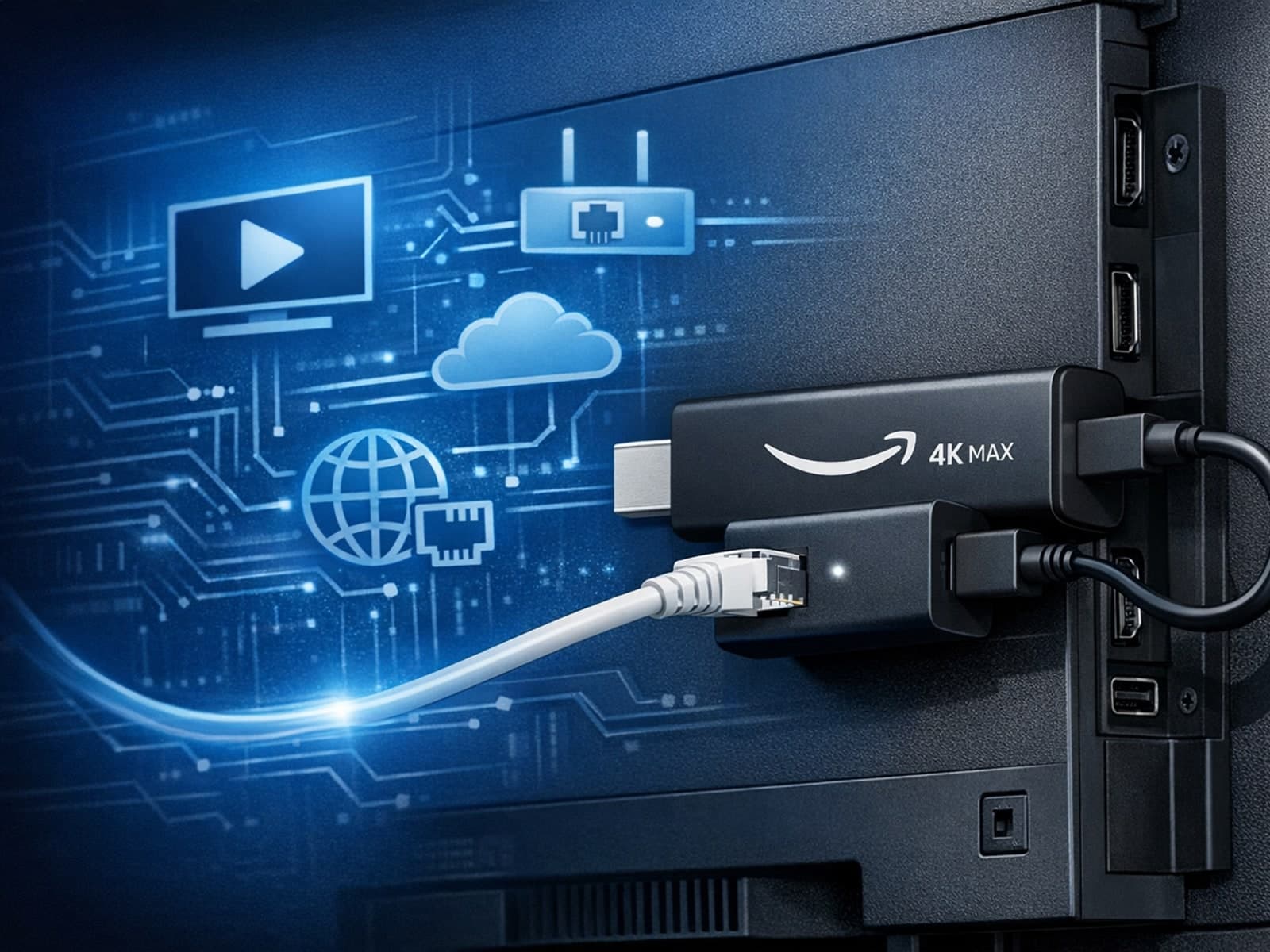
The Amazon Fire TV Stick 4K Max offers a powerful streaming experience with improved hardware and faster Wi-Fi connectivity. However, some users prefer the stability and reliability of a wired Ethernet connection over Wi-Fi.