
IPTV Smarters Invalid Details Error: Causes and How to Fix It

Quick answer
If you encounter the "Invalid Details" error message when trying to log into the IPTV Smarters app, it means the app is unable to authenticate your credentials against the IPTV service. This error is specific to the login step where the app checks your username, password, and...
Reviewed Against
• IPTV Smarters login, playlist, and account-entry screens
• Server-URL formatting, HTTP response handling, and account-entry failure patterns
Applies To
• IPTV Smarters sign-in, playlist import, or account-detail errors
• Errors caused by malformed URLs, wrong credentials, expired tokens, or unreachable playlist endpoints
Does not apply when
• The account itself is disabled or expired on the provider side.
• The provider confirms the service is down or the account has been deliberately blocked upstream.
Corroborating Resources
HTTP response status codesUseful when an IPTV app surfaces 401, 403, 404, or 5xx style errors during login or playlist refreshes.
URL structure referenceHelpful for checking server URLs, source links, and path/query mistakes in portal or playlist setups.
Topic Cluster
Part of the IPTV Smarters cluster
Browse practical IPTV articles about IPTV Smarters, including setup choices, troubleshooting paths, and follow-on guides. This page sits in troubleshoot and fix for that topic path.
On this page
IPTV Smarters Invalid Details Error: Causes and How to Fix It
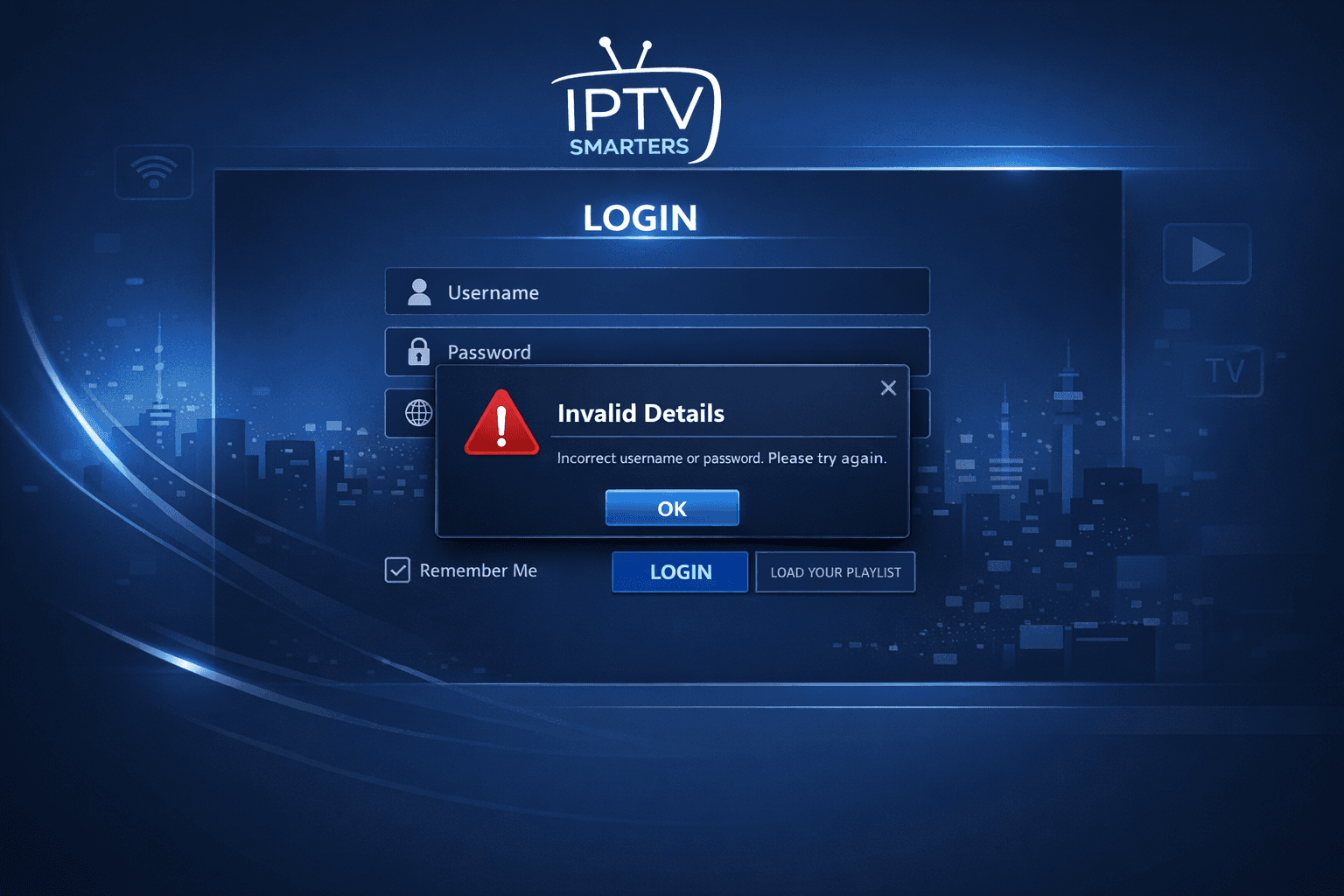
If you encounter the "Invalid Details" error message when trying to log into the IPTV Smarters app, it means the app is unable to authenticate your credentials against the IPTV service. This error is specific to the login step where the app checks your username, password, and server or portal URL.
Resolving this requires verifying the accuracy of your login information and your subscription status with your IPTV provider. Incorrect credentials or expired accounts are the most common culprits. This guide breaks down precise steps to fix the problem.
What you'll learn
- What exactly causes the "Invalid Details" error in IPTV Smarters
- How to check and correct your username and password
- Why your subscription status matters and how to verify it
- How to confirm the correct server or portal URL
- When and how to clear cache and update the app
- Who this troubleshooting advice applies to and when to try device-specific guides
- Common mistakes that lead to login errors and how to avoid them
Understanding the "Invalid Details" Error in IPTV Smarters
The "Invalid Details" error occurs during the login authentication phase inside IPTV Smarters. IPTV Smarters requires three pieces of input when adding a new service:
- Username: Assigned by your IPTV provider.
- Password: Associated with your username.
- Server URL or portal address: The web address to the IPTV service, sometimes called a portal URL or server endpoint.
If any of these are incorrect, the app cannot verify you as a valid user, and it will show this error.
Why does this happen? Some common scenarios are:
- Typing mistakes in username or password
- Copy-paste errors that include extra spaces
- Incorrect or outdated server URL
- Subscription expiration or cancellation
- Temporary IPTV server outages or changes
An invalid details error is different from connection errors or authorization token failures tied to apps that use other login protocols.
Step 1: Verify Your IPTV Smarters Username and Password
Start with the basics. Double-check your username and password:
- Avoid extra spaces: When copying and pasting, sometimes invisible spaces get added.
- Check letter case: Credentials may be case-sensitive.
- Confirm characters: Some characters like zero (0) and letter O or one (1) and letter l look similar.
How to double-check credentials:
- Refer to the welcome email or message from your IPTV provider where your username and password were issued.
- Use a simple text editor to paste your credentials and review for spaces.
- Try typing manually instead of copy-pasting.
If you cannot locate your credentials, contact your IPTV provider’s support for confirmation or reset.
Step 2: Confirm Your Subscription Status
Checking your subscription status is crucial. Even if credentials are correct, an expired or inactive subscription will trigger invalid login.
- Access your IPTV provider's dashboard or website if available.
- Verify the current expiration or renewal date.
- Look for any messages about suspension or payment issues.
If your subscription has expired, payment or renewal is needed before IPTV Smarters will accept your login.
Step 3: Check the Server URL or Portal Address
The server URL or portal address directs the app where to authenticate your credentials and stream content.
- Confirm the URL with your IPTV provider’s instructions.
- Ensure it is entered correctly without typos or trailing slashes unless specified.
- Avoid mixing HTTP and HTTPS protocols unless your provider specifies one.
Incorrect or outdated URLs will prevent successful login.
Common mistakes include:
- Missing 'http://' or 'https://'
- Using old portal links after provider updates
- Inserting a playlist or portal URL from a different service
Step 4: Clear Cache and Data for IPTV Smarters
Sometimes login attempt data can become corrupted in the app’s cache or stored data, causing persistent errors.
How to clear cache and data on Android devices:
- Open your device's Settings.
- Navigate to Apps or Application Manager.
- Find and select IPTV Smarters.
- Tap Storage & Cache.
- Select Clear Cache first.
- If problems persist, choose Clear Storage/Data (note this will remove your saved settings and credentials).
- Relaunch the app and re-enter your login details carefully.
Clearing cache can also help if the app was updated and internal data was incompatible.
Step 5: Update IPTV Smarters and Test on Another Device
Using an outdated app version can cause incompatibility with server authentication.
- Check your device's app store for updates.
- Download and install the latest IPTV Smarters version.
If the error persists after updating:
- Try logging in with the same details on a different device (another phone, tablet, or smart TV). This helps isolate whether the issue is device- or account-related.
When This Guide Applies and When to Try Other Resources
This guidance focuses strictly on the IPTV Smarters app login "Invalid Details" error.
- It applies to IPTV Smarters app users who sign in with username, password, and portal URL credentials.
- It does not cover errors related to other login methods like M3U playlists, Xtream Codes API, or token-based authentications.
- For device-specific issues (e.g., Fire TV Stick, Android TV Box), additional device troubleshooting may be needed, such as network checks or app reinstall.
- If you see authorization errors that include error codes or different phrasing, consult our Authorization Error topic.
Common Mistakes Causing "Invalid Details" Errors
- Typos and copy-paste errors in username or password
- Using expired or canceled subscriptions
- Entering an incorrect server or portal URL
- Trying credentials for a different IPTV service
- Not updating the IPTV Smarters app regularly
- Ignoring app cache or data corruption
By avoiding these mistakes, most login problems can be resolved quickly.
Frequently Asked Questions
What does the "Invalid Details" error mean in IPTV Smarters?
It indicates that one or more of your login credentials or server information are incorrect or not recognized by the IPTV service.
Can a subscription expire cause this error?
Yes, if your subscription is inactive or expired, IPTV Smarters will not accept your login details, resulting in the error.
Is clearing cache helpful for the invalid details error?
Clearing the app cache can remove corrupted data that may interfere with login verification, sometimes resolving the issue.
Will updating IPTV Smarters fix the invalid details error?
Sometimes app updates fix bugs related to login processing, so it's recommended to keep IPTV Smarters updated.
Conclusion
The IPTV Smarters "Invalid Details" error primarily signals an issue with your login credentials or connection to your IPTV service's server. By carefully verifying your username, password, subscription status, and server URL, then clearing app cache and updating IPTV Smarters, you can resolve the issue in most cases. If problems persist, testing on a different device or contacting your IPTV provider is the best next step.
This methodical approach helps keep your IPTV Smarters login smooth and uninterrupted.
Quick Checklist to Fix "Invalid Details" Error
| Step | Action | Notes |
|---|---|---|
| 1 | Check username & password | Avoid spaces & case errors |
| 2 | Confirm subscription status | Ensure it is active and paid |
| 3 | Verify server URL | Correct & current portal/endpoint address |
| 4 | Clear app cache and data | Removes corrupt login data |
| 5 | Update IPTV Smarters app | Use latest app version |
| 6 | Test on another device | Isolate device vs. account issue |
| 7 | Contact IPTV provider support | When all else fails |
This checklist summarizes the targeted, step-by-step fixes for the IPTV Smarters Invalid Details error.
Related Reading
For deeper troubleshooting on related errors and IPTV configuration, see:
- Authorization Error topic
- Cache Clearing topic
- When Xtream Codes Works Better Than M3U for IPTV Streaming
- TiviMate Playlist Not Updating After Refresh: Causes and Fixes
These resources complement this guide with practical troubleshooting strategies.
Keep exploring
More explainers that connect naturally to this setup, workflow, or troubleshooting path.
When you see the "Xtream Codes authorization failed" message on TiviMate, it means the app currently cannot verify your IPTV login credentials with the IPTV provider’s server. This prevents access to the channel list or streaming content.

When your M3U playlist fails to load in IPTV Smarters, it usually means the app cannot retrieve or read the playlist file correctly. This stops your channels from appearing and prevents streaming.

If the catch-up feature in your TiviMate IPTV player is not working, the cause usually lies in playlist compatibility, EPG (Electronic Program Guide) data issues, or app configuration problems.