
Best WiFi Settings for IPTV on Fire TV Stick

Quick answer
For streaming IPTV smoothly on your Fire TV Stick, fine-tuning your WiFi settings can drastically improve playback quality, reduce buffering, and prevent connection drops. The best WiFi configuration focuses on maximizing signal speed and stability while minimizing interferenc...
Reviewed Against
• Fire TV and Fire OS device capabilities, networking, and storage limits
• Home-network checks such as Wi-Fi strength, Ethernet fallback, DNS changes, congestion, and local storage pressure
Applies To
• Fire TV Stick, Fire TV Cube, and Fire OS playback or networking questions
• Playback problems that change with connection quality, device load, app cache state, or time of day
Does not apply when
• You are troubleshooting a smart-TV app or set-top box with a different hardware and settings path.
• Only one channel, event, or provider-side endpoint is failing while the rest of the service stays stable.
Corroborating Resources
Fire TV device specifications overviewHelpful for checking Fire TV hardware families, platform differences, and device-level constraints.
Fire TV streaming media player specsUseful for codec, storage, Wi-Fi, and Ethernet-adapter expectations on Fire TV sticks and boxes.
Android TV video and game troubleshootingUseful for Wi-Fi, updates, app cache, and playback troubleshooting steps that also mirror IPTV failure paths.
Android TV storage helpHelpful when playback issues point to low storage, cache pressure, or app-data cleanup decisions.
Topic Cluster
Part of the 5 GHz WiFi cluster
Browse practical IPTV articles about 5 GHz WiFi, including setup choices, troubleshooting paths, and follow-on guides. This page sits in devices and network gear for that topic path.
On this page
Best WiFi Settings for IPTV on Fire TV Stick
For streaming IPTV smoothly on your Fire TV Stick, fine-tuning your WiFi settings can drastically improve playback quality, reduce buffering, and prevent connection drops. The best WiFi configuration focuses on maximizing signal speed and stability while minimizing interference. Typically, using the 5 GHz band WiFi, selecting an optimal channel, and setting a fixed IP address paired with router-level Quality of Service (QoS) yield the best IPTV experience.
Whether you're an informed beginner or intermediate user, this guide explains practical WiFi settings tailored specifically for IPTV on Fire TV Stick, helping you unlock a more reliable streaming setup.
What you'll learn
- Why 5 GHz WiFi is preferred over 2.4 GHz for IPTV on Fire TV Stick.
- How to assign a fixed IP address to your Fire TV Stick.
- Ways to select the optimal WiFi channel and reduce interference.
- The role of Quality of Service (QoS) in prioritizing IPTV traffic.
- Common mistakes to avoid in WiFi setup for IPTV.
Why Choose 5 GHz WiFi for IPTV on Fire TV Stick?
Understanding WiFi Bands
WiFi routers typically broadcast on two frequency bands: 2.4 GHz and 5 GHz. The 2.4 GHz band has broader coverage but is more crowded with interference from other devices (like microwaves, Bluetooth devices, baby monitors) and neighboring WiFi networks. The 5 GHz band offers higher data throughput and less interference but a shorter effective range.
Benefits of 5 GHz for IPTV:
- Higher Speeds: Streaming IPTV requires steady bandwidth; 5 GHz supports faster data rates, reducing lag during live TV or VOD.
- Less Interference: Many household devices only use 2.4 GHz; using 5 GHz avoids this congestion.
- Lower Latency: Important for live IPTV where stream delay impacts viewing experience.
How to select 5 GHz on Fire TV Stick:
- On your Fire TV Stick, go to Settings > Network.
- Choose your 5 GHz SSID (network name) if listed alongside a 2.4 GHz network.
- Connect to it and verify connection speed in the network details.
If your router uses a single SSID for both bands, consider splitting them to separate 2.4 GHz and 5 GHz WiFi names for easier selection.
Assigning a Fixed IP Address to Fire TV Stick
Why Fixed IP Matters
A fixed (static) IP prevents your Fire TV Stick's network address from changing. This stability helps with router settings like port forwarding or QoS rules tied directly to an IP.
Steps to Set Fixed IP:
While Fire TV Stick does not let you directly set a static IP, you can reserve one on your router:
- Access your router’s admin interface (typically via a web browser at 192.168.1.1 or 192.168.0.1).
- Find DHCP reservation or static lease settings.
- Locate your Fire TV Stick in the connected devices list, identified by its MAC address.
- Assign a fixed IP outside of the dynamic DHCP range.
- Save settings and reboot your Fire TV Stick and router.
Benefits
Once assigned, your Fire TV Stick maintains this IP, allowing stable network management and improved troubleshooting.
Selecting the Optimal WiFi Channel to Minimize Interference
What Are WiFi Channels?
WiFi channels are sub-bands within the 2.4 GHz or 5 GHz frequency spectrum. Devices in nearby networks often overlap channels, causing interference, packet loss, and slower speeds.
How to Choose the Best Channel
- Use a WiFi Analyzer App: Run an app on your smartphone to scan WiFi channels in your area and identify which are least congested.
- Choose Non-Overlapping Channels: For 2.4 GHz, prefer channels 1, 6, or 11. For 5 GHz, channels are wider spaced with less overlap.
- Set the Channel via Router Settings: Log into your router and manually select a channel with the least interference.
Impact on IPTV
Reducing interference stabilizes your connection, reducing pixelation, freezing, or buffering while streaming IPTV.
Utilizing Quality of Service (QoS) for IPTV Traffic Prioritization
What is QoS?
Quality of Service is a router feature that prioritizes network traffic by device or service type.
Why Use QoS for IPTV?
IPTV streaming can be sensitive to bandwidth fluctuations caused by other household devices. QoS ensures your Fire TV Stick's IPTV packets are prioritized over less time-sensitive activities like downloads or background updates.
How to Enable QoS for Fire TV Stick IPTV
- Access your router’s QoS settings.
- Identify your Fire TV Stick by IP or MAC address.
- Set high priority or allocate minimum guaranteed bandwidth.
- Save and restart the router.
Notes
Not all routers have QoS features or may label them differently (e.g., Traffic Prioritization). Check your router manual.
Proper Placement and Interference Avoidance
Physical Placement Tips
- Place your router as close as possible to your Fire TV Stick or in an open space.
- Avoid physical obstructions like walls, furniture, or appliances.
- Keep the router away from large metal objects and microwave ovens.
Minimize Other Wireless Interference
- Turn off or relocate other nearby wireless devices operating on 2.4 GHz.
- If needed, consider upgrading to a dual-band router supporting higher performance.
Common Mistakes and Troubleshooting for IPTV WiFi on Fire TV Stick
Who Should Follow This Guidance
- Users streaming IPTV apps on Amazon Fire TV Stick (all generations).
- Those using home WiFi for IPTV streaming.
When to Seek Other Guidance
- If using Ethernet wired connection, see Ethernet-specific setup guides.
- For device storage issues impacting IPTV, refer to Fire TV Stick storage-focused fixes.
- For problems unrelated to network settings, e.g., IPTV app login errors or playlist issues, consult provider-specific support resources.
Common Mistakes
- Connecting only to 2.4 GHz WiFi without trying 5 GHz when available.
- Not reserving a static IP and failing to maintain consistent network configurations.
- Letting router auto-select crowded channels rather than manually checking.
- Neglecting to enable QoS where available might lead to streaming interruptions during busy network times.
- Physical obstructions reducing WiFi strength near Fire TV Stick.
Troubleshooting Steps
If IPTV buffers or lags:
- Verify Fire TV Stick is on 5 GHz WiFi.
- Reboot router and Fire TV Stick.
- Check WiFi signal strength in Fire TV settings; aim for at least 40-50%.
- Run a WiFi channel scan and switch to a less congested channel.
- Confirm static IP reservation is working.
- Enable QoS or adjust its settings.
- Relocate router or Fire TV Stick to improve signal.
Summary Table of Key WiFi Settings for IPTV on Fire TV Stick
| Setting | Recommendation | Reason |
|---|---|---|
| WiFi Band | Use 5 GHz | Higher speeds and less interference |
| IP Address | Reserve static IP via router | Stable network and easier QoS setup |
| WiFi Channel | Use least congested channel | Minimize interference and packet loss |
| QoS | Enable and prioritize Fire TV Stick | Smooth streaming with traffic priority |
| Physical Placement | Close, unobstructed, minimal devices | Stronger signal, reduced connectivity issues |
FAQ
Why is 5 GHz WiFi preferred for IPTV on Fire TV Stick?
5 GHz WiFi offers faster speeds and less interference than 2.4 GHz, making it better suited for stable IPTV streaming.
Can I use Ethernet instead of WiFi for IPTV on Fire TV Stick?
Yes, Ethernet generally provides a more reliable and faster connection, though it may require an adapter on Fire TV Stick.
What causes buffering when streaming IPTV on Fire TV Stick?
Buffering can be triggered by weak WiFi signal, network congestion, ISP throttling, or router misconfiguration.
Does enabling QoS on my router improve IPTV streaming?
Yes, QoS prioritizes IPTV traffic, reducing buffering and lag when multiple devices share your network.
Conclusion
Optimizing WiFi settings on your Fire TV Stick is crucial for seamless IPTV viewing. Prioritizing the 5 GHz band, reserving a fixed IP, selecting the best WiFi channel, enabling QoS, and positioning your equipment thoughtfully all contribute to reducing buffering and improving stream stability. Follow the practical steps in this guide to enhance your IPTV experience effectively without needing advanced network expertise.
For deeper troubleshooting related to IPTV app errors or VPN-related buffering on Fire TV Stick, consider our guides on those specific topics to complement your WiFi optimizations.
Related guides on IPTV Explained
Keep exploring
More explainers that connect naturally to this setup, workflow, or troubleshooting path.
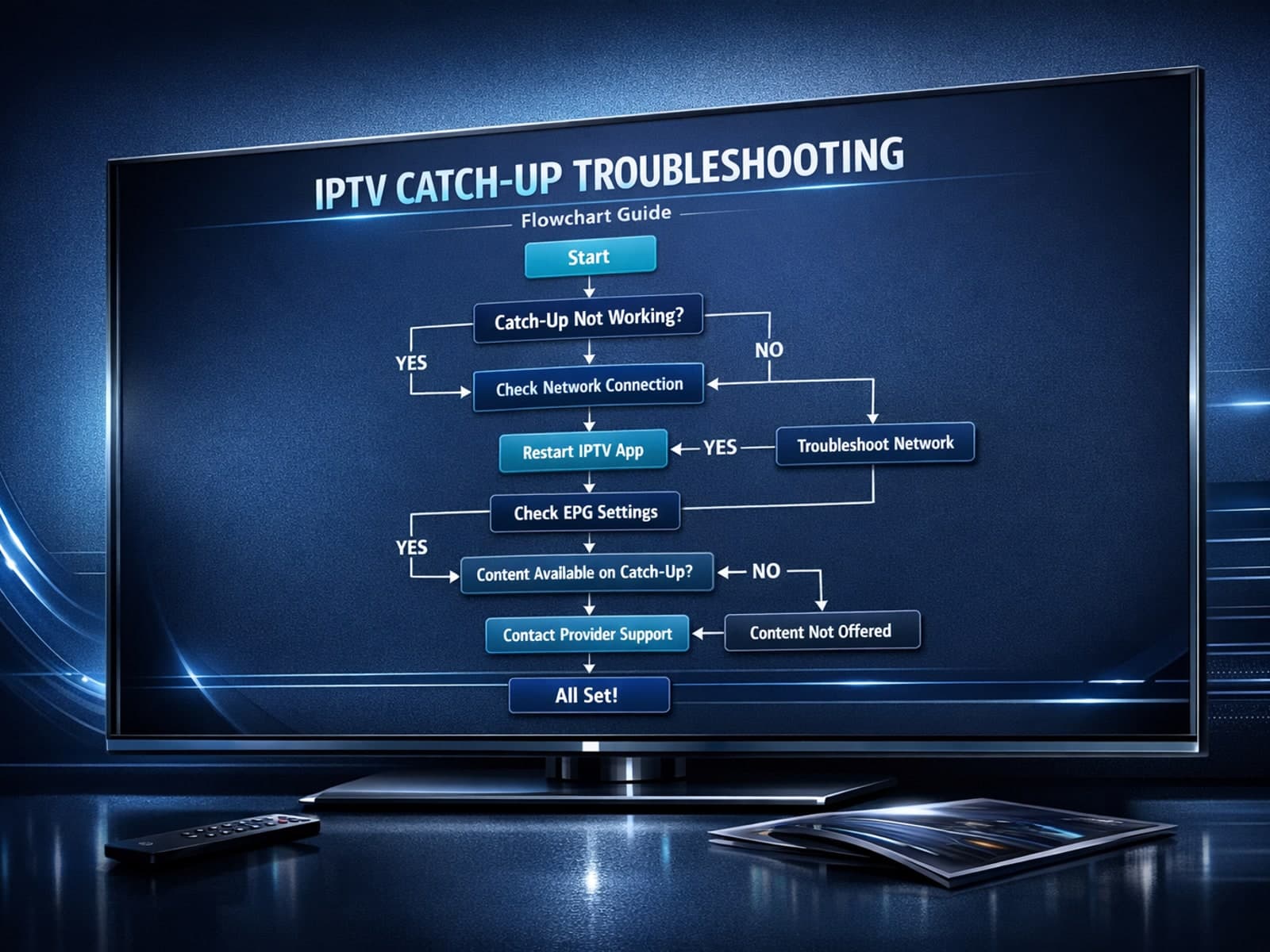
If you use the TiviMate IPTV player, you might occasionally find that the catch-up TV feature isn't working as expected. Catch-up allows you to watch previously aired content on demand, making it a valuable part of your viewing experience.

If you've hit "Refresh" in TiviMate but your IPTV playlist doesn't update, you are not alone. This is a common problem that can stem from multiple causes including network hiccups, playlist URL issues, corrupted cache, or server downtime.

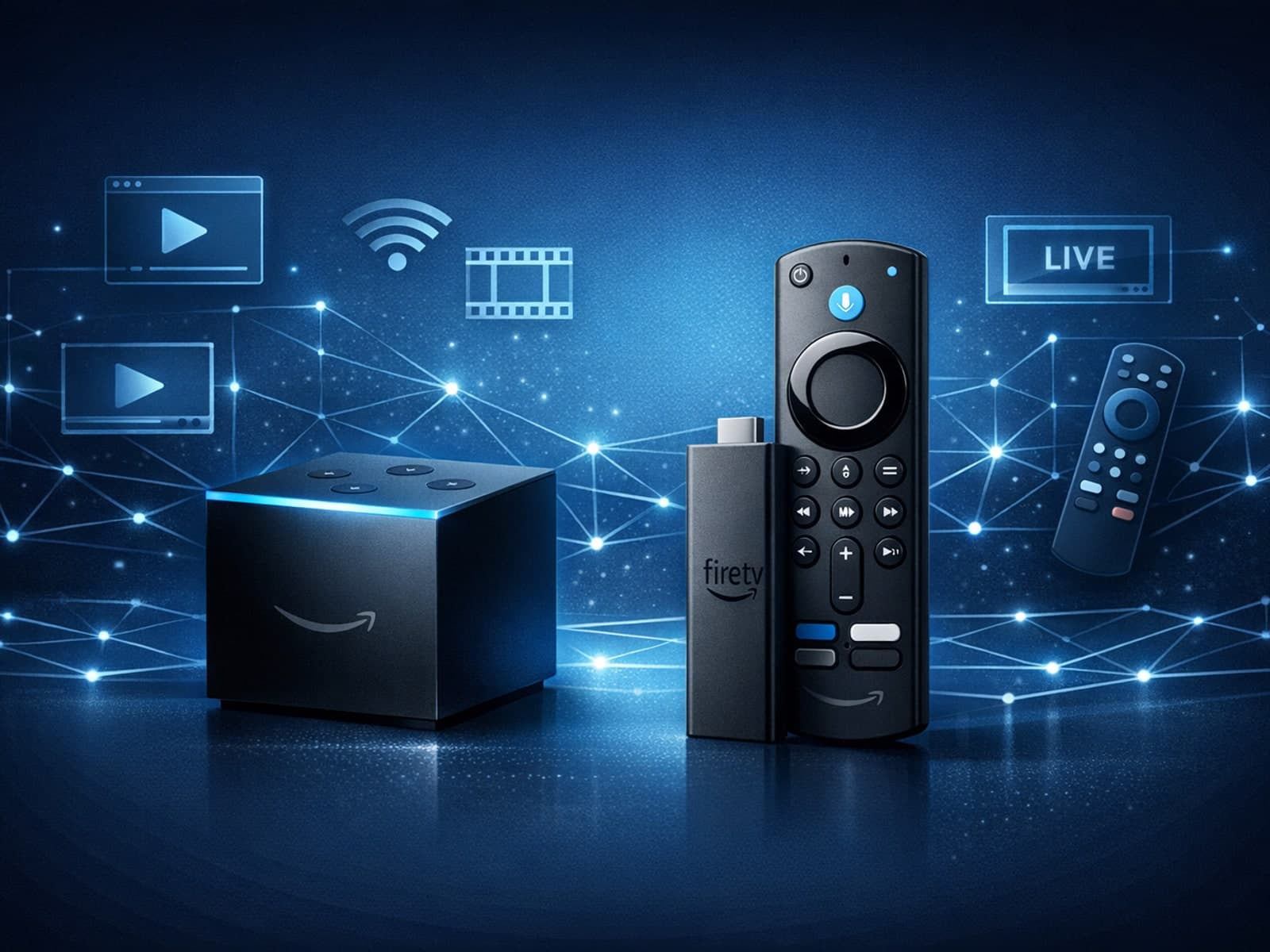
When choosing a device specifically for IPTV streaming, the Amazon Fire TV Cube and Fire TV Stick 4K Max are two popular options. Both devices support 4K streaming and run Amazon’s Fire OS with access to IPTV apps like TiviMate and IPTV.
