
Best WiFi Settings for IPTV on Fire TV Stick

Quick answer
To achieve smooth IPTV streaming on your Fire TV Stick, optimizing your WiFi settings is essential. The best approach focuses on using the 5 GHz WiFi band for improved speed and reduced interference, choosing the optimal router channel, and tweaking router features like Qualit...
Reviewed Against
• Fire TV and Fire OS device capabilities, networking, and storage limits
• Home-network checks such as Wi-Fi strength, Ethernet fallback, DNS changes, congestion, and local storage pressure
Applies To
• Fire TV Stick, Fire TV Cube, and Fire OS playback or networking questions
• Playback problems that change with connection quality, device load, app cache state, or time of day
Does not apply when
• You are troubleshooting a smart-TV app or set-top box with a different hardware and settings path.
• Only one channel, event, or provider-side endpoint is failing while the rest of the service stays stable.
Corroborating Resources
Fire TV device specifications overviewHelpful for checking Fire TV hardware families, platform differences, and device-level constraints.
Fire TV streaming media player specsUseful for codec, storage, Wi-Fi, and Ethernet-adapter expectations on Fire TV sticks and boxes.
Android TV video and game troubleshootingUseful for Wi-Fi, updates, app cache, and playback troubleshooting steps that also mirror IPTV failure paths.
Android TV storage helpHelpful when playback issues point to low storage, cache pressure, or app-data cleanup decisions.
Topic Cluster
Part of the 5 GHz WiFi cluster
Browse practical IPTV articles about 5 GHz WiFi, including setup choices, troubleshooting paths, and follow-on guides. This page sits in devices and network gear for that topic path.
On this page
Best WiFi Settings for IPTV on Fire TV Stick
To achieve smooth IPTV streaming on your Fire TV Stick, optimizing your WiFi settings is essential. The best approach focuses on using the 5 GHz WiFi band for improved speed and reduced interference, choosing the optimal router channel, and tweaking router features like Quality of Service (QoS). These steps help minimize buffering, lag, and connection drops.
This guide is designed for informed beginner and intermediate users familiar with Fire TV Stick but looking to specifically enhance WiFi settings for IPTV streaming quality.
What you'll learn
- Why the 5 GHz WiFi band is preferred for IPTV on Fire TV Stick
- How to select the best WiFi channel for minimal interference
- Router positioning and hardware considerations
- How to apply QoS settings to prioritize IPTV traffic
- Common mistakes and troubleshooting tips to avoid streaming issues
Why Use the 5 GHz WiFi Band for IPTV on Fire TV Stick
Differences Between 2.4 GHz and 5 GHz Bands
WiFi routers typically broadcast on two main frequency bands: 2.4 GHz and 5 GHz.
- 2.4 GHz band offers longer range and better wall penetration but is prone to congestion from other household devices (microwaves, Bluetooth, cordless phones) and neighboring networks.
- 5 GHz band provides higher data rates and less interference due to shorter range and more available channels, but its signal doesn't travel as far or penetrate walls as well.
Advantages for IPTV Streaming
Using the 5 GHz band on your Fire TV Stick:
- Increases available bandwidth to handle HD or 4K IPTV streams smoothly
- Reduces packet loss and build-up of latency that causes buffering
- Lowers chances of interference from competing devices
Enabling 5 GHz on Fire TV Stick
Fire TV Stick can connect to either band. Make sure your router is broadcasting a 5 GHz SSID (network name), and choose that network on your Fire TV Stick's WiFi settings.
If your Fire TV Stick only sees one network, ensure your router is not hiding the 5 GHz SSID.
Selecting the Best WiFi Channel to Minimize Interference
What is a WiFi Channel?
Each WiFi band contains multiple channels, which are the specific frequency ranges devices use to communicate.
- For 5 GHz, channels typically range from 36 to 165 (depending on router and country).
- Overlapping WiFi networks can cause congestion if multiple routers use the same or overlapping channels.
How to Identify the Optimal Channel
- Use a WiFi analyzer app on a smartphone or PC to scan nearby networks and check channel usage.
- Select the channel with fewer competing networks and least interference.
Changing the Router Channel
Once identified, log into your router’s admin panel and manually set the 5 GHz band to use the chosen channel instead of Automatic.
Avoid DFS Channels Without Router Support
Dynamic Frequency Selection (DFS) channels can have restrictions; some routers or devices may disconnect when they detect weather radar signals on those channels. Confirm support before choosing DFS channels.
Router Placement and Hardware Considerations
Position Your Router Strategically
- Place the router as close as possible to your Fire TV Stick to avoid signal degradation.
- Keep the router elevated and away from metal objects or walls that block WiFi signals.
- Avoid placing routers near cordless phones, microwave ovens, or other electronics that cause interference.
Use a Modern Router with 5 GHz Support
Older routers may only support 2.4 GHz or slower WiFi standards, limiting performance.
- Ensure your router supports at least WiFi 5 (802.11ac) or WiFi 6 (802.11ax) for improved throughput.
- Consider upgrading if you face persistent buffering despite optimal positioning.
Use Ethernet if Possible
- An optional Ethernet adapter for the Fire TV Stick can provide a faster, more stable connection than WiFi.
- Ethernet eliminates wireless interference but may require additional cables or adapters.
Applying QoS Settings to Prioritize IPTV Traffic
What is Quality of Service (QoS)?
QoS is a router feature that prioritizes selected types of network traffic, giving them bandwidth preference over others.
How QoS Helps IPTV
- Prioritizes IPTV packets to reduce latency and buffering.
- Limits disruptive traffic like file downloads or other devices consuming excessive bandwidth.
Setting Up QoS
- Log in to your router’s admin interface.
- Locate the QoS settings section.
- Add rules to prioritize traffic from your Fire TV Stick's MAC address or the IPTV app's port ranges if known.
- Some routers also allow prioritizing based on service type or device.
Consider Limitations
- QoS effectiveness depends on router quality and firmware.
- Not all IPTV apps use fixed port ranges, so device-based prioritization is usually simpler.
Common Mistakes and Troubleshooting WiFi for IPTV on Fire TV Stick
Common Mistakes
- Staying on 2.4 GHz band due to range fears, despite interference causing buffering.
- Using automatic channel selection without verifying the least congested channel.
- Router placed far from the Fire TV Stick or obstructed by large objects/walls.
- Ignoring firmware updates that may improve router stability.
Troubleshooting Steps
- Verify band and channel: Confirm Fire TV Stick is on the 5 GHz band and router is on an optimal channel.
- Restart devices: Power cycle the router and Fire TV Stick.
- Check for interference: Remove or relocate devices causing interference.
- Test Ethernet: If available, test IPTV streaming over Ethernet to rule out WiFi issues.
- Update firmware: Ensure router and Fire TV Stick have the latest firmware/software.
Who This Guide Applies To and When to Use Other Resources
Applicable Audience
- Fire TV Stick users using IPTV apps who stream over WiFi.
- Those experiencing buffering, lag, or poor video quality.
- Intermediate users comfortable with router and Fire TV Stick settings.
When a Different Guide is Better
- If using a different IPTV device, consult device-specific WiFi optimization guides.
- For IPTV app-specific login or playlist errors, refer to errors troubleshooting articles.
- If IPTV issues relate to streaming source quality or IPTV service, network settings may not help.
Summary Checklist for Best WiFi Settings for IPTV on Fire TV Stick
| Setting or Step | Purpose | Recommended Action |
|---|---|---|
| Use 5 GHz WiFi band | Higher speed, less interference | Connect Fire TV Stick to 5 GHz SSID |
| Choose optimal 5 GHz channel | Avoid congestion | Set router channel manually |
| Router placement | Strong signal strength | Place router close & elevated |
| Enable QoS | Prioritize IPTV traffic | Configure QoS rules for Fire TV Stick |
| Update firmware | Stability, new features | Regularly update router & Fire TV |
| Consider Ethernet connection | Most stable & fastest connection | Use Ethernet adapter if possible |
FAQ
Can I use 2.4 GHz WiFi for IPTV on Fire TV Stick?
Yes, but 2.4 GHz is slower and more prone to interference than 5 GHz, so IPTV streaming quality may suffer.
How do I find the best WiFi channel?
Use WiFi analyzer tools on smartphones or PCs to scan available channels and reduce interference by selecting the least crowded one.
What is QoS and should I enable it?
QoS prioritizes IPTV traffic for smoother streaming; it’s recommended if your router supports it.
Will switching to Ethernet improve IPTV streaming?
Almost always yes; Ethernet is more stable and faster than WiFi.
How do I avoid WiFi drops on Fire TV Stick?
Ensure stable 5 GHz connection, avoid interference sources, and consider disabling auto band switching if available.
Conclusion
The best WiFi settings for IPTV on Fire TV Stick center on using the 5 GHz band with a clean, non-congested channel, good router placement, and QoS prioritization. These practical steps address most buffering and lag issues without extra cost or complex equipment. For further optimization, testing Ethernet connection or upgrading routers to modern WiFi standards can help.
Focus your changes on these targeted settings to enhance IPTV streaming quality effectively and enjoy a smoother viewing experience on your Fire TV Stick.
For more detailed IPTV device and app guides, consider reading these related resources:
Keep exploring
More explainers that connect naturally to this setup, workflow, or troubleshooting path.
Organizing favorites and groups in TiviMate significantly improves how you browse and watch IPTV channels. By creating well-structured channel groups and marking your favorites, you can access content quickly, reduce scrolling, and tailor.

If your IPTV stream freezes or buffers when you change channels, this is usually caused by delays in receiving or processing the new channel data.

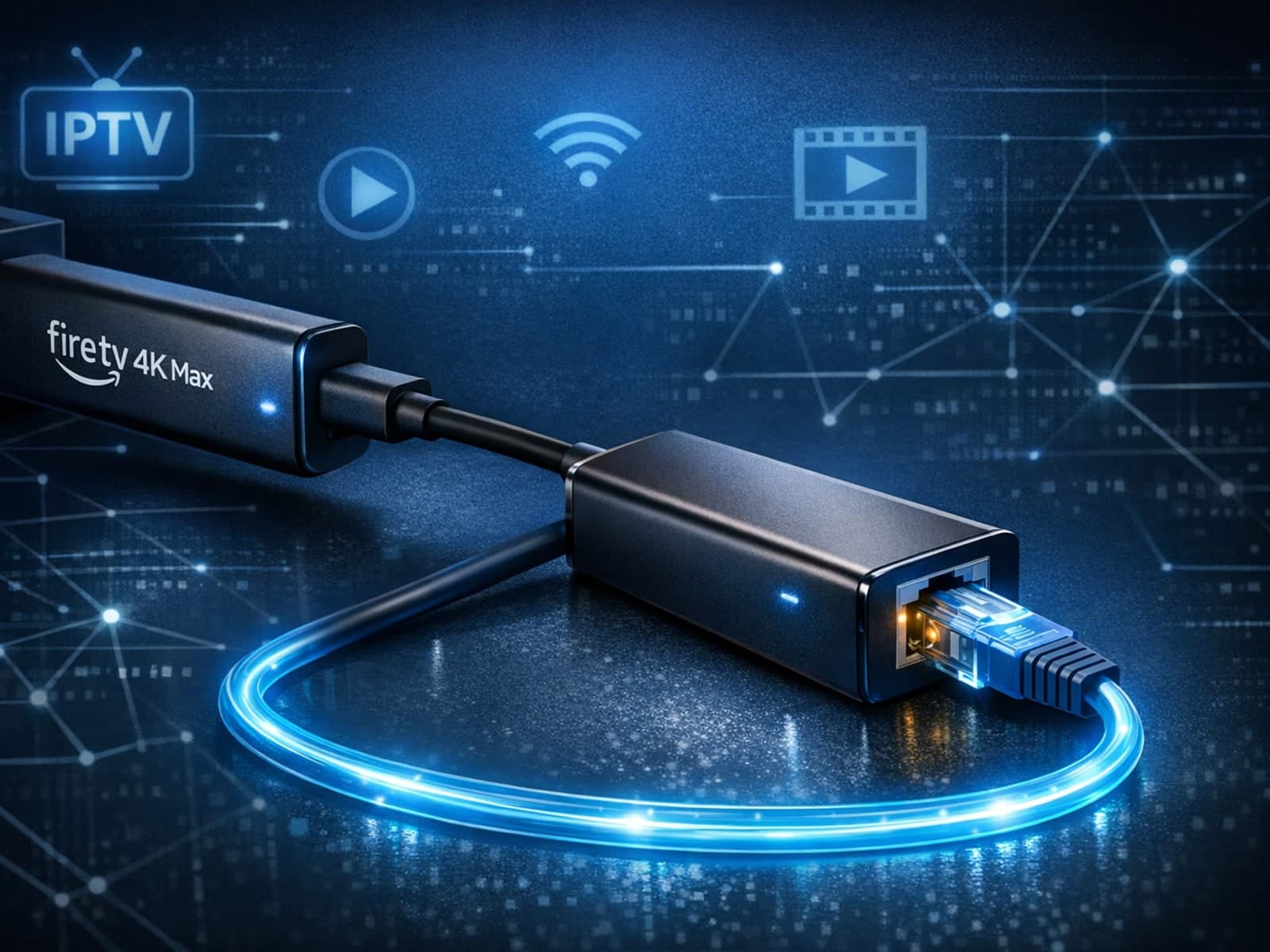
The Fire TV Stick 4K Max supports Ethernet adapters designed to connect through its USB-C port, enabling wired internet access for more reliable streaming.