
Best WiFi Settings for IPTV on Fire TV Stick to Reduce Buffering

Quick answer
If you're using a Fire TV Stick to stream IPTV and experiencing buffering or poor stream quality, your WiFi setup could be a key factor. For the best IPTV experience on a Fire TV Stick, connect to a 5 GHz WiFi network rather than 2.4 GHz, configure your router’s channel bandwi...
Reviewed Against
• Fire TV and Fire OS device capabilities, networking, and storage limits
• Home-network checks such as Wi-Fi strength, Ethernet fallback, DNS changes, congestion, and local storage pressure
Applies To
• Fire TV Stick, Fire TV Cube, and Fire OS playback or networking questions
• Playback problems that change with connection quality, device load, app cache state, or time of day
Does not apply when
• You are troubleshooting a smart-TV app or set-top box with a different hardware and settings path.
• Only one channel, event, or provider-side endpoint is failing while the rest of the service stays stable.
Corroborating Resources
Fire TV device specifications overviewHelpful for checking Fire TV hardware families, platform differences, and device-level constraints.
Fire TV streaming media player specsUseful for codec, storage, Wi-Fi, and Ethernet-adapter expectations on Fire TV sticks and boxes.
Android TV video and game troubleshootingUseful for Wi-Fi, updates, app cache, and playback troubleshooting steps that also mirror IPTV failure paths.
Android TV storage helpHelpful when playback issues point to low storage, cache pressure, or app-data cleanup decisions.
Topic Cluster
Part of the 5 GHz WiFi cluster
Browse practical IPTV articles about 5 GHz WiFi, including setup choices, troubleshooting paths, and follow-on guides. This page sits in troubleshoot and fix for that topic path.
On this page
Best WiFi Settings for IPTV on Fire TV Stick to Reduce Buffering
If you're using a Fire TV Stick to stream IPTV and experiencing buffering or poor stream quality, your WiFi setup could be a key factor. For the best IPTV experience on a Fire TV Stick, connect to a 5 GHz WiFi network rather than 2.4 GHz, configure your router’s channel bandwidth and channel settings to minimize interference, and position your hardware for optimal signal strength. Additionally, using Quality of Service (QoS) can help prioritize IPTV traffic for smoother playback.
Optimizing these settings specifically for IPTV streaming on Fire TV Stick will reduce lag and buffering significantly compared to default or poorly-configured WiFi.
What you'll learn
- Why 5 GHz WiFi is typically better for IPTV on Fire TV Stick
- How to select the best WiFi channel and bandwidth
- Router positioning and interference reduction techniques
- Using QoS to prioritize IPTV traffic
- When to consider Ethernet connections or other troubleshooting
Why 5 GHz WiFi Improves IPTV Streaming on Fire TV Stick
The Fire TV Stick supports connecting to both 2.4 GHz and 5 GHz WiFi bands. These bands represent different radio frequencies your wireless network uses to transmit data.
-
2.4 GHz Band: Has longer range and better penetration through walls but is slower and more congested because many devices (like microwaves, Bluetooth, and older WiFi gadgets) use this band.
-
5 GHz Band: Offers faster speeds and less interference since fewer devices use this frequency. The trade-off is typically shorter range and less penetration.
For IPTV, where streaming multiple high-quality video streams requires consistent bandwidth, 5 GHz usually provides a more stable, faster connection, especially in environments with many competing wireless devices.
How to check and connect to 5 GHz WiFi
On the Fire TV Stick:
- Go to Settings > Network.
- View available WiFi networks.
- Select your 5 GHz WiFi network (often identified by having “5G” or similar in the SSID name).
- Connect and test streaming performance.
If your router doesn’t support dual-band or 5 GHz, consider upgrading or implementing other WiFi optimization steps.
Adjusting Router Channel and Bandwidth Settings
Interference from neighboring networks can degrade WiFi performance drastically. For IPTV streaming:
-
Choose the least congested WiFi channel on 5 GHz: Many routers scan for congestion and allow manual channel selection. Use tools or router admin pages to identify less crowded channels (e.g., 36, 40, 44, 48, or 149, 153, 157, etc.).
-
Set channel bandwidth appropriately: On 5 GHz, channel width options might include 20 MHz, 40 MHz, or 80 MHz.
- 20 MHz: Narrow channel, less interference but slower speeds.
- 40 MHz or 80 MHz: Wider channels, faster speeds but potentially more interference.
For IPTV, an 40 MHz or 80 MHz width balanced with low channel congestion usually yields the best results.
Steps to change channel and bandwidth:
- Log into your router’s admin interface (usually at 192.168.0.1 or 192.168.1.1).
- Find the wireless settings section.
- Select your 5 GHz network.
- Change the channel to an uncongested one (as identified via network scanning app).
- Set the channel bandwidth to 40 MHz or 80 MHz.
- Save changes and restart your router if needed.
Positioning Your Router and Fire TV Stick
Physical positioning affects WiFi signal strength and stability. To optimize:
- Place router in a central, elevated location near your streaming device.
- Avoid physical barriers like thick walls or metal objects between the router and Fire TV Stick.
- Keep the Fire TV Stick away from other electronics that may cause interference, including microwaves, cordless phones, or Bluetooth devices.
- If the Fire TV Stick connects via the HDMI extender, use that to position the dongle away from the TV chassis, which can block signals.
Even small repositioning can improve signal strength and reduce buffering.
Using Quality of Service (QoS) to Prioritize IPTV Streaming
Many routers feature Quality of Service (QoS) settings that enable you to prioritize types of network traffic. IPTV benefits from QoS by getting higher priority over other devices consuming bandwidth.
How to set up QoS for IPTV:
- Access your router admin panel.
- Find the QoS settings area.
- Enable QoS if disabled.
- Add a priority rule for your Fire TV Stick's IP address or MAC address.
- Assign highest or high priority for streaming traffic.
- Save and reboot router if required.
QoS is especially useful in busy households sharing WiFi with many devices.
Common Mistakes and Troubleshooting WiFi for IPTV on Fire TV Stick
Common mistakes:
- Using only 2.4 GHz band despite available 5 GHz
- Leaving router on default congested channels
- Overlooking router or Fire TV Stick placement
- Not applying QoS when needed in busy networks
- Forgetting to restart devices after configuration changes
When to try other troubleshooting paths:
- If your Fire TV Stick consistently lags despite optimized WiFi, consider using a wired Ethernet adapter for guaranteed stable connection.
- If problems are app-specific, refer to app troubleshooting guides.
- For storage-related lag, check Fire TV Stick storage issues and optimize (see internal link below).
Comparison Checklist: WiFi Optimization Steps for IPTV
| Optimization Step | Impact on IPTV Performance | Complexity | Recommended For |
|---|---|---|---|
| Switch to 5 GHz WiFi | High | Low | All Fire TV Stick users |
| Adjust router channel | Moderate | Medium | Users in dense WiFi environments |
| Change channel bandwidth | Moderate | Medium | Users needing max throughput |
| Optimize device positioning | Moderate | Low | All setups |
| Enable QoS | Moderate | Medium | Multi-device networks |
| Use Ethernet adapter | Very High | Medium | Persistent lag despite WiFi fix |
Who This Guide Applies To and When to Switch Methods
This guidance fits Fire TV Stick users who stream IPTV apps over WiFi and want smoother playback. It assumes:
- You can access router settings
- Your router supports 5 GHz band and QoS
- You have some control over network management
If you can't access or configure router settings, or if the issue persists after optimization, then:
- Try a wired Ethernet connection via official Fire TV Ethernet adapter
- Consult device-specific IPTV streaming app guides
- Examine Fire TV Stick storage or app-specific performance issues
FAQ
Q: Why is 5 GHz WiFi better for IPTV on Fire TV Stick?
A: 5 GHz WiFi offers faster speeds and encounters less interference, enabling smoother IPTV streaming with less buffering compared to 2.4 GHz.
Q: Can I use 2.4 GHz WiFi instead?
A: Yes, but 2.4 GHz is slower and more prone to interference, often causing buffering or reduced video quality.
Q: What router settings help IPTV most?
A: Choosing a clear WiFi channel, adjusting channel bandwidth, and enabling QoS to prioritize streaming improve IPTV quality.
Q: When should I switch from WiFi to Ethernet for IPTV?
A: If optimized WiFi still results in buffering or lag, using Ethernet can provide a more stable connection ideal for IPTV.
Conclusion
Optimizing your WiFi settings on Fire TV Stick for IPTV primarily means connecting to the 5 GHz band, configuring your router channel and bandwidth for minimal interference, and using QoS to prioritize streaming traffic. Position your hardware thoughtfully and consider Ethernet if WiFi adjustments don’t suffice. These focused steps address buffering and improve IPTV playback quality on Fire TV Stick efficiently and effectively.
Related IPTV Explained Resources
- Fire TV Stick Storage Issues Causing IPTV Lag: Fixes and Optimization
- 5 GHz WiFi
- Fire TV Cube vs Fire TV Stick 4K Max for IPTV: Key Differences and Use
- Buffering
Frequently Asked Questions
Why is 5 GHz WiFi better for IPTV on Fire TV Stick?
5 GHz WiFi offers higher speeds and less interference than 2.4 GHz, which helps IPTV streams run more smoothly with less buffering on Fire TV Stick.
Can I use 2.4 GHz WiFi for IPTV on Fire TV Stick?
Yes, but 2.4 GHz is more prone to interference and slower speeds, which may cause buffering or lower video quality during IPTV streaming.
What router settings most affect IPTV streaming quality?
Channel selection, channel bandwidth, and enabling Quality of Service (QoS) to prioritize IPTV traffic can significantly improve IPTV performance.
When should I consider using an Ethernet adapter for Fire TV Stick?
If WiFi optimization does not resolve buffering or lag issues, using a wired Ethernet adapter provides a more stable and faster connection for IPTV.
Keep exploring
More explainers that connect naturally to this setup, workflow, or troubleshooting path.
When choosing a device specifically for IPTV streaming, the Amazon Fire TV Cube and Fire TV Stick 4K Max are two popular options. Both devices support 4K streaming and run Amazon’s Fire OS with access to IPTV apps like TiviMate and IPTV.

Missing channel logos in TiviMate is a common issue that often stems from problems with your IPTV playlist or Electronic Program Guide (EPG) data.
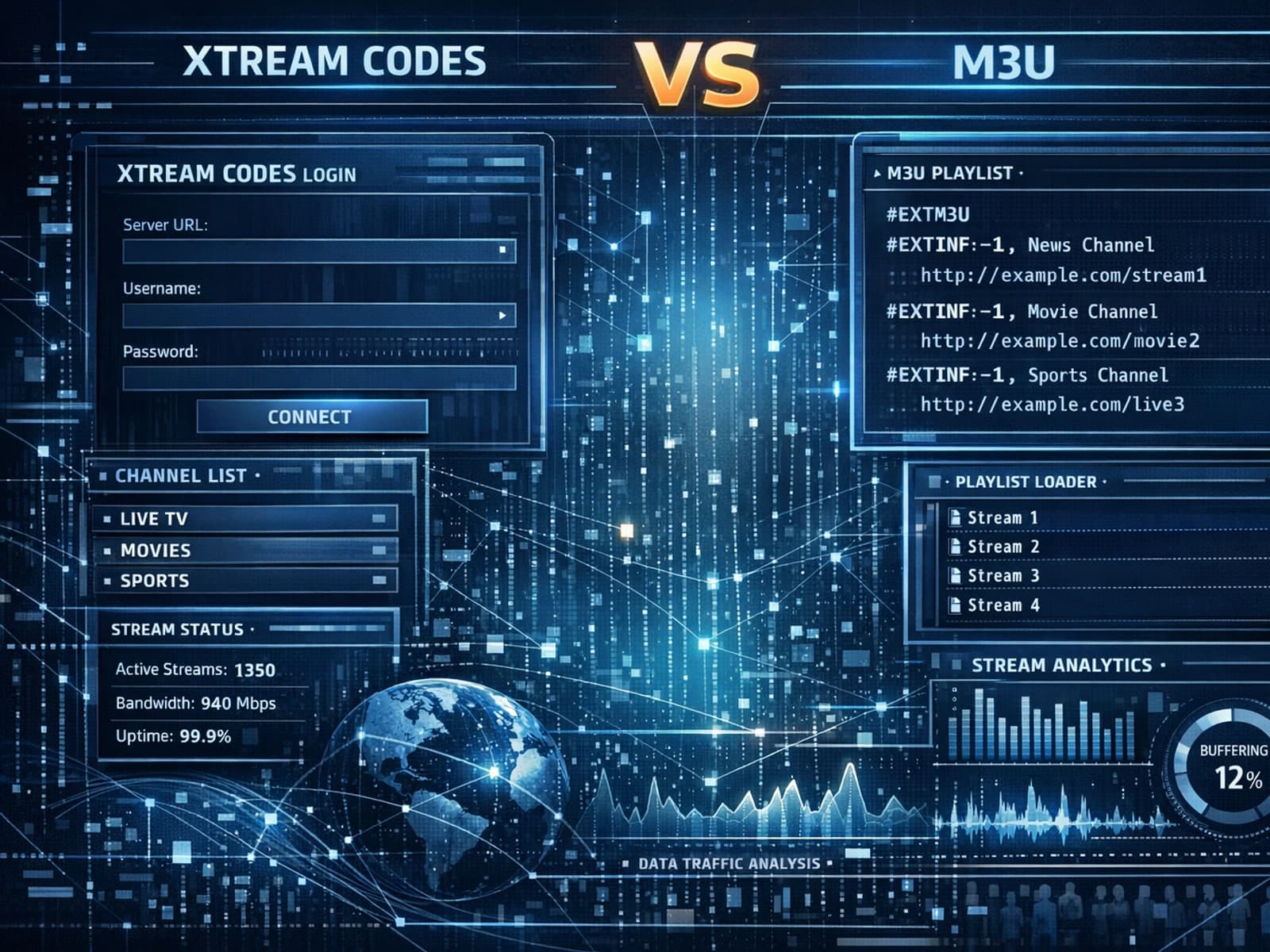
Xtream Codes often works better than M3U for IPTV users who need dynamic playlist management, faster channel updates, richer metadata integration, and controlled access to streaming content.
