
How to Fix Channel Logos Missing in TiviMate

Quick answer
Missing channel logos in TiviMate can diminish usability and make navigation confusing. The issue often arises when the playlist or app fails to supply or fetch the logo metadata correctly. This guide provides detailed steps to help you restore channel logos efficiently.
Reviewed Against
• TiviMate playlist, EPG, and player-setting workflows
Applies To
• TiviMate setups on Android TV, Google TV, or Fire OS style streaming devices
Does not apply when
• Your app uses a different menu layout or naming scheme than TiviMate.
Topic Cluster
Part of the Channel Logos cluster
Browse practical IPTV articles about Channel Logos, including setup choices, troubleshooting paths, and follow-on guides. This page sits in troubleshoot and fix for that topic path.
On this page
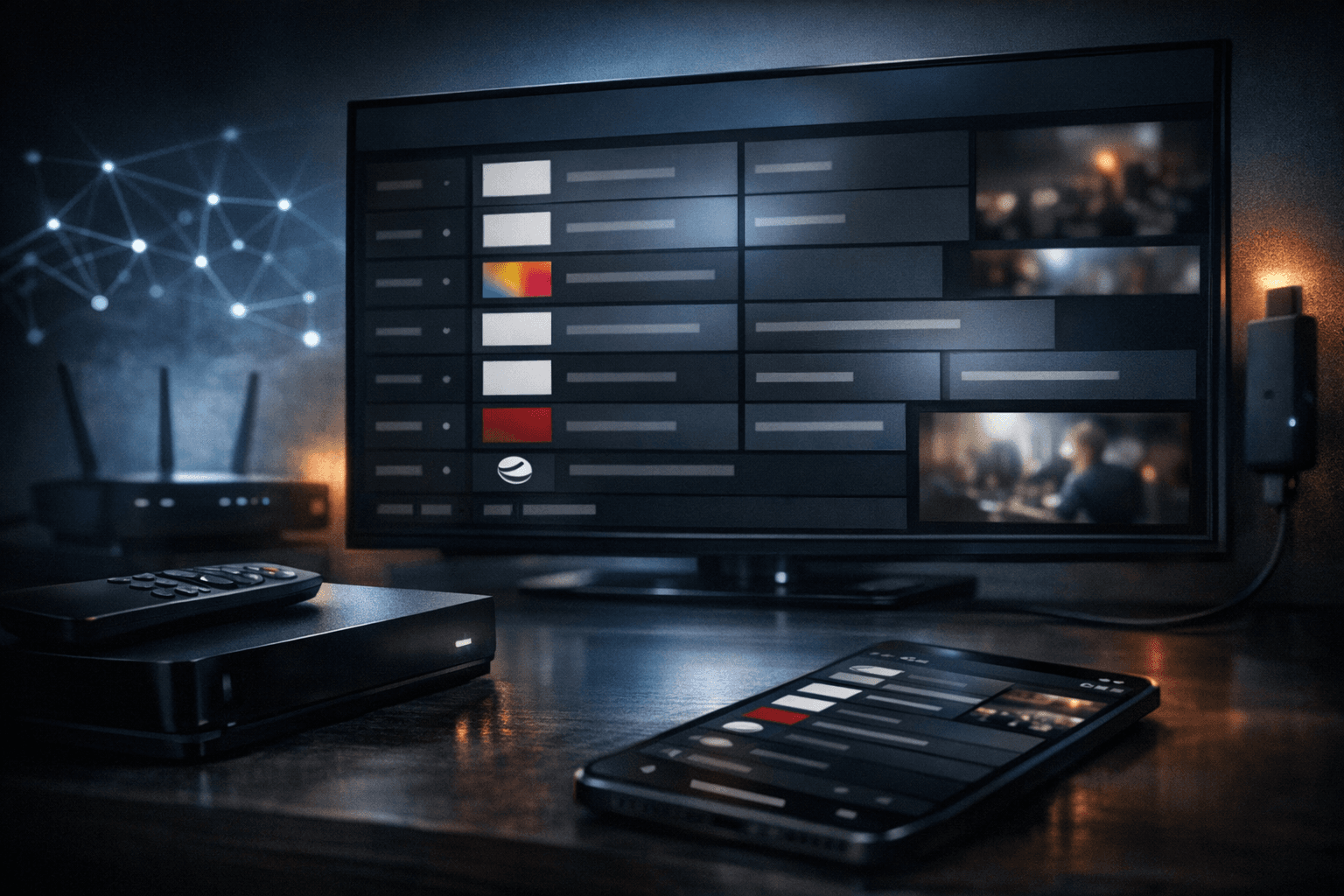
How to Fix Channel Logos Missing in TiviMate
Missing channel logos in TiviMate can diminish usability and make navigation confusing. The issue often arises when the playlist or app fails to supply or fetch the logo metadata correctly. This guide provides detailed steps to help you restore channel logos efficiently.
What you'll learn
- Why channel logos might be missing in TiviMate
- How to verify and fix your IPTV playlist source
- Adjusting TiviMate settings to enable logo display
- Manual methods to add or update channel logos
- Troubleshooting common issues preventing logos from appearing
Understanding Why Channel Logos are Missing
Channel logos in TiviMate depend primarily on your IPTV playlist providing correct logo URLs. Each channel entry in a typical M3U playlist includes a logo URL linking to an image. If these URLs are missing, broken, or unreachable, TiviMate cannot display the logos.
Other contributing reasons include:
- Outdated or corrupted app cache that prevents logos from loading properly
- Network or connectivity issues stopping TiviMate from fetching images
- Using a playlist format or source that does not support logos
- App bugs or outdated versions lacking recent fixes
Knowing these causes helps guide the effective fixes described below.
Checking and Fixing Your IPTV Playlist Source
The IPTV playlist is a text file, often in M3U format, containing channel stream URLs and metadata, including channel names and optional logo URLs.
Examining Playlist Logo URLs
-
Open your playlist file with a text editor.
-
Look for
tvg-logo="URL"entries next to channels. For example:#EXTINF:-1 tvg-id="channelid" tvg-logo="http://example.com/logo.png",Channel Name http://stream-url -
Verify these logo URLs are valid and accessible in a browser.
If the playlist does not contain logo URLs or they are broken:
- Request a corrected playlist from your IPTV provider
- Manually edit or add logo URLs if you have access
Refreshing or Re-importing the Playlist
After verifying or correcting the playlist:
- In TiviMate, remove and re-add the playlist to force updates.
- Use TiviMate’s “Update playlist” feature if available.
This step ensures your app has the latest metadata.
Adjusting TiviMate Settings to Enable Logos
TiviMate settings include options that influence logo display:
- Enable Automatic Channel Logos: This setting must be toggled on to allow TiviMate to download and display logos.
- Cache Settings: Clearing or refreshing cached data can remove corrupted images hindering logo display.
How to Enable Logo Download and Refresh in TiviMate
- Open TiviMate.
- Go to Settings > General.
- Find the Download channel logos automatically option and ensure it is enabled.
- Navigate to Settings > App Data or Cache and use Clear cache.
- Restart the app to trigger fresh logo downloads.
Manually Adding or Updating Channel Logos
If some channels still lack logos after updating the playlist and settings, you can manually assign logos:
- In TiviMate, highlight the channel without a logo.
- Open the channel’s settings or options menu.
- Select Edit channel or equivalent.
- Paste a direct URL to the channel’s logo image in the logo field.
- Save changes.
This method requires finding reliable, direct logo URLs, which can be sourced from official broadcaster sites or online logo repositories.
Troubleshooting Common Issues
1. Network Connection Problems
A weak or intermittent internet connection can prevent logo images from downloading. Confirm your device connectivity:
- Test internet speed and stability.
- Connect via Ethernet for a reliable connection if Wi-Fi is unstable.
- Restart your modem/router.
2. Playlist Does Not Support Logos
Some playlists omit logo URLs intentionally or due to format limitations. In such cases, ask your IPTV provider for a logo-enabled playlist or switch to one that supports it.
3. App Version Bugs
Update TiviMate to the latest stable release. Developers regularly fix bugs affecting metadata import and display.
4. Conflicting Data from EPG
Sometimes Electronic Program Guide (EPG) data conflicts with playlist data affecting logos. If you use EPG, verify its compatibility or temporarily disable it to test logo display.
Summary Checklist for Fixing Missing Channel Logos in TiviMate
| Step | Action | Purpose |
|---|---|---|
| 1. Verify playlist logo URLs | Check M3U file entries | Ensure source supports logos |
| 2. Refresh playlist in TiviMate | Re-import or update playlist | Sync updated logo data |
| 3. Enable automatic logos | Toggle TiviMate download setting | Allow app to fetch logos |
| 4. Clear cache and restart app | Remove corrupted image cache | Force fresh download |
| 5. Add logos manually (optional) | Paste correct logo URLs per channel | Fill in missing logos |
| 6. Check network connection | Verify stable internet | Ensure logos can download |
| 7. Update TiviMate app | Install latest version | Fix bugs affecting logos |
Frequently Asked Questions
Why are channel logos missing in TiviMate?
Channel logos may be missing if your playlist lacks proper logo URLs, if your internet connection is unstable, or if app settings prevent logos from downloading.
Can I add missing channel logos manually in TiviMate?
Yes. You can manually input logo URLs for individual channels through channel settings to display logos not included in the original playlist.
Does the playlist provider have to support logos?
Yes, the playlist must include correct logo URLs. Without this data, TiviMate cannot display logos automatically.
Will updating TiviMate fix missing logo issues?
Updating can help if the problem stems from an app bug. Always use the latest version to reduce issues.
Conclusion
Missing channel logos in TiviMate typically stem from playlist metadata issues or app configuration. By verifying your playlist contains valid logo URLs, enabling automatic logo downloads, clearing the cache, and possibly adding logos manually when needed, you can restore full channel logo functionality. Maintaining a solid internet connection and your TiviMate app up to date will help prevent future logo display problems.
For complementary information, see our article on Playlist Loads But EPG Missing in TiviMate and the topic on EPG to understand metadata handling better. For networking tips, you can explore the DNS topic.
Keep exploring
More explainers that connect naturally to this setup, workflow, or troubleshooting path.

When choosing an Amazon Fire TV device for IPTV streaming, two popular options are the Fire TV Cube and the Fire TV Stick 4K Max. Both devices support IPTV apps and 4K streaming, but they differ in hardware, features, and user experience.

Using a VPN (Virtual Private Network) on your Amazon Firestick can sometimes slow down IPTV streaming, resulting in frustrating buffering issues.

If your TiviMate EPG (Electronic Program Guide) source URL is not working, it means TiviMate cannot retrieve the program guide data from the specified web address. This usually results in missing or empty channel grids inside the app.