
How to Fix Missing Channel Logos in TiviMate

Quick answer
Missing channel logos in TiviMate can disrupt your viewing experience by making it harder to identify channels quickly. The cause is usually related to playlist data or app settings rather than a fault in the app itself. This guide explains clear, actionable steps to restore c...
Reviewed Against
• TiviMate playlist, EPG, and player-setting workflows
• M3U and M3U Plus playlist URLs, refreshes, and import behavior
• Server-URL formatting, HTTP response handling, and account-entry failure patterns
Applies To
• TiviMate setups on Android TV, Google TV, or Fire OS style streaming devices
• Playlist-based IPTV setups that rely on M3U or M3U Plus links for channel data
• Errors caused by malformed URLs, wrong credentials, expired tokens, or unreachable playlist endpoints
Does not apply when
• Your app uses a different menu layout or naming scheme than TiviMate.
• Your app is using a portal or stalker-style workflow instead of a playlist URL.
• The provider confirms the service is down or the account has been deliberately blocked upstream.
Corroborating Resources
HTTP response status codesUseful when an IPTV app surfaces 401, 403, 404, or 5xx style errors during login or playlist refreshes.
URL structure referenceHelpful for checking server URLs, source links, and path/query mistakes in portal or playlist setups.
Topic Cluster
Part of the IPTV cluster
Browse practical IPTV articles about IPTV, including setup choices, troubleshooting paths, and follow-on guides. This page sits in troubleshoot and fix for that topic path.
On this page
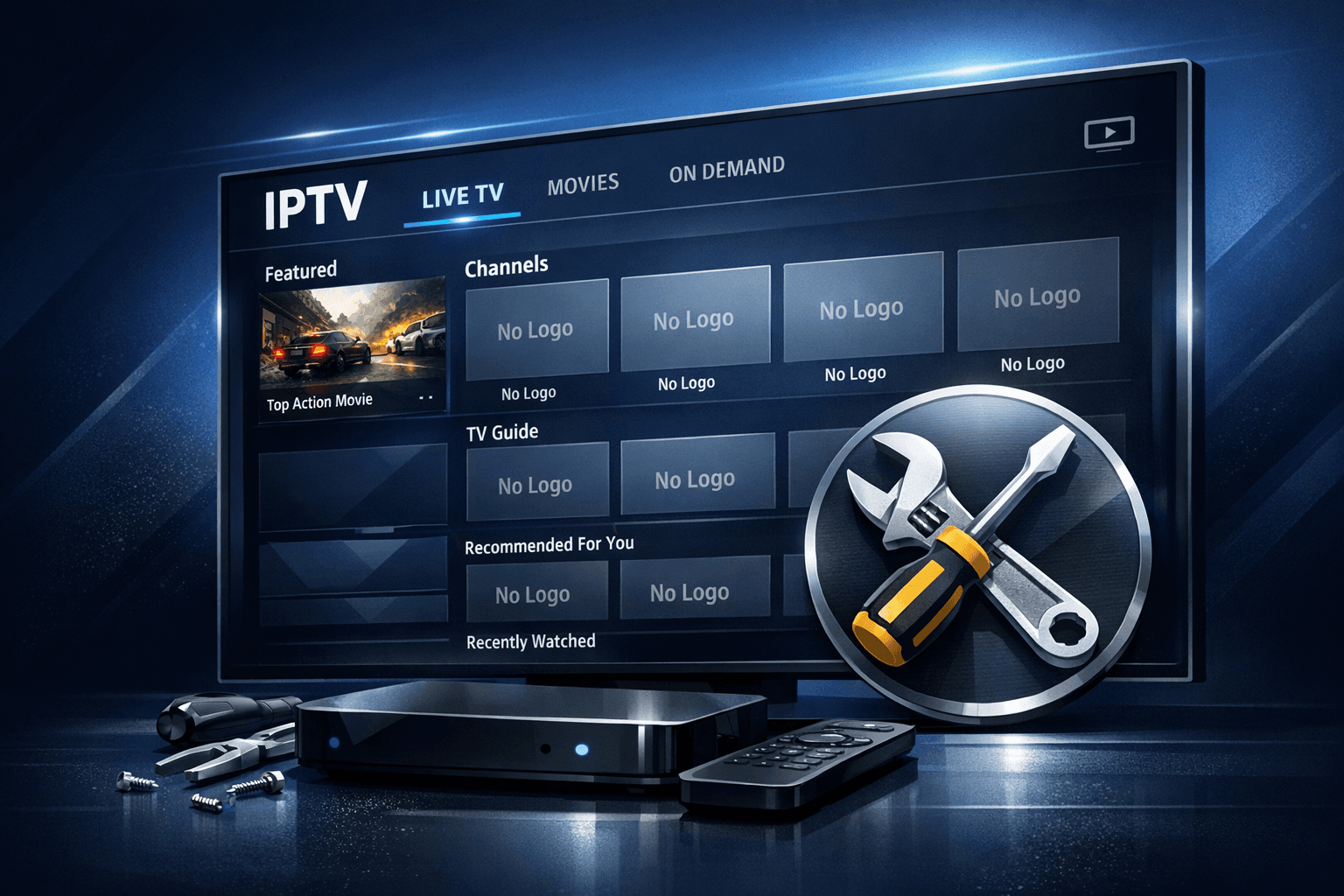
How to Fix Missing Channel Logos in TiviMate
Missing channel logos in TiviMate can disrupt your viewing experience by making it harder to identify channels quickly. The cause is usually related to playlist data or app settings rather than a fault in the app itself. This guide explains clear, actionable steps to restore channel logos so your TiviMate interface looks complete and professional.
What you'll learn
- Common reasons why channel logos don't display in TiviMate
- How to check and adjust TiviMate settings for logos
- How the playlist format and contents affect logo availability
- How to refresh and update your playlist properly
- Methods for manually assigning channel logos when needed
Why Are Channel Logos Missing in TiviMate?
TiviMate relies on channel logos being provided through your IPTV playlist or the associated Electronic Program Guide (EPG). If these logos aren't included, or if the app is not configured to display them, the logos won’t appear.
Additionally, some playlists or EPG sources may not have consistent or complete logo data, or they might use URLs that are no longer valid. A common source of confusion is the difference in how logos are defined in M3U playlists or in XMLTV EPG files.
Checking TiviMate Logo Display Settings
The first and simplest step is to ensure that TiviMate is instructed to show channel logos.
Steps to verify logo display is enabled:
- Open TiviMate on your device.
- Navigate to the main menu, then select Settings.
- Find Playlist settings or Channel settings (depending on your app version).
- Look for an option such as Show channel logos or Display channel icons.
- If this is disabled, enable it and return to the channel list.
If logos still don’t appear after enabling this setting, proceed to check your playlist and metadata.
Understanding Playlist and EPG Impact on Channel Logos
TiviMate fetches channel data mostly from the playlist file you provide, commonly in the M3U format. Each channel entry in an M3U playlist can include a tvg-logo attribute specifying the URL of the channel logo.
What to check in your playlist:
-
Confirm your playlist includes
tvg-logoURLs for channels. Open the playlist file (text format) in a text editor and look for lines like:#EXTINF:-1 tvg-logo="http://example.com/logo.png",Channel Name -
If these logo URLs are missing, TiviMate won't display logos for those channels.
Similarly, if you use an external EPG source (usually an XMLTV file), it may also contain logo URLs linked to channels which TiviMate can use.
If your playlist doesn’t have logos or the URLs are broken, consider these options:
- Ask your provider for a playlist version including logos.
- Edit the playlist yourself to add logos (advanced users).
- Use a reliable, well-maintained playlist known to include proper logos.
How to Refresh and Update Your Playlist Properly
Sometimes channel logos don’t show due to outdated data cached by TiviMate. Refreshing the playlist can reload fresh data including any updated logos.
Steps to refresh your playlist and clear cache:
- Open TiviMate and go to Settings > Playlists.
- Choose your playlist and select Refresh or Update Playlist.
- If no logos appear, fully remove and then re-add the playlist:
- Remove the existing playlist.
- Restart TiviMate.
- Add the playlist URL again.
- After adding, allow some time for TiviMate to download associated data.
Refreshing helps when the playlist provider has recently updated logo URLs, or your device had cached old data.
Manually Assigning Channel Logos in TiviMate
If your playlist or EPG source lacks logos and cannot be updated, TiviMate offers manual editing features.
How to manually set logos:
- Open TiviMate.
- Navigate to the channel list.
- Press the menu button or right-click the channel to open channel options.
- Select Edit Channel or Channel Settings.
- Browse to the logo URL field and enter the full URL of the logo image you want to use.
- Save your changes.
Manually adding logos is time-consuming but useful for favorite or frequently used channels missing logos.
Common Mistakes and Troubleshooting
- Ignoring the playlist source: Use playlists that include logo URLs; without them, no setting in TiviMate can create logos.
- Not enabling logos in settings: Confirm that the app’s logo display option is activated.
- Playlist refresh overlooked: TiviMate caches data, so refreshing or re-adding the playlist often fixes display problems.
- Network issues: Ensure your device can access the internet to download logos from URLs.
- Using outdated app versions: Keep TiviMate updated to avoid bugs affecting logo display.
Who Should Follow This Guide?
This guide applies to users of TiviMate on Android TV boxes, Amazon Fire TV devices, or Android smartphones/tablets using IPTV via M3U playlists.
- If you use Xtream Codes or other proprietary login formats, logo handling may differ.
- If your issue is missing catch-up features or program data, refer to specialized guides (see internal link targets).
- Hardware or network problems require separate diagnostics.
| Scenario | Recommended Approach |
|---|---|
| Missing channel logos in M3U Playlist | Follow steps outlined here. |
| Missing logos in Xtream Codes playlist | Check provider or use other methods. |
| No channel logos and app crashes or glitches | Update app or reinstall. |
FAQ
Why are my channel logos missing in TiviMate?
Channel logos may be missing if your playlist lacks logo URLs, the app’s logo setting is disabled, or cached data is outdated.
Can I add missing logos manually in TiviMate?
Yes, TiviMate allows manual assignment of logos by editing channel information for individual channels.
Does playlist format affect logo display in TiviMate?
Absolutely. Playlists like M3U must contain accurate logo URLs for TiviMate to display channel logos.
Will refreshing the playlist fix missing logos?
Refreshing helps reload metadata and logos if they are present in your playlist or EPG source.
Is missing logo an app bug or playlist issue?
Missing logos are generally related to playlist content or app settings, not bugs. Keeping the app updated helps avoid software issues.
Conclusion
Fixing missing channel logos in TiviMate primarily involves verifying your playlist includes valid logo URLs, ensuring the app’s logo feature is enabled, and refreshing playlist data. If necessary, manual logo assignment offers a last-resort fix. By following these steps in order, most users will restore full channel logo display, enhancing navigation and overall IPTV experience on TiviMate.
For further reading, consider our articles on TiviMate playlist updates, organizing favorites, and fixing catch-up functions in TiviMate.
Keep exploring
More explainers that connect naturally to this setup, workflow, or troubleshooting path.
If you're choosing between Amazon's Fire TV Cube and Fire TV Stick 4K Max specifically for IPTV streaming, this comparison focuses on how their hardware, connectivity, and features affect IPTV performance.

For IPTV users deciding between Xtream Codes and M3U playlist formats, Xtream Codes works better than M3U primarily when your IPTV needs include authenticated access, dynamic channel updating, integrated electronic program guides (EPG).

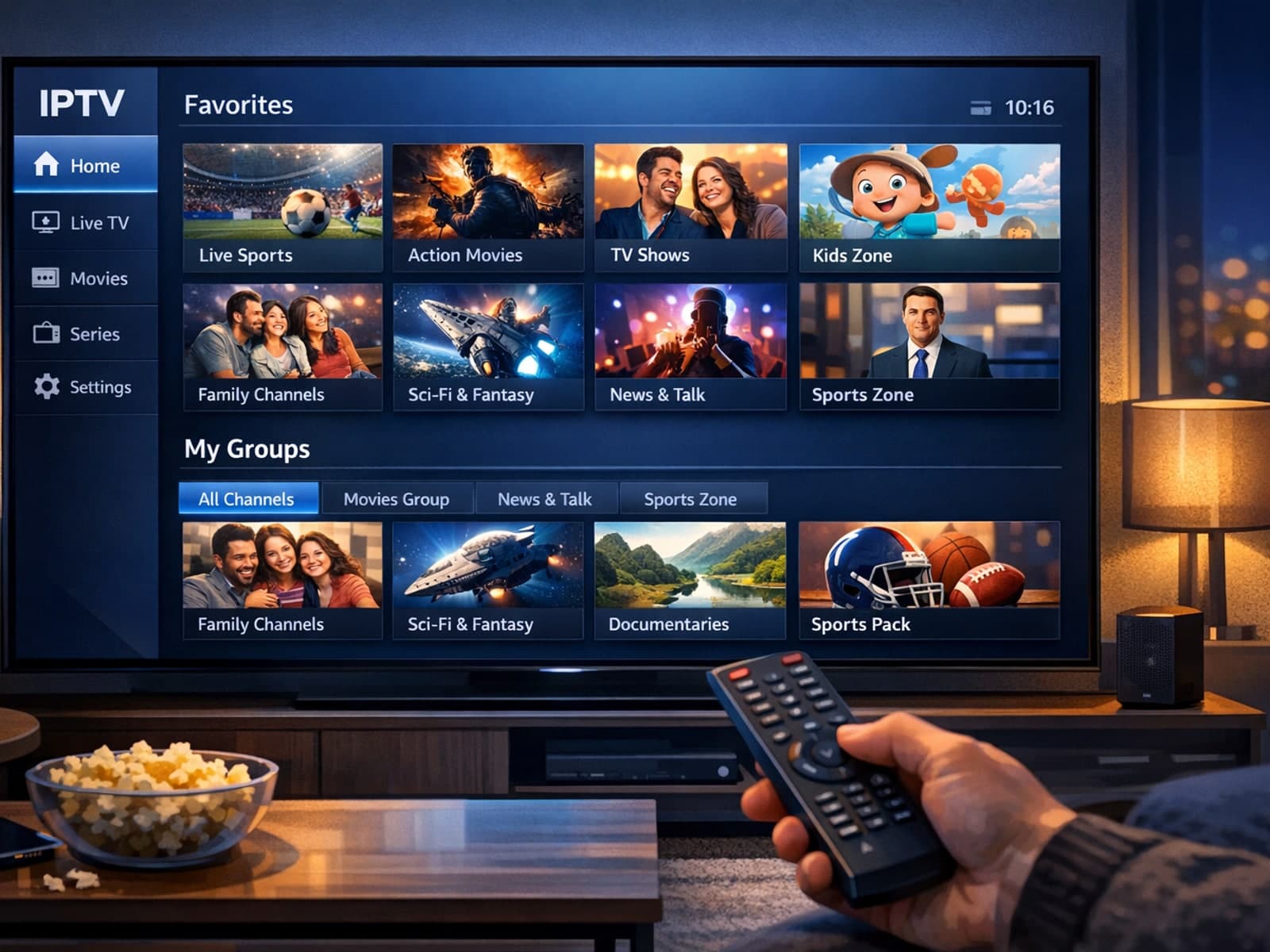
Learn how to efficiently add, rename, and reorder favorites and channel groups in TiviMate on Android TV, Fire TV, and Android devices without editing IPTV playlists.