Ethernet Adapter Compatibility for Fire TV Stick 4K Max

Quick answer
If you're looking to use a wired Ethernet connection with your Fire TV Stick 4K Max, understanding compatibility is crucial. This device does not include a native Ethernet port, but it supports wired networking via a USB-C Ethernet adapter specifically designed or certified fo...
Reviewed Against
• Fire TV and Fire OS device capabilities, networking, and storage limits
• Home-network checks such as Wi-Fi strength, Ethernet fallback, DNS changes, congestion, and local storage pressure
Applies To
• Fire TV Stick, Fire TV Cube, and Fire OS playback or networking questions
• Playback problems that change with connection quality, device load, app cache state, or time of day
Does not apply when
• You are troubleshooting a smart-TV app or set-top box with a different hardware and settings path.
• Only one channel, event, or provider-side endpoint is failing while the rest of the service stays stable.
Corroborating Resources
Fire TV device specifications overviewHelpful for checking Fire TV hardware families, platform differences, and device-level constraints.
Fire TV streaming media player specsUseful for codec, storage, Wi-Fi, and Ethernet-adapter expectations on Fire TV sticks and boxes.
Android TV video and game troubleshootingUseful for Wi-Fi, updates, app cache, and playback troubleshooting steps that also mirror IPTV failure paths.
Android TV storage helpHelpful when playback issues point to low storage, cache pressure, or app-data cleanup decisions.
Topic Cluster
Part of the Ethernet Adapter cluster
Browse practical IPTV articles about ethernet adapter, including setup choices, troubleshooting paths, and follow-on guides. This page sits in setup and decisions for that topic path.
On this page
Ethernet Adapter Compatibility for Fire TV Stick 4K Max
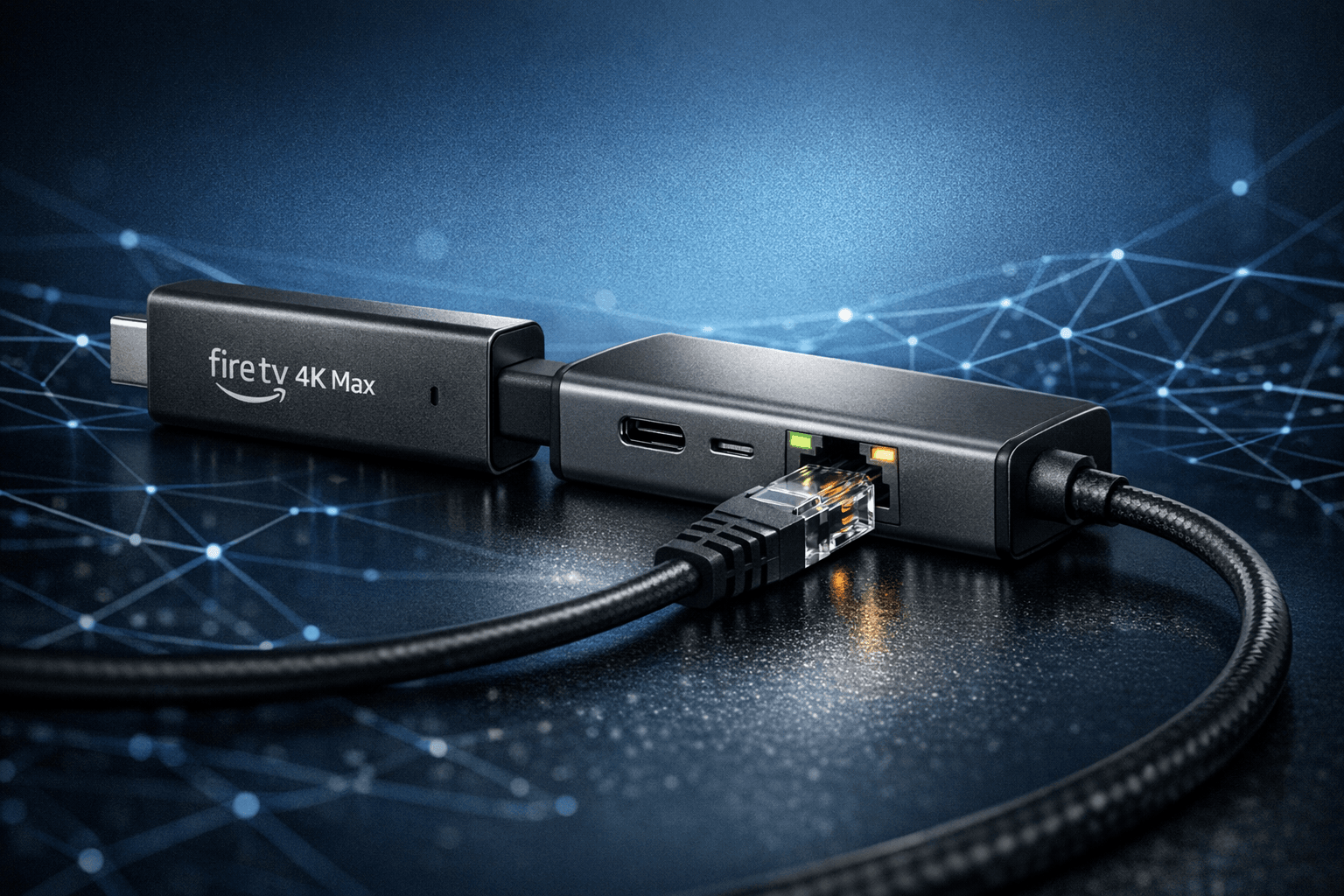
If you're looking to use a wired Ethernet connection with your Fire TV Stick 4K Max, understanding compatibility is crucial. This device does not include a native Ethernet port, but it supports wired networking via a USB-C Ethernet adapter specifically designed or certified for its hardware and firmware. Not all adapters will work due to different chipsets and power requirements. This article clarifies which Ethernet adapters are compatible, how to connect them, and what to keep in mind for stable wired internet access.
What you'll learn
- Which USB-C Ethernet adapters work with Fire TV Stick 4K Max
- How to physically connect and power the adapter
- Key compatibility factors and restrictions
- Troubleshooting common connection issues
- When to consider alternative solutions or devices
Why Use an Ethernet Adapter with Fire TV Stick 4K Max?
The Fire TV Stick 4K Max primarily uses Wi-Fi for internet connectivity, but Wi-Fi signals can be unstable or slow due to interference, range, or congestion. Using an Ethernet adapter provides these advantages:
- Improved Stability: Wired connections avoid wireless interference from walls or other devices.
- Lower Latency: Essential for smooth streaming and responsive IPTV apps.
- Consistent Speed: Reliable data throughput helps prevent buffering.
However, the 4K Max lacks a built-in Ethernet port, so a compatible USB-C Ethernet adapter is needed.
Compatible Ethernet Adapter Types and Chipsets
Fire TV Stick 4K Max Port and Power Details
The 4K Max uses a USB-C port primarily for power and data. For Ethernet compatibility, the adapter must:
- Use USB 2.0 or 3.0 standards compatible with Fire TV Stick chipset.
- Have chipsets supported by Fire OS (often ASIX AX88772 or similar).
- Operate within the device’s power constraints, as the 4K Max supplies limited current via USB-C.
Confirming Adapter Compatibility
Adapters explicitly marketed for Fire TV Stick 4K or 4K Max are usually the safest choice. Generic adapters may or may not work depending on:
- Whether their internal chipsets are supported without additional drivers.
- Their power draw compatibility with Fire TV's USB-C output.
- Physical connectors designed for USB-C (versus USB-A which require extra adapters).
Popular chipsets compatible with Fire TV devices include:
| Chipset | Notes |
|---|---|
| ASIX AX88772 | Widely used, high compatibility |
| Realtek RTL8152 | Sometimes compatible but check specs |
| USB 3.0 based | Compatible if power and chipset OK |
Adapters using unsupported chipsets commonly fail to show or maintain connections.
How to Connect and Power an Ethernet Adapter on Fire TV Stick 4K Max
Connecting an Ethernet adapter to the Fire TV Stick 4K Max involves specific steps to ensure functionality and power delivery.
Step-by-Step Connection
- Unplug the Fire TV Stick from the power and TV.
- Attach the compatible USB-C Ethernet adapter to the Fire TV Stick's USB-C port.
- Connect a CAT5e or CAT6 Ethernet cable to the adapter.
- Plug the other end of the Ethernet cable into your router or switch.
- Connect the Fire TV Stick’s power adapter to the USB-C adapter’s power input (if the adapter has a separate power port).
- Plug the power adapter into the wall outlet to provide sufficient current.
- Plug the Fire TV Stick into the TV HDMI port and turn everything on.
- Navigate to Settings > Network to check the wired connection is active.
Power Considerations
Some adapters draw power solely from the Fire TV Stick USB-C port, which may be insufficient, causing intermittent disconnections. Many recommended adapters use a power pass-through, requiring connection to the official Fire TV power adapter or another stable USB power source to operate correctly.
Troubleshooting Ethernet Adapter Issues on Fire TV Stick 4K Max
If your wired connection doesn't appear or drops frequently, try these troubleshooting tips:
Common Issues
- No wired network detected: Confirm adapter compatibility, proper connection, and power supply.
- Adapter not recognized: Restart the Fire TV Stick after connecting the adapter.
- Network intermittently disconnects: Make sure the adapter is powered via correct USB power input.
- Slow speeds despite Ethernet: Check your router port and cable quality, and verify local network traffic.
Tips to Resolve
- Use original or certified power adapters and cables.
- Test your Ethernet cable separately with another device.
- Try a different compatible Ethernet adapter model if available.
- Keep Fire OS updated to benefit from potential driver fixes.
When to Use Wi-Fi or Consider Other Devices
Applicability
This guidance primarily applies to Fire TV Stick 4K Max users who want a stable wired connection but avoid upgrading to larger or more costly devices.
When to Choose Alternative Paths
- For Fire TV Stick 4K or older models: Different port types or adapter requirements apply; consult specific guides for those models.
- If USB-C Ethernet adapters cause power issues: Consider purchasing a Fire TV Cube with native Ethernet or a Fire TV device with a built-in Ethernet port.
- If you need advanced network features: Some routers offer better Wi-Fi performance optimization alternatives.
Summary Compatibility Checklist
| Compatibility Factor | Requirement |
|---|---|
| Port Type | USB-C on Fire TV Stick 4K Max |
| Adapter Chipset | ASIX AX88772 or compatible |
| Power Supply | Adapter with USB power pass-through recommended |
| Ethernet Cable | CAT5e or better |
| Fire OS Version | Updated to latest version |
Frequently Asked Questions
Do all USB Ethernet adapters work with the Fire TV Stick 4K Max?
No. Only select adapters with compatible chipsets and power profiles function correctly.
Can I use an adapter without power pass-through?
Possible, but more prone to connection problems due to limited power available from the Fire TV Stick's USB-C port.
How can I verify the connection on my Fire TV Stick 4K Max?
Go to Settings > Network. A wired connection status will be shown if active.
Will using Ethernet guarantee better streaming performance?
Ethernet generally improves stability and reduces buffering but depends on your overall network quality.
Are adapters for Fire TV Stick 4K or Fire TV Stick Lite compatible?
No, those models often require USB-A adapters or different connections; check device-specific guides.
Conclusion
Using an Ethernet adapter with the Fire TV Stick 4K Max can significantly improve your streaming experience by providing a stable and fast wired internet connection. However, only certain USB-C Ethernet adapters with compatible chipsets and proper power delivery will work seamlessly. Always verify adapter compatibility and power setup before purchasing or connecting. For those seeking a plug-and-play wired solution or encountering power issues, alternative Amazon Fire TV devices with native Ethernet ports may be preferable.
Selecting the right adapter and connection method ensures the Fire TV Stick 4K Max streams smoothly and reliably over your home network.
For related information on Fire TV device differences and IPTV app troubleshooting, see:
- Fire TV Cube vs Fire TV Stick 4K Max for IPTV Streaming
- IPTV Smarters Invalid Details Error: Causes and Precise Fixes
- How to Fix Catch-Up Not Working in TiviMate
- Amazon Fire TV topic
Frequently Asked Questions
Do all USB Ethernet adapters work with the Fire TV Stick 4K Max?
No, the Fire TV Stick 4K Max uses a USB-C port with specific power and driver requirements, so only certain Ethernet adapters designed for this device are compatible.
Can I use a USB-A Ethernet adapter with the Fire TV Stick 4K Max?
Not directly, since the 4K Max has a USB-C port; you would need a reliable USB-C to USB-A adapter, but compatibility and power issues may arise.
Does the Ethernet adapter require external power?
Some adapters draw power solely from the Fire TV USB-C port, while others require external USB power to function properly for stable wired networking.
Will using a wired Ethernet connection improve streaming performance on the Fire TV Stick 4K Max?
Wired Ethernet generally provides a more stable and sometimes faster connection than Wi-Fi, improving streaming quality, especially in interference-prone environments.
Where in settings can I confirm the Ethernet connection on my Fire TV Stick 4K Max?
Go to Settings > Network; the device will show the Ethernet connection status if properly connected and recognized.
Keep exploring
More explainers that connect naturally to this setup, workflow, or troubleshooting path.
Choosing between the Fire TV Cube and the Fire TV Stick 4K Max for IPTV can come down to your setup preferences, desired features, and streaming performance needs.

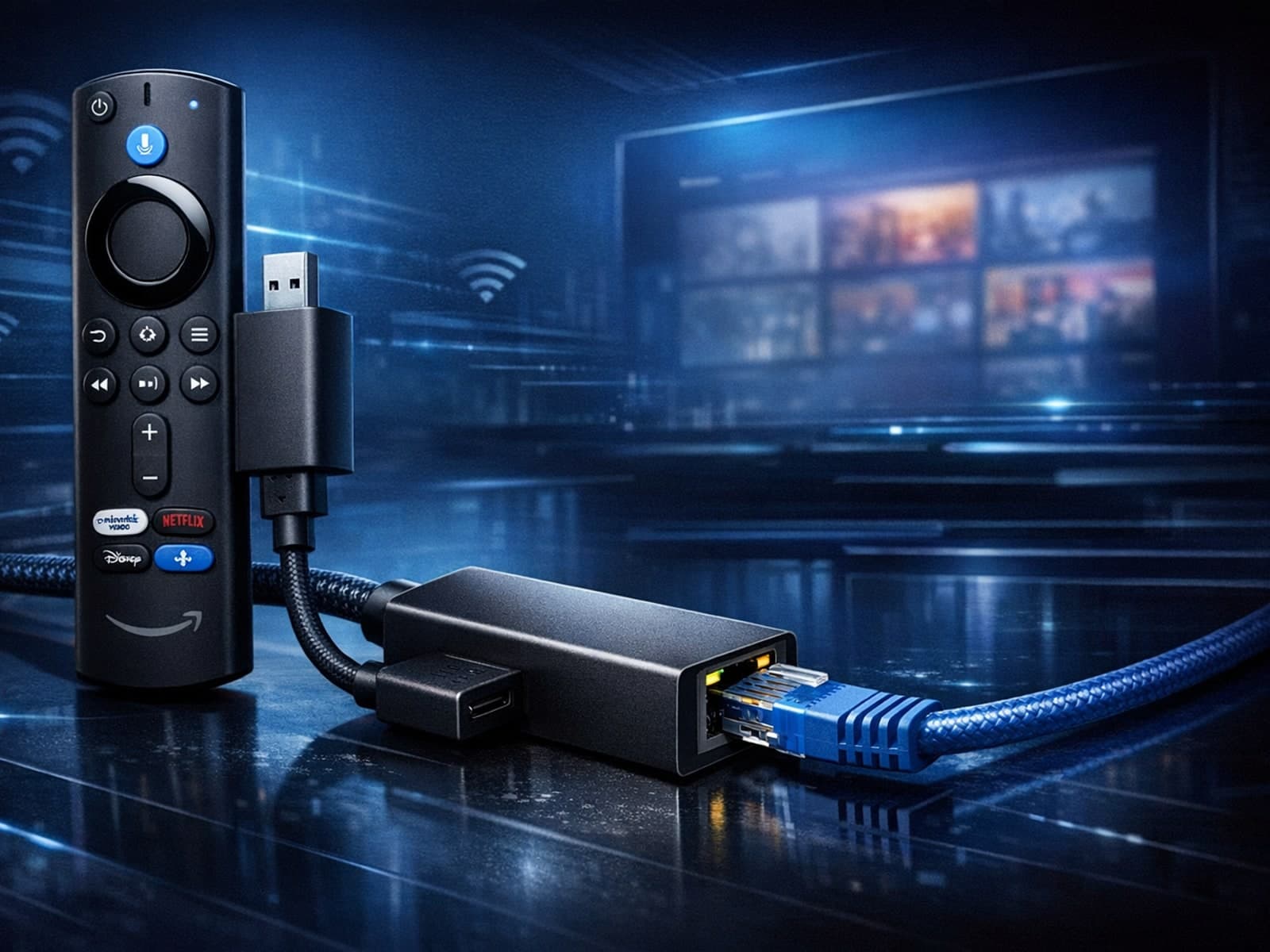
If you want to use a wired Ethernet connection with your Fire TV Stick 4K Max for more stable and faster internet streaming, you need to choose an adapter that is compatible with the device's USB port and chipset requirements.
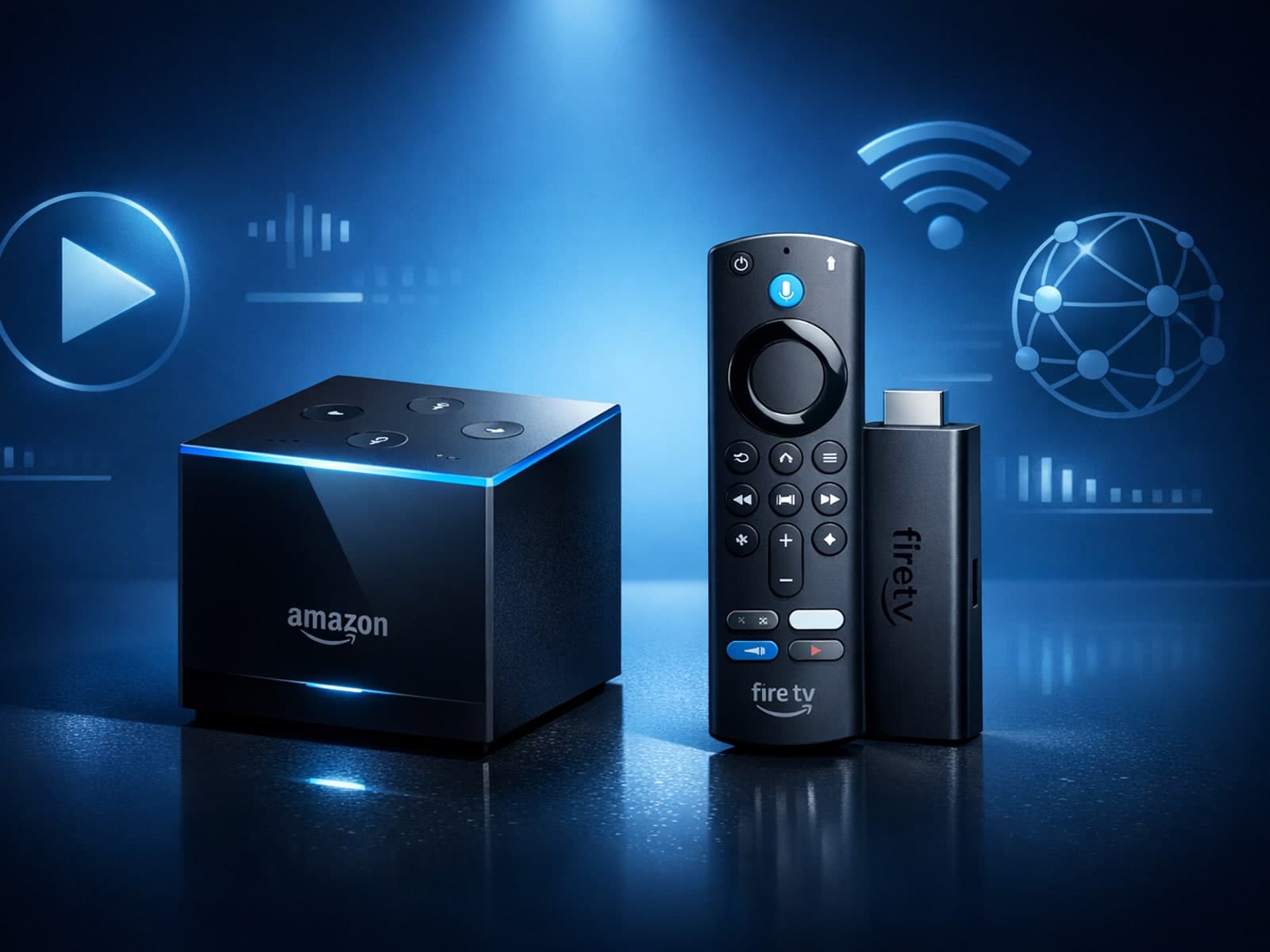
Choosing between the Fire TV Cube and Fire TV Stick 4K Max for IPTV streaming depends on your priorities such as performance, connectivity, and setup ease.