
Fire TV Cube vs Fire TV Stick 4K Max for IPTV Streaming

Quick answer
If you're choosing between the Amazon Fire TV Cube and Fire TV Stick 4K Max for IPTV streaming, the decision comes down to hardware capabilities, control options, and your specific IPTV setup needs. Both devices support IPTV apps and handle 4K content, but the Cube offers enha...
Reviewed Against
• Fire TV and Fire OS device capabilities, networking, and storage limits
Applies To
• Fire TV Stick, Fire TV Cube, and Fire OS playback or networking questions
Does not apply when
• You are troubleshooting a smart-TV app or set-top box with a different hardware and settings path.
Corroborating Resources
Fire TV device specifications overviewHelpful for checking Fire TV hardware families, platform differences, and device-level constraints.
Fire TV streaming media player specsUseful for codec, storage, Wi-Fi, and Ethernet-adapter expectations on Fire TV sticks and boxes.
Topic Cluster
Part of the Fire TV Cube cluster
Browse practical IPTV articles about Fire TV Cube, including setup choices, troubleshooting paths, and follow-on guides. This page sits in compare options for that topic path.
On this page
Fire TV Cube vs Fire TV Stick 4K Max for IPTV Streaming
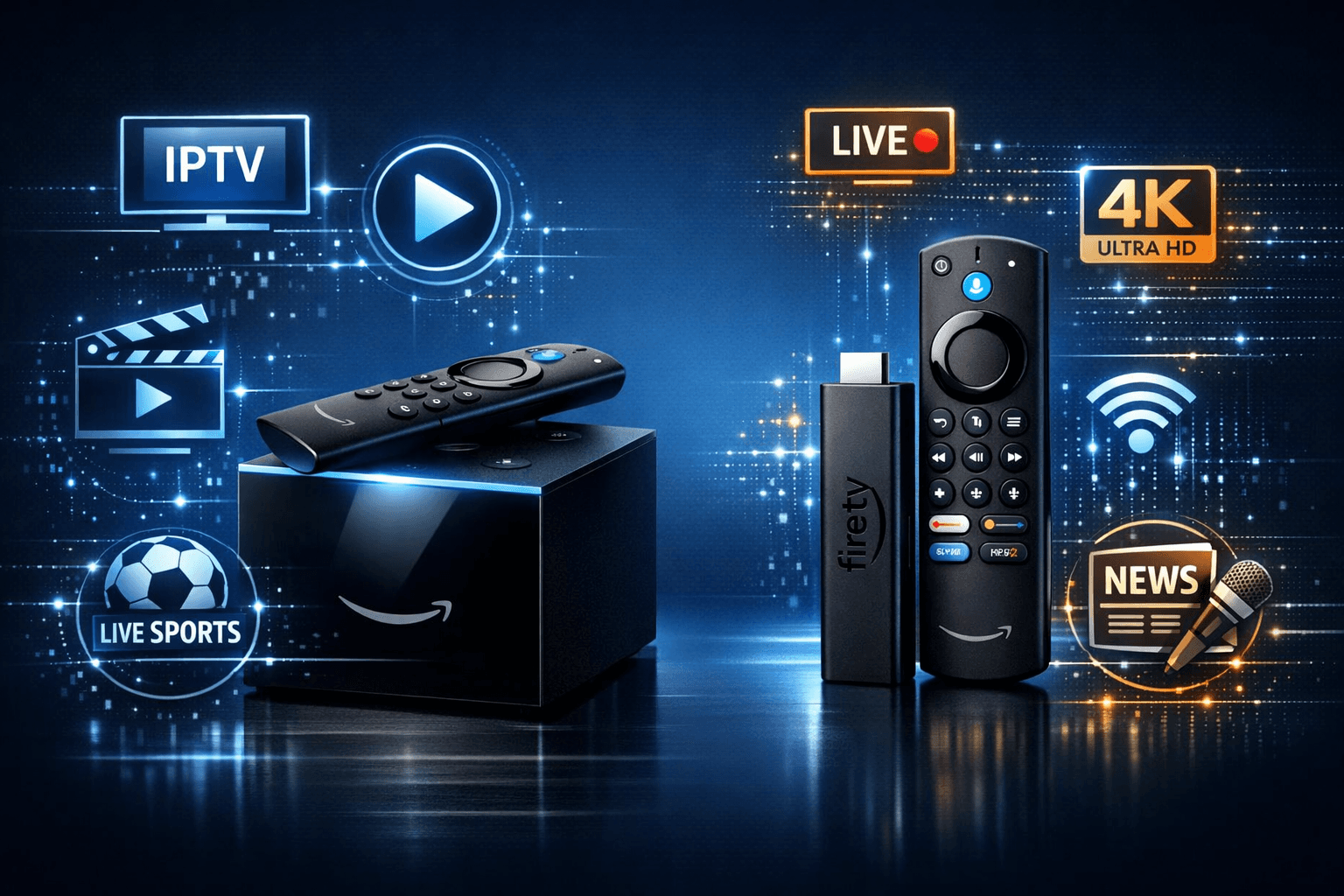
If you're choosing between the Amazon Fire TV Cube and Fire TV Stick 4K Max for IPTV streaming, the decision comes down to hardware capabilities, control options, and your specific IPTV setup needs. Both devices support IPTV apps and handle 4K content, but the Cube offers enhanced processing power, built-in far-field microphones for Alexa voice control, and Ethernet support. The Stick 4K Max is a compact, cost-effective option that still delivers strong performance but relies on Wi-Fi and has less onboard storage.
What you'll learn
- Differences in hardware and connectivity affecting IPTV
- How device control options impact IPTV user experience
- Setup considerations unique to each device for IPTV apps
- Troubleshooting common IPTV issues specific to Fire TV Cube and Stick 4K Max
- Which device suits different IPTV user profiles and use cases
Hardware Comparison Relevant to IPTV
Understanding the hardware differences lets you anticipate IPTV streaming quality and reliability.
Processor and RAM
- Fire TV Cube: Powered by a hexa-core processor with 16 GB internal storage and 2 GB RAM, offering robust multitasking and smoother video playback.
- Fire TV Stick 4K Max: Quad-core processor with 8 GB storage and 2 GB RAM, sufficient for IPTV but with less processing overhead.
More RAM and faster processing on the Cube improve handling of 4K IPTV streams, especially when switching channels or running multiple apps.
Network Connectivity
- Fire TV Cube: Supports dual-band Wi-Fi and wired Ethernet via adapter, giving stable and low-latency IPTV streaming.
- Fire TV Stick 4K Max: Only supports dual-band Wi-Fi, so signal quality impacts IPTV performance.
Ethernet connection on the Cube reduces buffering and stream interruptions that are common over Wi-Fi, especially with congested networks.
Storage Considerations
IPTV apps and caches can consume storage:
- Cube's 16 GB allows more apps and buffer space.
- Stick 4K Max's 8 GB fills up faster, potentially affecting app responsiveness.
If you plan to install multiple IPTV-related apps, consider the Cube for its larger storage.
Control and User Interface Differences
Alexa Voice Control
- Fire TV Cube: Built-in microphones for hands-free Alexa commands anywhere in the room, enhancing channel navigation and playback control.
- Fire TV Stick 4K Max: Alexa commands require holding the remote's mic button, less convenient but functional.
Hands-free operation on the Cube helps when managing IPTV content, especially if your remote is misplaced.
Remote and App Navigation
Both devices use the Fire TV remote with navigation buttons and voice control, but the Cube’s remote can be complemented by Alexa for navigation on screen.
Use IPTV app remotes or Fire TV’s interface shortcuts effectively regardless of device.
IPTV App Setup on Fire TV Cube vs Stick 4K Max
Both require similar IPTV app installations and settings but differ in networking setup.
Step-by-Step Setup Overview
- Connect device to TV HDMI and power.
- Connect device to network (Wi-Fi on Stick, Wi-Fi or Ethernet on Cube).
- Use Fire TV interface to access Amazon Appstore.
- Search for and install your IPTV app (e.g., TiviMate, IPTV Smarters).
- Enter IPTV login credentials or M3U links.
- Adjust video quality and streaming buffers as per app options.
- Test stream playback and responsiveness.
Network Setup Tips
- For Cube: Prefer Ethernet when possible for IPTV; use USB-Ethernet adapter if needed.
- For Stick: Place device near Wi-Fi router or use Wi-Fi range extenders.
Troubleshooting Common IPTV Issues by Device
Fire TV Cube
-
Issue: IPTV buffering despite Ethernet.
- Check Ethernet cable and router connection.
- Restart Cube and router.
- Reduce IPTV stream quality in app settings.
-
Issue: Alexa commands fail to control IPTV app.
- Ensure IPTV app supports Alexa remote commands.
- Update Fire OS to latest version.
Fire TV Stick 4K Max
-
Issue: Video freezes or low quality.
- Reboot device and Wi-Fi router.
- Check Wi-Fi signal strength (settings > network).
- Clear IPTV app cache or reinstall app.
-
Issue: Remote voice control unresponsive.
- Replace remote batteries.
- Re-pair remote with Fire TV if needed.
Who Should Choose Which Device for IPTV?
Choose Fire TV Cube if:
- You want wired Ethernet for stable IPTV streaming.
- You prefer hands-free Alexa voice control.
- You run multiple apps alongside IPTV and want smoother performance.
- You have larger IPTV playlists or heavy app storage needs.
Choose Fire TV Stick 4K Max if:
- You're budget-conscious but want solid 4K IPTV streaming.
- Your Wi-Fi network is strong and reliable.
- You mainly use voice commands via remote, not always hands-free.
- You have limited space and prefer a more compact device.
If your IPTV use requires advanced networking or multitasking, Cube is better. For casual IPTV viewers with solid Wi-Fi, Stick 4K Max works well.
Fire TV Cube vs Fire TV Stick 4K Max for IPTV: Quick Comparison
| Feature | Fire TV Cube | Fire TV Stick 4K Max |
|---|---|---|
| Processor | Hexa-core, faster CPU | Quad-core CPU |
| RAM & Storage | 2GB RAM, 16GB storage | 2GB RAM, 8GB storage |
| Network | Wi-Fi + Ethernet (via adapter) | Wi-Fi only |
| Alexa Voice Control | Hands-free, built-in microphones | Remote button required |
| IPTV App Performance | Better for multitasking, heavy use | Good for standard IPTV streaming |
| Price Approximation | Higher | Lower |
FAQ
Which device streams IPTV with less buffering?
The Fire TV Cube’s Ethernet support usually reduces buffering compared to the Stick 4K Max, which depends on Wi-Fi.
Can I attach external storage to expand IPTV app space?
Both devices support USB storage via adapters, but performance varies. Consider Cube for better USB peripheral support.
Does Alexa voice control improve IPTV navigation?
Yes, especially on the Cube with hands-free Alexa. It can simplify channel changes and playback controls.
Are software updates important for IPTV apps?
Absolutely. Updates often fix streaming bugs and add support for IPTV features on Fire TV devices.
Conclusion
The decision between Fire TV Cube and Fire TV Stick 4K Max for IPTV depends on your priorities. The Cube offers superior hardware, Ethernet support, and truly hands-free Alexa voice control, making it ideal for power users and those with congested networks. The Stick 4K Max provides most IPTV features at a lower cost, working well over strong Wi-Fi for casual viewers. Understanding your IPTV needs and network environment will help you select the device that delivers the best viewing experience.
For deeper technical tips, see Fire TV Stick Storage Issues Causing IPTV Lag, Best WiFi Settings for IPTV on Fire TV Stick, and Fix Missing Channel Logos in TiviMate. For IPTV app playlist updates, consider When Xtream Codes Works Better Than M3U for IPTV Streaming.
Keep exploring
More explainers that connect naturally to this setup, workflow, or troubleshooting path.
If you're choosing between the Fire TV Cube and Fire TV Stick 4K Max specifically for IPTV streaming, you need to understand how these devices handle IPTV apps, network connections, voice control, and overall performance.

When deciding between the Fire TV Cube and the Fire TV Stick 4K Max for IPTV streaming, your choice should focus on your specific setup needs, desired features, and network environment.

When deciding between the Fire TV Cube and the Fire TV Stick 4K Max for IPTV streaming, the choice mainly comes down to your need for processing power, voice control convenience, and connection options.
