
How to Fix Missing Channel Logos in TiviMate

Quick answer
If your TiviMate IPTV player isn’t showing channel logos as expected, the cause is typically related to playlist metadata issues, corrupted app cache, or network loading problems. While TiviMate itself supports channel logos, it requires your IPTV playlist to provide valid log...
Reviewed Against
• TiviMate playlist, EPG, and player-setting workflows
• Home-network checks such as Wi-Fi strength, Ethernet fallback, DNS changes, congestion, and local storage pressure
Applies To
• TiviMate setups on Android TV, Google TV, or Fire OS style streaming devices
• Playback problems that change with connection quality, device load, app cache state, or time of day
Does not apply when
• Your app uses a different menu layout or naming scheme than TiviMate.
• Only one channel, event, or provider-side endpoint is failing while the rest of the service stays stable.
Corroborating Resources
Android TV video and game troubleshootingUseful for Wi-Fi, updates, app cache, and playback troubleshooting steps that also mirror IPTV failure paths.
Android TV storage helpHelpful when playback issues point to low storage, cache pressure, or app-data cleanup decisions.
Topic Cluster
Part of the IPTV cluster
Browse practical IPTV articles about IPTV, including setup choices, troubleshooting paths, and follow-on guides. This page sits in troubleshoot and fix for that topic path.
On this page
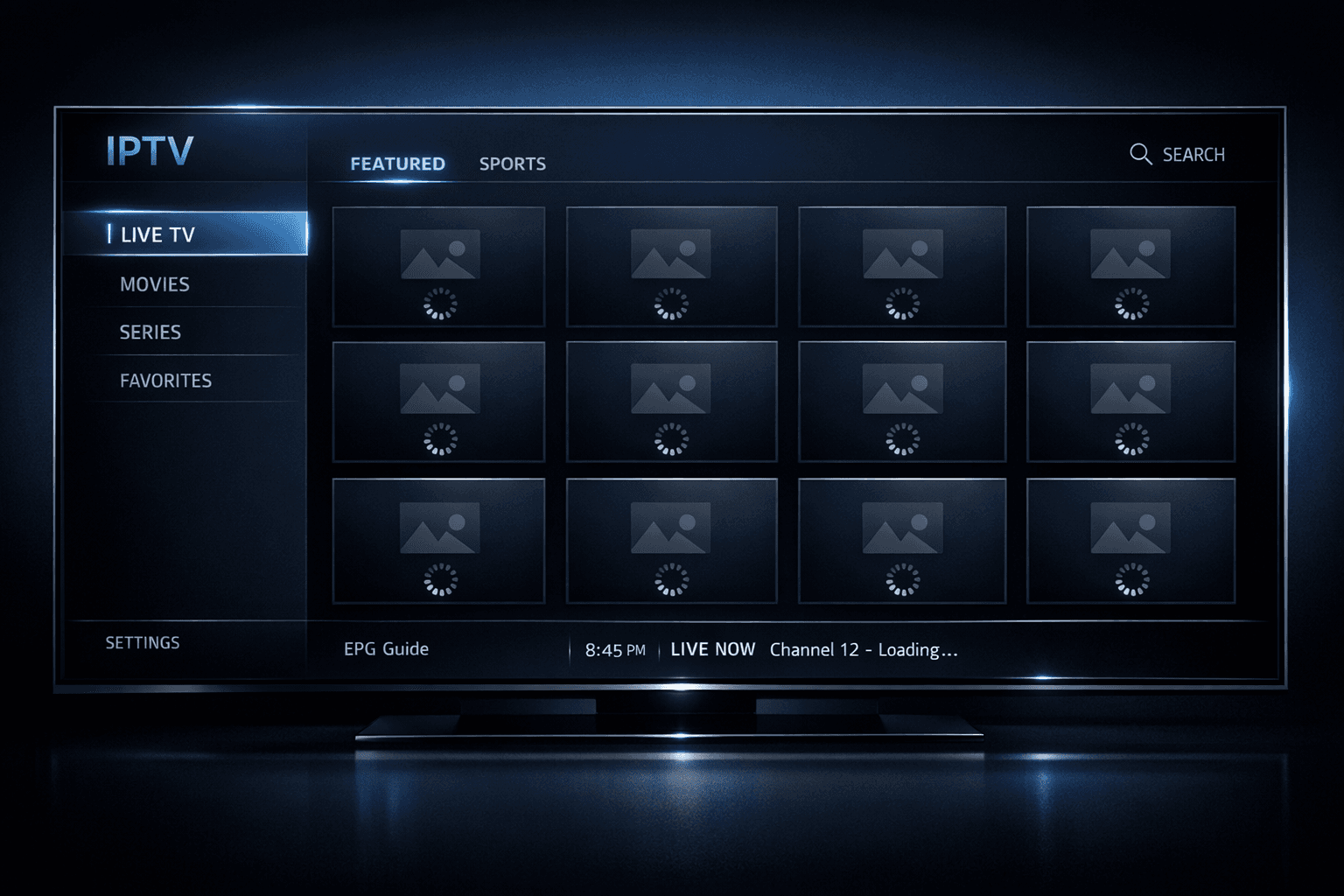
How to Fix Missing Channel Logos in TiviMate
If your TiviMate IPTV player isn’t showing channel logos as expected, the cause is typically related to playlist metadata issues, corrupted app cache, or network loading problems. While TiviMate itself supports channel logos, it requires your IPTV playlist to provide valid logo URLs to display them correctly. This article guides you through the key steps to restore missing channel logos efficiently, starting with the simplest checks and progressing to more technical fixes.
What you'll learn
- Why channel logos can disappear in TiviMate
- How to verify your playlist includes logos
- How to clear cache and refresh metadata in the app
- When to update your playlist or seek help from your provider
- Troubleshooting common pitfalls related to channel logos
Why Are Channel Logos Missing in TiviMate?
Channel logos in TiviMate depend on your IPTV playlist including specific logo URLs for each channel. These URLs point to image files (commonly PNG or JPEG) hosted on the internet. If the playlist lacks these URLs, or if the URLs are invalid or inaccessible, then logos won’t display.
Common causes include:
- The M3U or XML playlist does not contain logo metadata.
- The logo URLs are broken, outdated, or hosted on inaccessible servers.
- The TiviMate app cache is corrupted, preventing logos from loading properly.
- Network restrictions or slow connections hinder image downloads.
Understanding these causes will help ensure you apply the right solution.
Confirm Your Playlist Supports Channel Logos
Checking Playlist Metadata
Your IPTV playlist generally is a file format like M3U or an Xtream Codes API URL that feeds your channels into TiviMate. To show logos, each channel entry needs a tvg-logo attribute or equivalent that specifies the URL to the channel’s logo image.
How to check:
- Open your playlist file in a plain text editor (if you have access).
- Look for lines starting with
#EXTINFcontainingtvg-logo="http://...".
Example snippet:
#EXTINF:-1 tvg-id="channel1" tvg-logo="http://logos.example.com/channel1.png", Channel 1
http://streaming.url/channel1
If your playlist entries lack tvg-logo or similar entries, channel logos cannot be displayed. This is common if the playlist was manually created or from certain providers.
What if You Use an Xtream Codes Login
If you connect via Xtream Codes (or similar middleware login), your provider typically manages the channel metadata including logos. However, some providers do not supply logo URLs or offer incomplete ones. In that case, you’ll need to:
- Contact your provider to request a playlist with logos.
- Use a third-party playlist or logo pack if possible.
Refresh Your Playlist and Clear Cache in TiviMate
Sometimes channel logos disappear due to a temporary glitch or corrupted cache. Refreshing your playlist and clearing TiviMate’s cache can resolve this.
Refresh Your Playlist
- Open TiviMate.
- Go to Settings > Playlists.
- Select your current playlist.
- Choose the option to Refresh or Reload the playlist.
This forces TiviMate to fetch new metadata from your playlist source, which may include updated logo URLs.
Clear TiviMate Cache
Clearing cache removes temporary files that may be corrupted:
-
On Android TV or Fire TV:
- Go to Settings > Apps > TiviMate.
- Select Storage.
- Click Clear Cache.
-
On other devices, the steps vary slightly but typically involve app settings or system app management.
After clearing cache, restart TiviMate and check if logos appear.
Troubleshooting Common Mistakes and Issues
Common Pitfalls
- Playlist without logos: Many beginners overlook checking the playlist file itself.
- Outdated app version: Older versions of TiviMate may have bugs affecting logo display.
- Network restrictions: Firewalls or slow internet can block image loading.
Checklist to Fix Missing Logos
| Step | Checkpoint |
|---|---|
Playlist contains tvg-logo | Verify playlist entries include valid logo URLs |
| Playlist refresh | Reload playlist inside TiviMate |
| Clear app cache | Remove temporary corrupted files |
| Update app | Use the latest TiviMate version |
| Network check | Confirm internet access and no restrictions |
| Provider support | Confirm your provider supplies logos or playlist metadata |
When This Guidance Applies and When to Seek Other Help
This article is tailored for users who:
- Use TiviMate IPTV player on Android TV, Fire TV, or similar devices.
- Have direct access to their IPTV playlist or Xtream Codes login.
- Experience missing channel logos despite regular channel streaming.
When to try other troubleshooting paths:
- If you use a different IPTV app, such as Perfect Player or IPTV Smarters, follow device/app-specific guides.
- If your IPTV service uses proprietary apps without playlist editing, contact provider support.
- Hardware issues or system-level bugs require device or OS troubleshooting.
Additional Tips to Ensure Channel Logos Stay Visible
- Keep TiviMate updated: Developers may fix logo-related bugs.
- Use trusted IPTV sources: Reliable providers tend to maintain their playlists and metadata.
- Back up working playlists: Preserve playlists with good logo metadata.
- Consider custom logo packs: Some users create local logo packs for manual assignment.
FAQ
Why are my channel logos missing in TiviMate?
Channel logos may be missing due to outdated or incomplete playlist metadata, corrupted cache, or network issues preventing logos from loading.
Can I add channel logos manually in TiviMate?
Yes, if your playlist supports logo URLs, you can edit the playlist to include or correct logo links for channels to display logos properly.
Does clearing the cache affect other settings in TiviMate?
Clearing the cache only removes temporary data and does not delete your channel list or user settings.
Is a playlist without logo URLs the cause of missing logos?
Yes, if the IPTV playlist lacks valid logo URLs, TiviMate cannot display channel logos even if the app is working correctly.
Conclusion
Missing channel logos in TiviMate usually stem from playlist metadata issues or temporary app cache corruption. By confirming your playlist includes valid logo URLs, refreshing your playlist, clearing the app cache, and verifying your network connection, you can restore channel logos reliably. If problems persist, updating TiviMate or consulting your IPTV provider for a more complete playlist often resolves logo display issues fast.
For more help customizing TiviMate, see our How to Organize Favorites and Groups in TiviMate and How to Fix Catch-Up Not Working in TiviMate guides.
This article focuses strictly on TiviMate and does not cover unrelated platforms or generic IPTV troubleshooting.
| Step | Action |
|---|---|
| 1 | Refresh IPTV playlist |
| 2 | Verify playlist logo URLs |
| 3 | Clear TiviMate app cache |
| 4 | Restart the app |
| 5 | Check internet connection |
| 6 | Update TiviMate app |
| 7 | Contact provider if needed |
This completes the step-by-step fix for missing channel logos in TiviMate.
Keep exploring
More explainers that connect naturally to this setup, workflow, or troubleshooting path.
If you use IPTV services in apps like TiviMate, you might encounter two common methods for accessing streams: Xtream Codes login and M3U playlists.

Organizing favorites and groups in TiviMate significantly improves how you browse and watch IPTV channels. By creating well-structured channel groups and marking your favorites, you can access content quickly, reduce scrolling, and tailor.
If your IPTV stream freezes or buffers when you change channels, this is usually caused by delays in receiving or processing the new channel data.
