
TiviMate Playlist Not Updating After Refresh

Quick answer
If your TiviMate playlist is not updating after you press refresh, it usually means the app is unable to retrieve or load the updated channel list from your IPTV source. This issue can arise from connectivity problems, invalid or expired playlists, app cache corruption, or com...
Reviewed Against
• TiviMate playlist, EPG, and player-setting workflows
Applies To
• TiviMate setups on Android TV, Google TV, or Fire OS style streaming devices
Does not apply when
• Your app uses a different menu layout or naming scheme than TiviMate.
Topic Cluster
Part of the IPTV cluster
Browse practical IPTV articles about IPTV, including setup choices, troubleshooting paths, and follow-on guides. This page sits in more in this topic for that topic path.
On this page
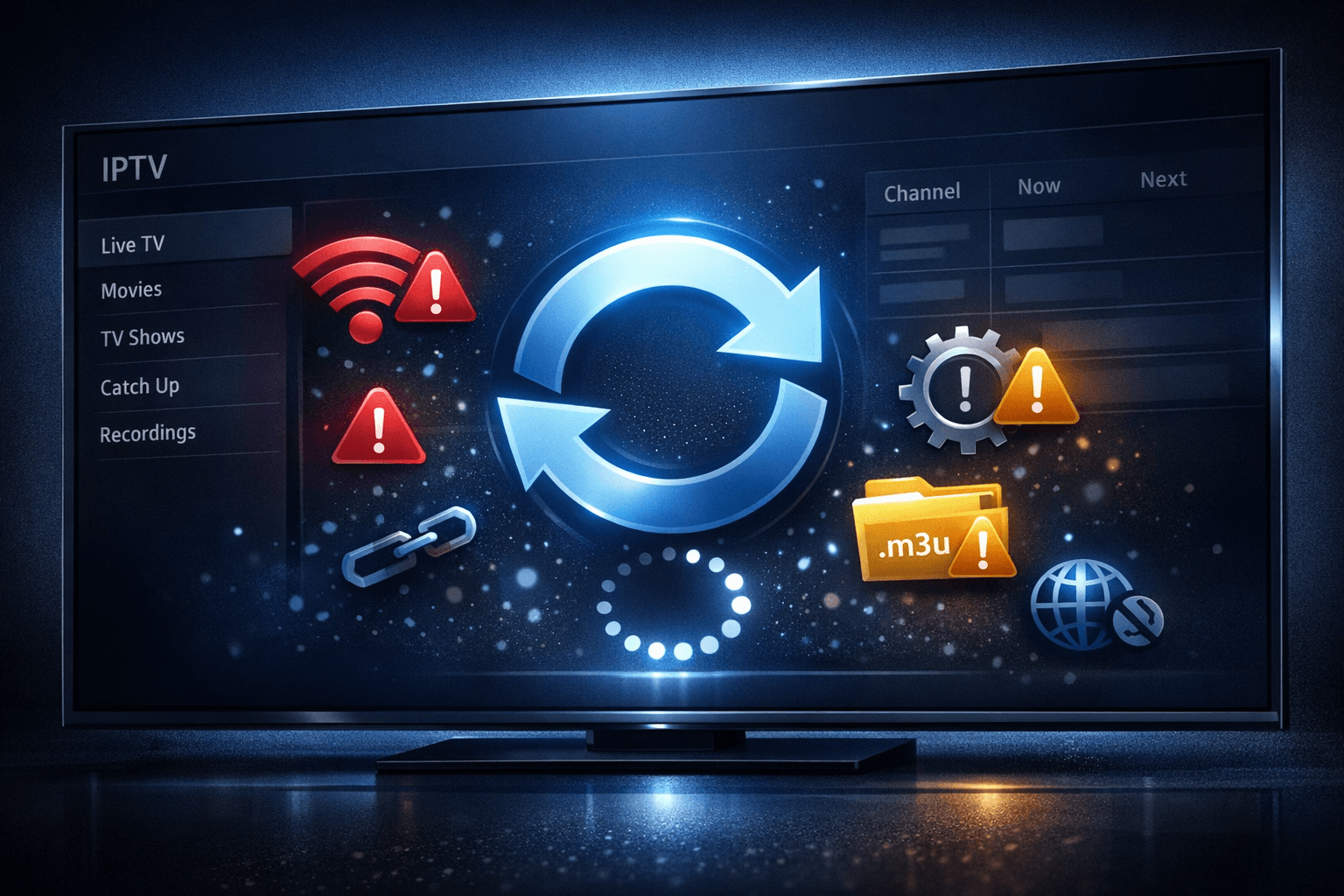
TiviMate Playlist Not Updating After Refresh: Causes and Solutions
If your TiviMate playlist is not updating after you press refresh, it usually means the app is unable to retrieve or load the updated channel list from your IPTV source. This issue can arise from connectivity problems, invalid or expired playlists, app cache corruption, or compatibility issues. Understanding the specific cause will help you resolve the issue efficiently.
What you'll learn
- Common reasons why a TiviMate playlist won't update after refresh
- How to verify and fix network connection problems
- Steps to clear app cache and update the app
- How to check playlist URL validity and credentials
- When to explore device-specific troubleshooting or provider support
Understanding Why TiviMate Playlists Fail to Update
TiviMate is an IPTV player app designed for Android devices such as Fire TV, Android TV boxes, and smart TVs. It relies on playlists—usually in M3U or Xtream Codes format—to provide channel and program listings. When you refresh the playlist, TiviMate tries to download the latest details from the source URL.
Several issues can stop the refresh from completing successfully:
- Internet connectivity problems: No or intermittent network access
- Invalid or expired playlist URLs: The URL is no longer accessible
- Corrupted app cache or data: Temporary files causing errors
- Outdated TiviMate app: Missing updates with bug fixes
- Authentication or credential errors: Particularly with Xtream Codes API
Knowing what aspect to check first depends on your setup and symptoms.
Checking Network Connection Stability
A stable internet connection is fundamental for TiviMate to update playlists. Without it, the refresh will fail silently or show an error.
Steps to verify network connection
- Test internet access on another app or device (e.g., a browser or YouTube).
- Restart your router and device to refresh network settings.
- If using Wi-Fi, switch to a wired connection or try connecting to a different network.
If other apps have trouble connecting, fix the network issue before troubleshooting TiviMate itself.
Clearing App Cache and Data to Resolve Corruption
Sometimes, corrupted cache files interfere with proper playlist refreshes. Clearing cache and data removes temporary files and resets app state.
How to clear cache on TiviMate (Android-based devices):
- Go to Settings on your device.
- Navigate to Apps & notifications (or similar).
- Find and select TiviMate.
- Choose Storage & cache.
- Tap Clear Cache and then Clear Storage/Data.
- Reopen TiviMate and re-add your playlist if necessary.
Note: Clearing data will remove saved playlists and settings, so have your playlist URLs or credentials ready.
Verifying Playlist URL and Credentials
An invalid or expired playlist URL is among the most common causes for the playlist not updating.
- Check that the URL is correctly entered, without typos.
- Confirm the playlist URL is still active and supported by your IPTV provider.
- If using Xtream Codes API, verify your username, password, and server URL.
- Some IPTV providers rotate or expire URLs frequently; you may need updated information.
To test URL validity, try opening it on a browser or a playlist validation tool. If it does not load or returns errors, contact your IPTV provider.
Ensuring TiviMate App is Up to Date
Bugs in older app versions can cause problems with playlist updates.
- Visit your device’s app store or OTA update section.
- Find TiviMate and confirm it’s the latest version.
- Install any updates then restart the device.
Developers often patch playlist refresh bugs or compatibility issues with IPTV servers in updates.
When to Use Device-Specific Troubleshooting or Contact Providers
Who this guide applies to:
- Users running TiviMate on Android TV, Amazon Fire TV, or similar.
- Users managing IPTV playlists in M3U or Xtream Codes format.
- Cases where the refresh button does not update channel lists.
When to try a different troubleshooting path:
- Using a custom or third-party IPTV app with a different interface.
- Device-specific issues like Fire TV Stick storage or network settings (see related IPTV Explained articles).
- If playlist login credentials are invalid or expired, the IPTV provider’s support is necessary.
Common Mistakes Leading to TiviMate Playlist Update Failures
- Assuming refresh happens instantly: Some playlists are large and take time.
- Not verifying playlist URLs: Old or trial URLs often expire.
- Ignoring app version updates: Older versions may not support latest server protocols.
- Skipping network checks: An unstable connection causes silent failures.
- Mixing playlist formats: TiviMate requires supported formats for updates.
Summary Checklist to Fix TiviMate Playlist Not Updating
| Step | Action Focus | Expected Outcome |
|---|---|---|
| 1. Verify Internet | Network connection | Stable connection confirmed |
| 2. Manually Refresh | Playlist download trigger | Playlist reloads with new content |
| 3. Clear Cache & Data | App state reset | Remove corrupted cache files |
| 4. Check Playlist URL & Login | URL validity, credentials | Playlist accessible and active |
| 5. Update TiviMate App | Bug fixes, compatibility | Latest app with fewer errors |
| 6. Restart Device | Clear background errors | Fresh environment for app |
| 7. Contact IPTV Provider | Credentials, playlist help | Updated info or fix from provider |
Frequently Asked Questions
Q: Why doesn't my TiviMate playlist update after refresh?
A: Usually due to network issues, expired URLs, or corrupted local app cache.
Q: How do I manually refresh a playlist in TiviMate?
A: In the app’s playlist settings, select your playlist and tap the refresh button.
Q: Can clearing app cache fix playlist update problems?
A: Yes, it often resolves corruption interfering with refresh.
Q: Does TiviMate support all IPTV playlist formats?
A: Primarily M3U and Xtream Codes formats; others may not update properly.
Q: When should I contact my IPTV provider about playlist issues?
A: If the playlist URL or login details are invalid or expired and you can’t update manually.
Conclusion
When TiviMate’s playlist does not update after refresh, systematically checking your network, clearing app cache, verifying playlist URLs, and updating the app usually resolves the issue. Knowing when to engage your IPTV provider or pursue device-specific solutions ensures the problem is fixed without unnecessary steps. Follow this guide’s ordered steps to restore playlist refresh functionality smoothly.
For related insights on managing IPTV playlists and TiviMate troubleshooting, consider reading M3U Plus vs Xtream Codes API for IPTV Playlist Updates and TiviMate EPG Source URL Not Working.
Frequently Asked Questions
Why doesn't my TiviMate playlist update after refresh?
This often results from network issues, an invalid or expired playlist URL, corrupted app cache, or outdated app version preventing successful updates.
How do I manually refresh a playlist in TiviMate?
Go to the playlist settings in TiviMate, select your playlist, and choose the refresh option to attempt updating the content list.
Can clearing app cache fix playlist update problems?
Yes, clearing the TiviMate app cache can resolve issues caused by corrupted temporary files interfering with playlist refreshes.
Does TiviMate support all IPTV playlist formats?
TiviMate mainly supports M3U and Xtream Codes format playlists. Using unsupported formats or expired URLs can prevent updates.
When should I contact my IPTV provider about playlist issues?
If the playlist URL or credentials are invalid, changed, or expired and you can't fix update issues, contact your IPTV service provider for assistance.
Keep exploring
More explainers that connect naturally to this setup, workflow, or troubleshooting path.
Organizing favorites and groups in TiviMate significantly improves how you browse and watch IPTV channels. By creating well-structured channel groups and marking your favorites, you can access content quickly, reduce scrolling, and tailor.

If your IPTV stream freezes or buffers when you change channels, this is usually caused by delays in receiving or processing the new channel data.

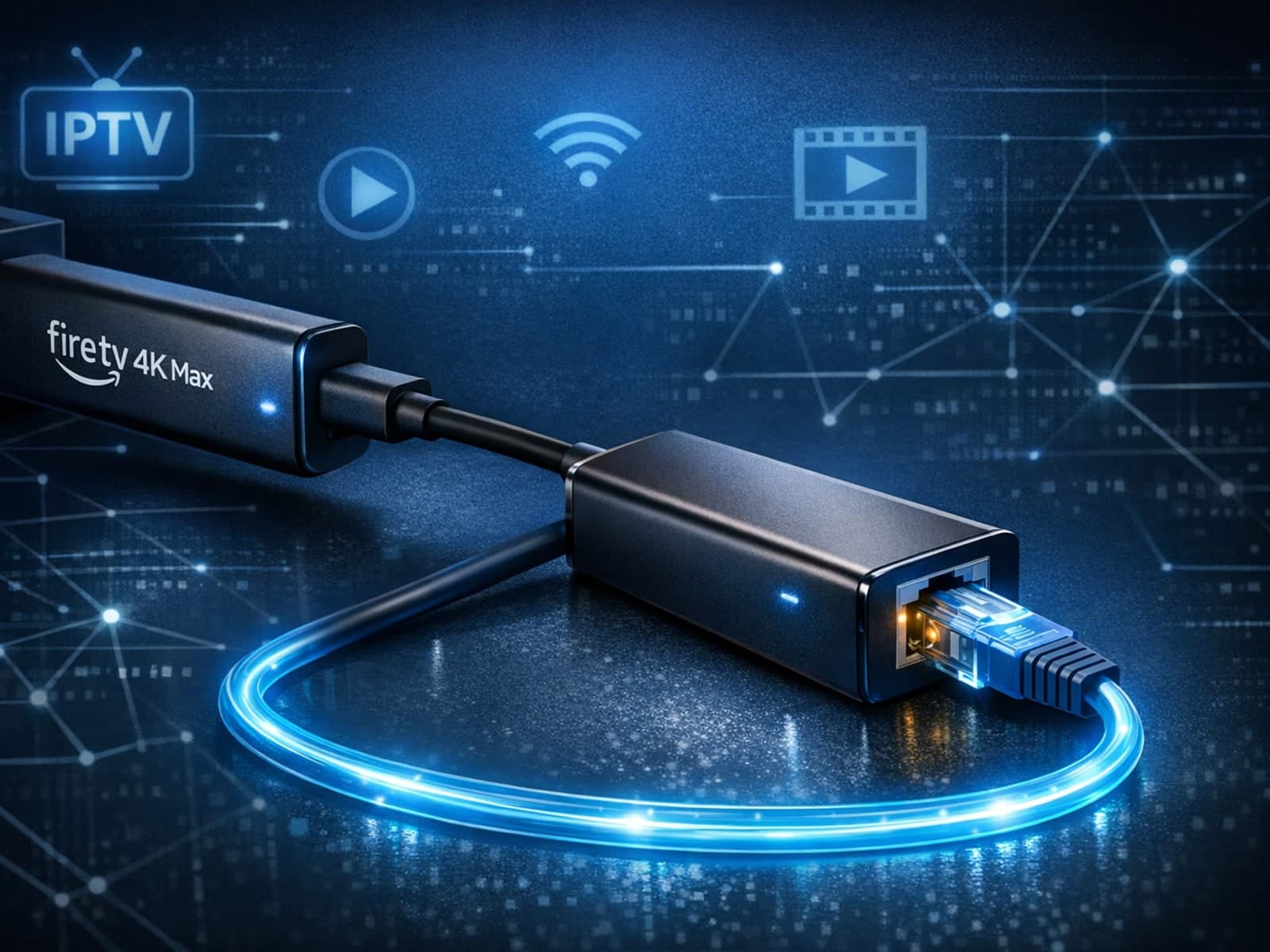
The Fire TV Stick 4K Max supports Ethernet adapters designed to connect through its USB-C port, enabling wired internet access for more reliable streaming.