
TiviMate Playlist Not Updating After Refresh: Causes and Fixes

Quick answer
When you hit "refresh" in TiviMate but your playlist doesn't update, it can be frustrating. Simply put, a playlist not updating means the app isn't downloading the latest channel list or program data from your IPTV source. This issue could be caused by problems with the playli...
Reviewed Against
• TiviMate playlist, EPG, and player-setting workflows
• M3U and M3U Plus playlist URLs, refreshes, and import behavior
• Server-URL formatting, HTTP response handling, and account-entry failure patterns
Applies To
• TiviMate setups on Android TV, Google TV, or Fire OS style streaming devices
• Playlist-based IPTV setups that rely on M3U or M3U Plus links for channel data
• Errors caused by malformed URLs, wrong credentials, expired tokens, or unreachable playlist endpoints
Does not apply when
• Your app uses a different menu layout or naming scheme than TiviMate.
• Your app is using a portal or stalker-style workflow instead of a playlist URL.
• The provider confirms the service is down or the account has been deliberately blocked upstream.
Corroborating Resources
HTTP response status codesUseful when an IPTV app surfaces 401, 403, 404, or 5xx style errors during login or playlist refreshes.
URL structure referenceHelpful for checking server URLs, source links, and path/query mistakes in portal or playlist setups.
Topic Cluster
Part of the IPTV Troubleshooting cluster
Browse practical IPTV articles about IPTV Troubleshooting, including setup choices, troubleshooting paths, and follow-on guides. This page sits in more in this topic for that topic path.
On this page
Understanding Why TiviMate Playlist May Not Update After Refresh
When you hit "refresh" in TiviMate but your playlist doesn't update, it can be frustrating. Simply put, a playlist not updating means the app isn't downloading the latest channel list or program data from your IPTV source. This issue could be caused by problems with the playlist URL itself, app cache corruption, network connectivity, or app glitches.
Although refreshing is designed to fetch the latest data, it does not guarantee an update if the source or app environment prevents successful loading.
What you'll learn
- How TiviMate handles playlist refresh and typical failure points
- How to check if your playlist URL is valid and active
- Steps to clear app cache and reset TiviMate for updates
- Network and device factors that can block updates
- When to update or reinstall the app for fixes
- Differences in playlist types affecting refresh methods
How TiviMate Refresh Works and Why It May Fail
TiviMate refreshes your playlist by requesting the playlist URL from its server and parsing the response. This playlist is usually an M3U file or fetched via an Xtream Codes API login.
If refreshing doesn’t update channels or program guides, consider these causes:
- Playlist URL Problem: The URL might be expired, incorrect, or blocked by the server.
- App Cache/Data Issues: Corrupt cached files can prevent proper loading of new data.
- Network Connectivity: Poor WiFi or data connection may timeout the request.
- Outdated App Version: Older TiviMate versions may contain bugs affecting refresh.
Playlist Types and Their Impact on Refresh
| Playlist Type | Refresh Behavior | Troubleshooting Focus |
|---|---|---|
| M3U URL | Fetches raw playlist file data | URL validity, network stability |
| Xtream Codes API Login | Accesses dynamic playlist via API | Login credentials, API server status |
Identifying your playlist type matters because the required troubleshooting can differ.
Checking Your Playlist Source for Validity
Before deeper troubleshooting, verify your playlist source works correctly.
- Copy the playlist URL from TiviMate settings.
- Open a web browser on the same device or computer.
- Paste the URL and try to load it.
If the URL:
- Shows a downloadable playlist file or a plain-text playlist with channels, it is valid.
- Times out, gives a 404 error, or shows authentication errors, it may be invalid or expired.
For Xtream Codes API logins, mistakes in username, password, or server address can prevent updates.
Clearing TiviMate Cache and Data to Resolve Stale Playlists
App cache stores temporary files to speed up loading but can become corrupted.
Note: Clearing cache is safer than clearing data. Cache removal does not delete user settings but may fix refresh issues.
How to Clear Cache on Android (common TiviMate platform):
- Open the device’s Settings.
- Go to Apps or Applications.
- Find and select TiviMate.
- Tap Storage.
- Press Clear Cache.
If this doesn’t help, consider Clear Data, which will require re-adding your playlist and settings.
Ensuring Network Stability and Permissions for Playlist Updates
TiviMate must reach its playlist source over the internet.
Tips to improve network reliability:
- Restart your WiFi router or Ethernet connection.
- Avoid VPNs or proxies that may block IPTV servers.
- Switch to a different network to test if the problem persists.
- Check for firewall or router settings that might restrict IPTV ports.
Poor network quality or interruptions can cause partial or failed refreshes.
Updating, Re-adding, or Reinstalling TiviMate
Sometimes, bugs prevent playlist refreshes, fixed by updating the app.
- Update the app via Google Play Store or Amazon Appstore.
- If issues persist, remove and re-add your playlist in TiviMate settings.
- As a last resort, uninstall and reinstall TiviMate. This resets all settings.
Common Mistakes Leading to Non-Updating Playlists
- Using expired or incorrect playlist URLs.
- Forgetting to update login details for Xtream Codes.
- Ignoring app updates.
- Relying solely on "Refresh" without checking connectivity or playlist validity.
- Clearing cache incorrectly by deleting data right away without backup.
Who Should Follow This Guide?
- Users with TiviMate on Android devices (TV, Fire TV Stick, Android boxes).
- Those using M3U or Xtream Code-based IPTV playlists.
When to Try a Different Guide?
- If you use TiviMate's built-in EPG source URL and only the program guide fails to update (see: TiviMate EPG Source URL Not Working: Troubleshooting and Fixes).
- For device-specific network issues on Fire TV, see network optimization guides.
FAQ
Why does my TiviMate playlist not update after refresh?
Common reasons include expired or incorrect playlist URLs, app cache corruption, network connection issues, or outdated TiviMate app versions.
How can I verify if my playlist URL is still valid?
Try opening the URL in a web browser or different IPTV player. If it doesn’t load, the source might be invalid or expired.
Does clearing cache affect my TiviMate settings?
Clearing cache removes temporary files without erasing your playlists or preferences. Clearing data resets everything.
Should I update TiviMate regularly?
Yes, updates fix bugs and improve refresh stability.
Can network issues cause playlist refresh failure?
Yes, unstable or blocked connections can prevent playlist updates.
Conclusion
If your TiviMate playlist is not updating after refresh, start by verifying the playlist URL’s validity and your internet connection. Clear the app cache, check for app updates, and if needed, re-add your playlist to force a fresh download. Understanding the differences between playlist types and ensuring your network environment is stable will help resolve most refresh problems.
Following these focused steps will restore your TiviMate playlist refresh functionality without guesswork.
For related topics, see:
Keep exploring
More explainers that connect naturally to this setup, workflow, or troubleshooting path.
Missing channel logos in TiviMate is a common issue that often stems from problems with your IPTV playlist or Electronic Program Guide (EPG) data.

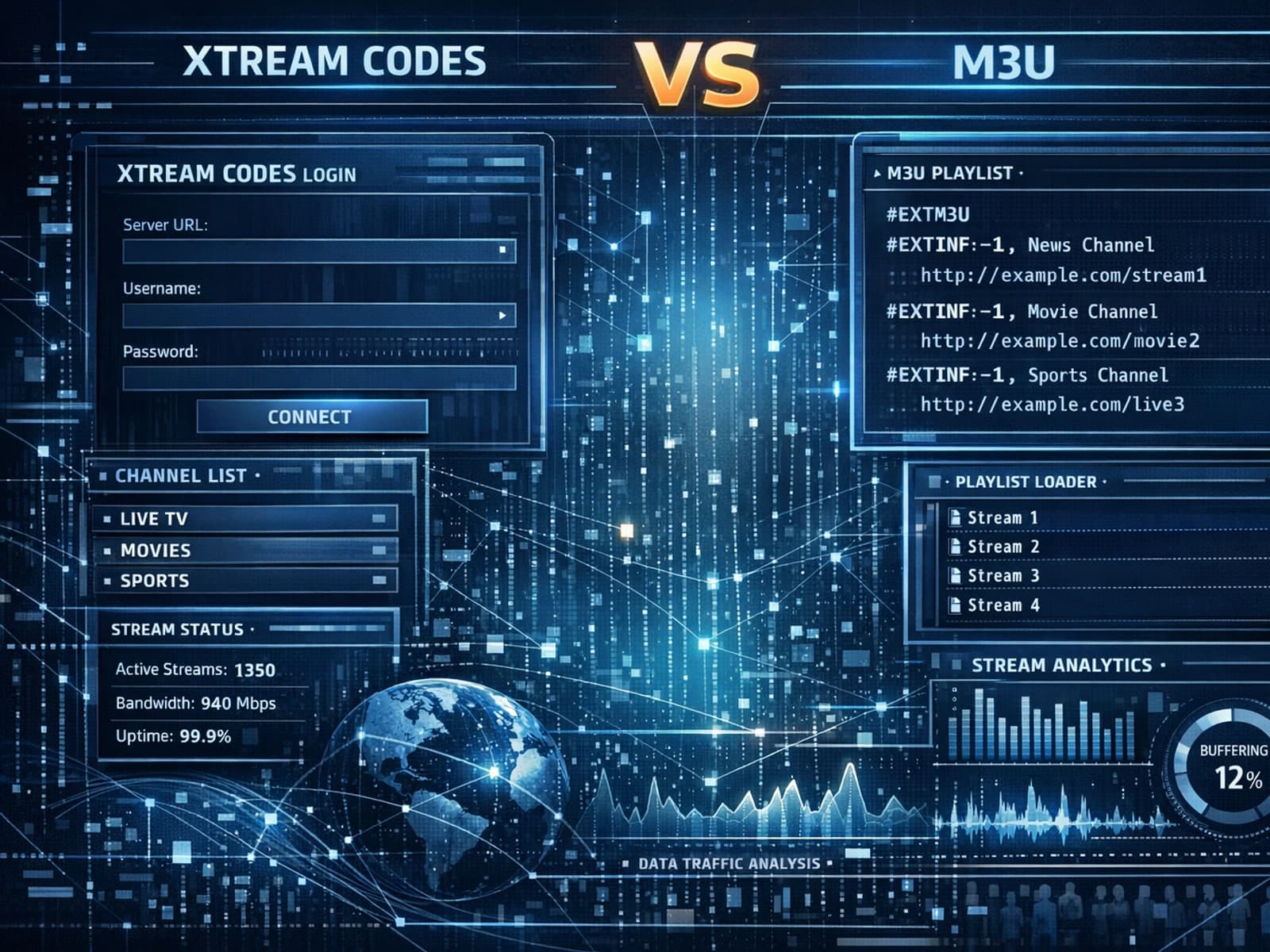
Xtream Codes often works better than M3U for IPTV users who need dynamic playlist management, faster channel updates, richer metadata integration, and controlled access to streaming content.

Organizing favorites and groups in TiviMate enables faster access to your preferred IPTV channels and a more streamlined navigation experience.
