
EPG Time Offset Wrong in TiviMate: How to Correct Program Guide Times

Quick answer
If your TiviMate app shows an electronic program guide (EPG) with program times that don’t align with your local time, the issue is likely the EPG time offset setting. This setting shifts the guide times to match your timezone or to compensate for discrepancies in the EPG data...
Reviewed Against
• TiviMate playlist, EPG, and player-setting workflows
• XMLTV guide imports, refresh timing, and channel-guide matching
Applies To
• TiviMate setups on Android TV, Google TV, or Fire OS style streaming devices
• Guide data issues such as missing listings, stale guide refreshes, or wrong time offsets
Does not apply when
• Your app uses a different menu layout or naming scheme than TiviMate.
• The stream itself will not play at all and you still need to verify login or playlist access.
Corroborating Resources
XMLTV file format referenceUseful when the issue comes from guide-source formatting, channel mapping, or XMLTV data freshness.
Topic Cluster
Part of the EPG cluster
Guide data problems, XMLTV and playlist matching, time-offset fixes, and TiviMate EPG recovery paths. This page sits in troubleshoot and fix for that topic path.
Start here in this topic
On this page
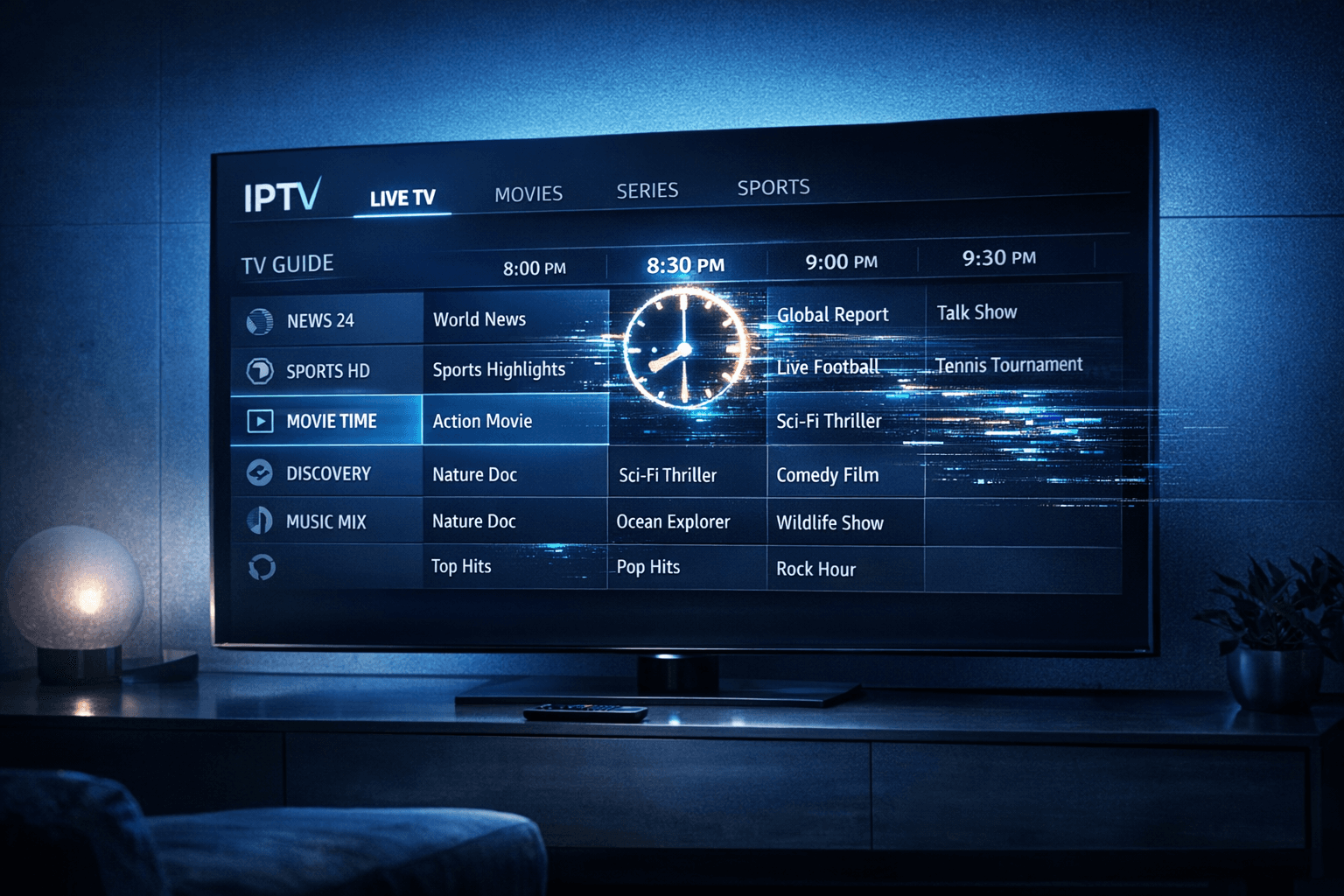
Understanding and Fixing EPG Time Offset Issues in TiviMate
If your TiviMate app shows an electronic program guide (EPG) with program times that don’t align with your local time, the issue is likely the EPG time offset setting. This setting shifts the guide times to match your timezone or to compensate for discrepancies in the EPG data source. Correcting it is straightforward but requires understanding where the mismatch originates.
What you'll learn
- What EPG time offset means in TiviMate
- How to identify if your guide times are incorrect
- How to adjust the time offset to fix the issue
- Common errors causing time offset problems
- When to explore other troubleshooting paths
What is EPG Time Offset and Why It Matters in TiviMate
Electronic program guide (EPG) data includes scheduled start and end times for TV programs, usually provided in Coordinated Universal Time (UTC) or the broadcaster's local time zone. TiviMate displays this data but requires correct configuration to translate those times to your local timezone.
EPG time offset in TiviMate is a manual setting that shifts all program guide times by a specified number of hours forward or backward. For example, if the EPG shows programs one hour earlier than your local time, setting a +1 hour time offset adjusts the displayed schedule to the right time.
Without a correct offset, you'll see programming start before or after the actual broadcast time, making recordings, reminders, or viewing inconvenient or useless.
Identifying Incorrect EPG Times in TiviMate
Before changing settings, confirm that the guide times are indeed offset.
- Compare the program times on TiviMate with the broadcaster's official schedule website or your cable/satellite guide.
- Check if the discrepancy is consistent across all channels or affects only some.
- Determine the difference in hours and direction (ahead or behind your time).
If times are consistently one or more hours off, you need to adjust the time offset.
How to Adjust EPG Time Offset in TiviMate
TiviMate allows users to manually configure the time offset value under EPG settings. Here is a step-by-step method:
- Launch TiviMate on your device.
- Navigate to Settings using the menu.
- Select EPG Settings; this is where EPG-related options are found.
- Find the EPG Time Offset option. It usually allows an integer input, positive or negative, representing hours.
- Enter the number of hours needed to correct your guide times (e.g., +2 to move times forward by two hours).
- Save the setting.
- Refresh the EPG data to apply changes. You can do this by:
- Pull-to-refresh the guide screen if supported.
- Restarting the TiviMate app.
After this, verify if the program times correspond correctly to your local broadcast time.
Common Mistakes and Troubleshooting
- Wrong offset sign: If program times appear even further off after adjusting, invert the sign of your offset (use + instead of - or vice versa).
- Multiple time zones: Some IPTV providers serve channels from different time zones. A global offset may not fix all channels equally.
- EPG source issues: Incorrect or outdated EPG sources can lead to timing errors that offset can't fix.
- Caching problems: Sometimes TiviMate caches old EPG data. Restarting the app or clearing cache can help.
Quick Troubleshooting Checklist
| Issue | Potential Fix |
|---|---|
| Guide is 1-2 hours ahead | Add positive hour offset (+1 or +2) |
| Guide is 1-2 hours behind | Add negative hour offset (-1 or -2) |
| Times inconsistent across channels | Check if EPG source supports time zones |
| Offset setting not applied | Restart app, clear cache, or reload playlist |
When to Use Different Troubleshooting or Guides
This guide focuses on adjusting EPG time offset within the TiviMate app regardless of device, assuming:
- You have an IPTV subscription with EPG support.
- You're using TiviMate version that includes the time offset setting.
If you are using TiviMate on Amazon Fire TV devices, consider reviewing device-specific network or cache issues if time offset adjustments fail. Similarly, if your EPG completely fails to load or displays no guide at all, refer instead to guides on fixing EPG source URL problems.
Also, if your IPTV provider sends EPG in their own time zone or your playlist includes multiple regional sources, you may need to check with them for a proper offset or playlist update.
Summary
Incorrect EPG times in TiviMate are almost always due to timezone offset problems. By carefully checking the difference and adjusting the EPG time offset setting in TiviMate's EPG Settings menu, you can correct the guide times. Remember to refresh the data afterward, and if problems persist, consider EPG data source issues or device-specific caches.
FAQ
What is EPG time offset in TiviMate?
EPG time offset is a manual setting that shifts all displayed program guide times in TiviMate forward or backward by a set number of hours to align with your local timezone.
Why does my TiviMate EPG show wrong times?
Because the EPG source may provide times in a different timezone or the time offset setting hasn't been properly configured.
How do I know if I need to add or subtract offset hours?
If your programs appear earlier than they actually air, add positive hours; if they appear late, add negative hours.
Will adjusting time offset fix missing or incomplete EPG?
No. Time offset only shifts times. Missing or incomplete data may require changing the EPG source or playlist.
Can the time offset setting cause other problems?
Incorrect offsets can make scheduling recordings or reminders unreliable. Always verify after changes.
For related issues, see TiviMate EPG Source URL Not Working: Troubleshooting and Fixes and How to Fix Channel Logos Missing in TiviMate. Fire TV users might also find device-specific tips at Amazon Fire TV. For playlist issues, check TiviMate Playlist Not Updating After Refresh: Causes and Fixes.
HowToSteps
- Open TiviMate and access the Settings menu.
- Navigate to EPG Settings and find the EPG Time Offset option.
- Input the correct offset hours based on your observed time difference.
- Save changes and refresh the EPG data.
- Confirm that program guide times now match your local broadcast schedule.
Keep exploring
More explainers that connect naturally to this setup, workflow, or troubleshooting path.
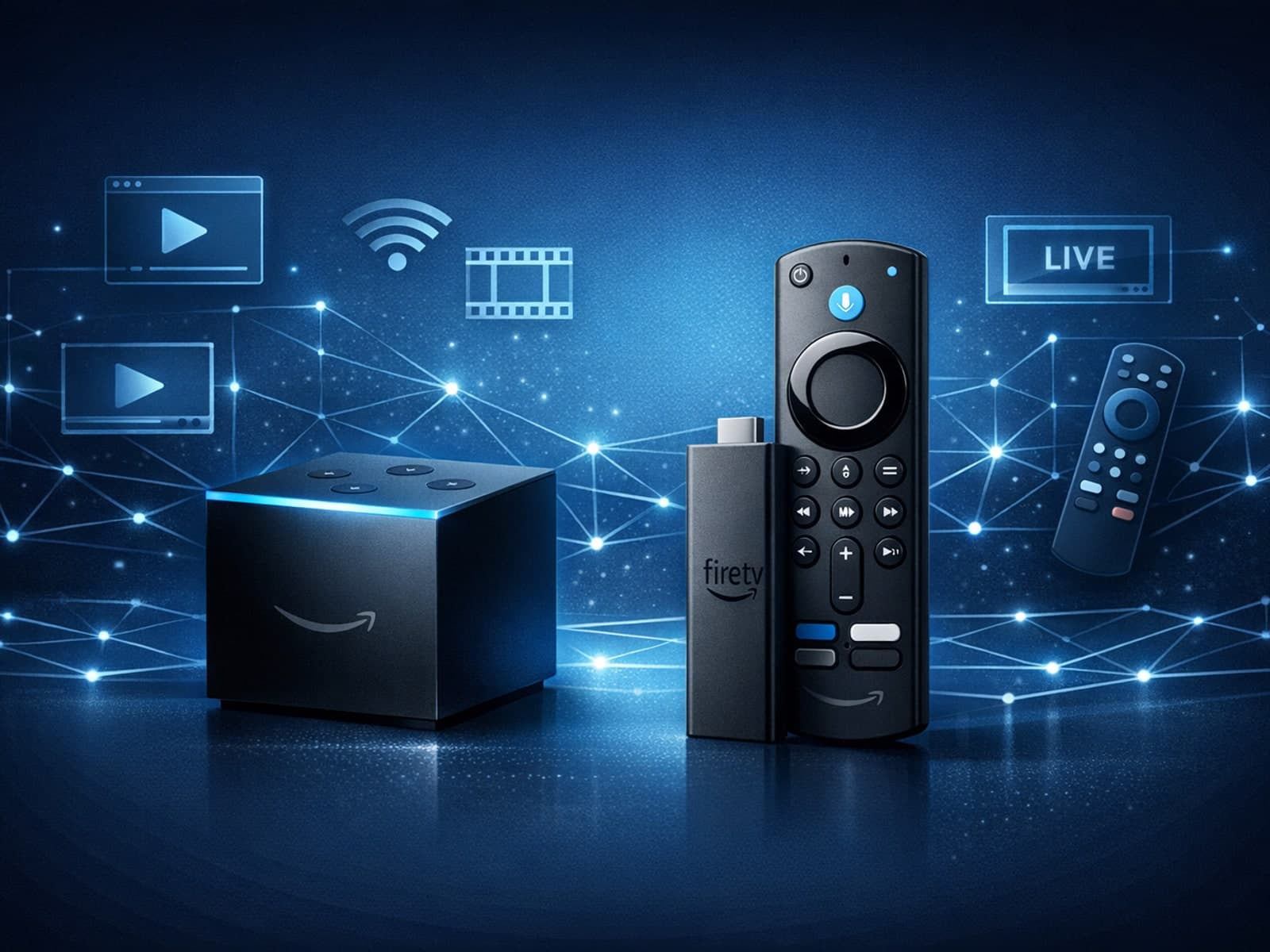
When choosing a device specifically for IPTV streaming, the Amazon Fire TV Cube and Fire TV Stick 4K Max are two popular options. Both devices support 4K streaming and run Amazon’s Fire OS with access to IPTV apps like TiviMate and IPTV.

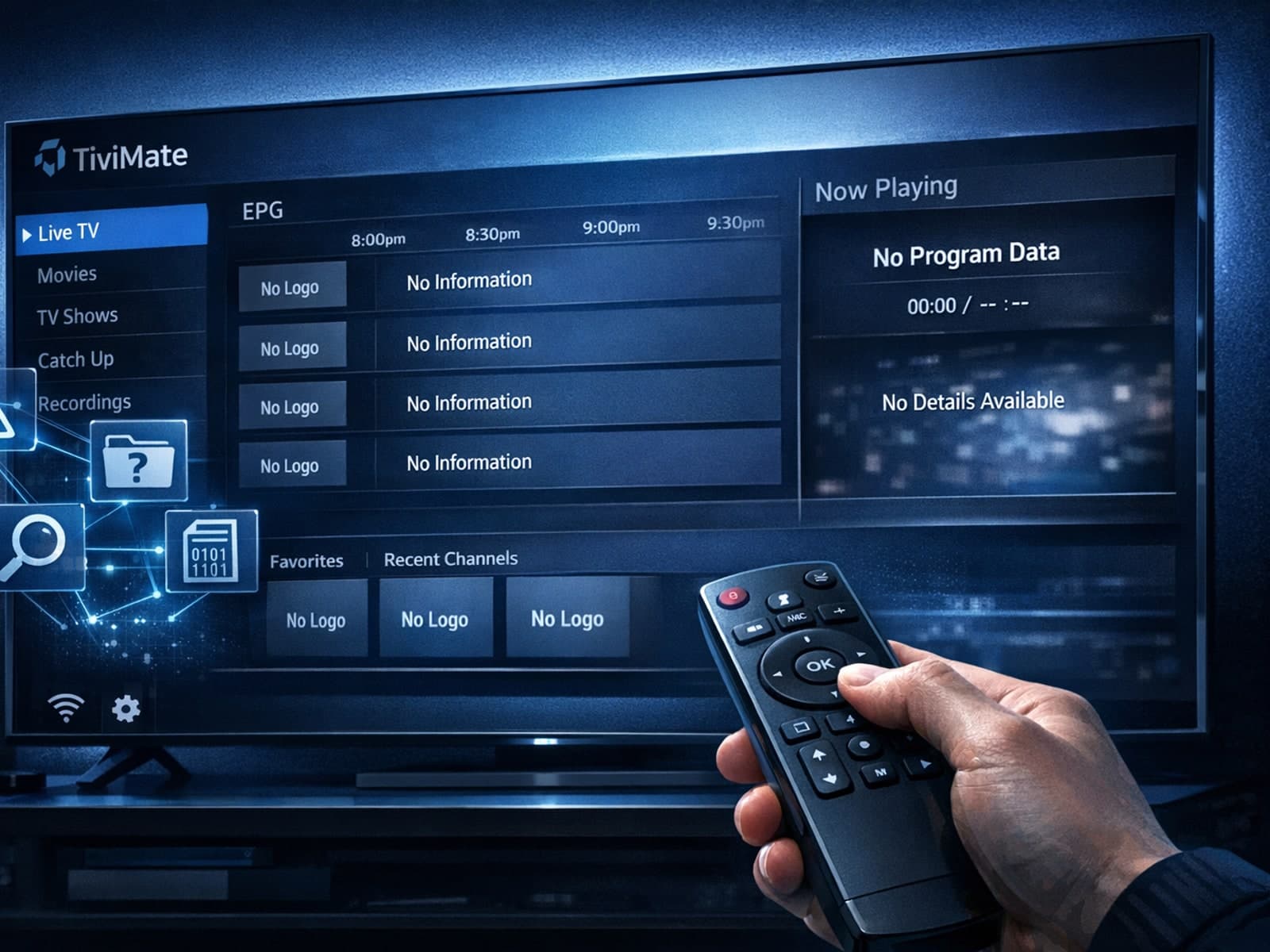
Missing channel logos in TiviMate is a common issue that often stems from problems with your IPTV playlist or Electronic Program Guide (EPG) data.
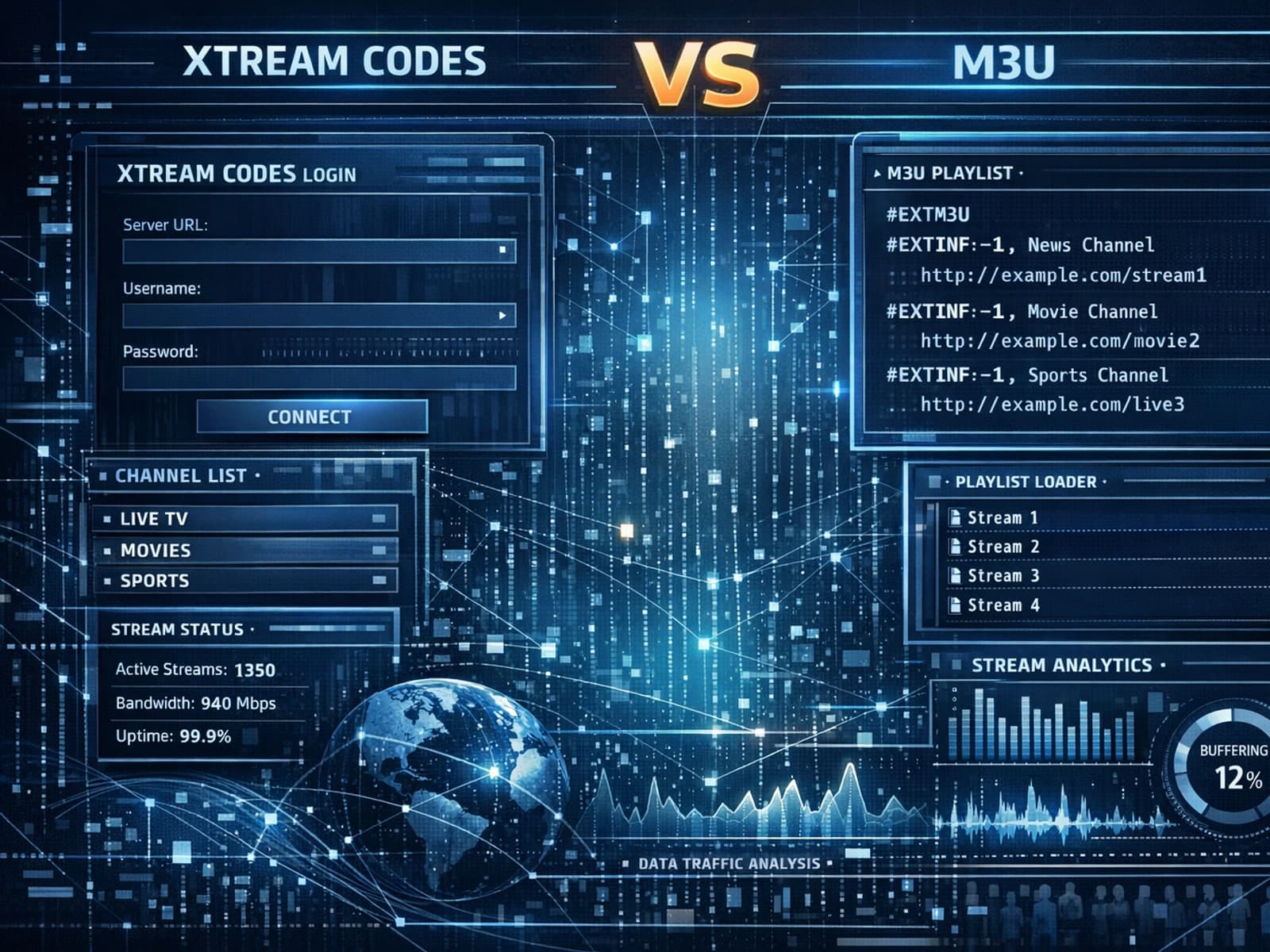
Xtream Codes often works better than M3U for IPTV users who need dynamic playlist management, faster channel updates, richer metadata integration, and controlled access to streaming content.
