
Organizing Favorites and Groups in TiviMate for IPTV

Quick answer
Organizing favorites and groups in TiviMate helps IPTV users streamline channel navigation and create personalized viewing experiences. TiviMate lets you mark channels as favorites for quick access and arrange channels into groups (or categories) reflecting types like sports,...
Reviewed Against
• TiviMate playlist, EPG, and player-setting workflows
Applies To
• TiviMate setups on Android TV, Google TV, or Fire OS style streaming devices
Does not apply when
• Your app uses a different menu layout or naming scheme than TiviMate.
Topic Cluster
Part of the TiviMate cluster
TiviMate troubleshooting paths for guide loading, playlist sync issues, login failures, and setup decisions. This page sits in more in this topic for that topic path.
Start here in this topic
On this page
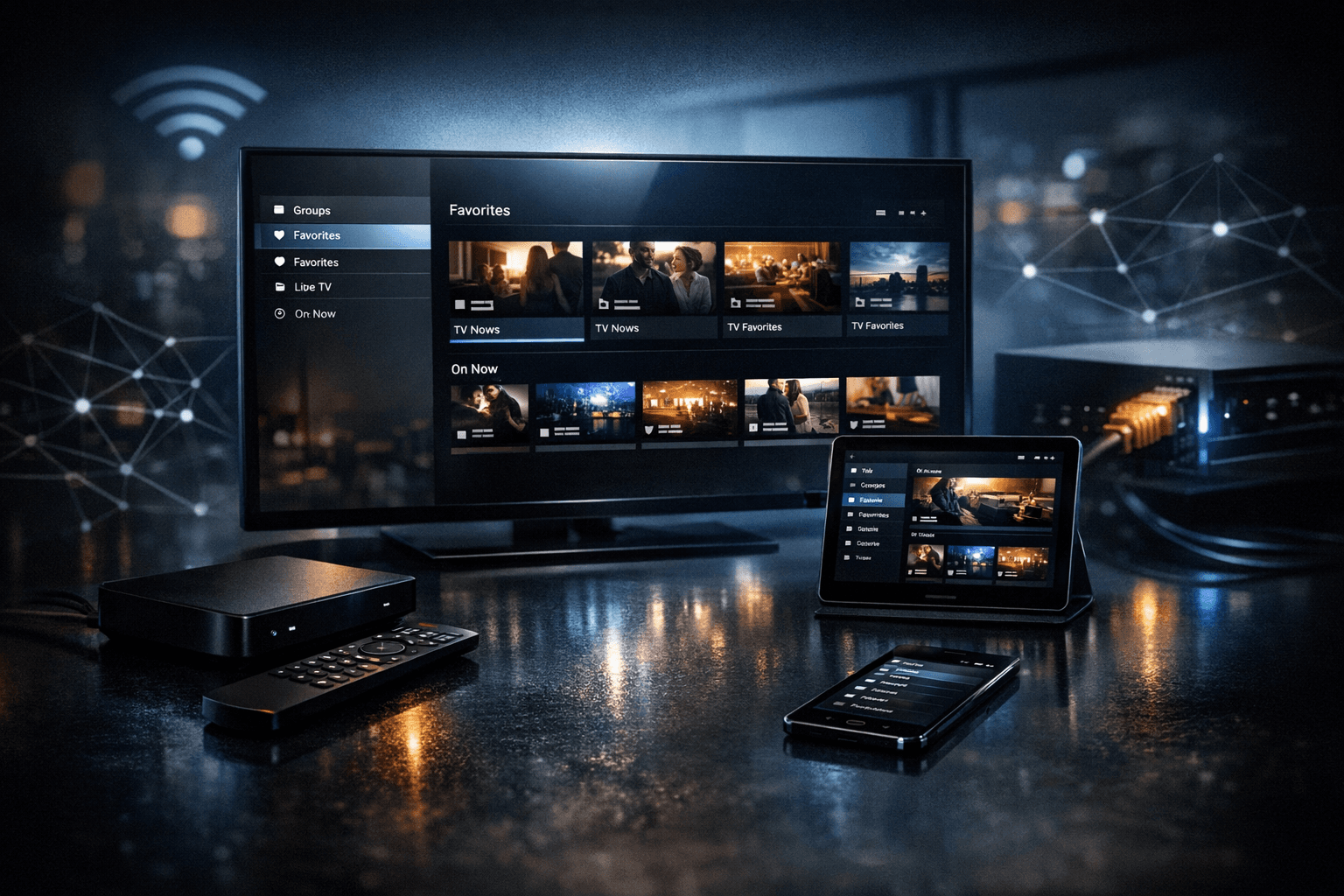
Organizing Favorites and Groups in TiviMate for IPTV
Organizing favorites and groups in TiviMate helps IPTV users streamline channel navigation and create personalized viewing experiences. TiviMate lets you mark channels as favorites for quick access and arrange channels into groups (or categories) reflecting types like sports, news, or entertainment. By managing these effectively, you can find your preferred channels quickly without scrolling through a long list.
What you'll learn
- How to add channels to Favorites in TiviMate
- Creating, renaming, and deleting channel Groups
- How to assign channels to groups
- Managing Favorites and Groups for smoother navigation
- Troubleshooting common organization issues
Understanding Favorites and Groups in TiviMate
What Are Favorites?
Favorites are channels marked by the user for quick, standout access across the playlist. They appear in a dedicated Favorites list within TiviMate, allowing faster channel switching without loss of playlist structure.
What Are Groups?
Groups (also called categories) organize your channels into different collections, like categories per genre, interest, or provider. A channel typically belongs to one group that appears as a sub-list, helping you browse channels thematically.
Adding Channels to Favorites
To add channels to Favorites in TiviMate, follow these steps:
- Open the TiviMate app and navigate to the Channels section.
- Browse or search for the channel you want to add.
- Highlight the channel and open the options menu (usually via long press or menu button).
- Select Add to Favorites.
- Confirm the addition if prompted.
Channels marked as favorites will then appear in the Favorites list accessible from the main menu.
Creating and Managing Groups
Grouping channels allows you to segment your playlist logically.
How to Create a New Group
- Go to Settings > Playlists & Guides > select your active playlist.
- Choose Manage groups or Edit groups.
- Select Add group.
- Enter a name that fits the channel category (e.g., Sports, News).
- Save the new group.
Assigning Channels to Groups
Channels are normally assigned to groups based on your playlist provider’s groupings. However, TiviMate allows manual assignment:
- In the Channels list, select the channel.
- Open the options menu.
- Select Change group or Assign to group.
- Pick from available groups or create a new one.
- Confirm the assignment.
Renaming or Deleting Groups
- Rename: In the Manage groups section, select the group and choose Rename.
- Delete: To delete, select the group and choose Delete group. Channels will then move to an ungrouped/default category.
Organizing Your Favorites and Groups for Efficiency
Consider these tips:
- Use Favorites for channels you watch most frequently across any group.
- Create groups by genre, content type, or language.
- Avoid overcrowding groups with too many channels; split them logically.
- Periodically review and clean your Favorites to keep navigation clutter-free.
Troubleshooting Common Organization Issues
| Problem | Possible Cause | Solution |
|---|---|---|
| Channels not showing in Favorites | Channel not correctly marked as favorite | Re-add channel to Favorites via options menu |
| Channels missing from groups | Playlist provider grouping conflicts or playlist updates overwrote settings | Manually reassign channels to groups or contact playlist provider for update |
| Favorites or Groups do not save | App settings not properly saved or profile sync issues | Restart TiviMate; ensure app is up to date; check device storage permissions |
Conclusion
Organizing favorites and groups in TiviMate optimizes your IPTV experience by enabling personalized channel navigation. By adding channels to Favorites and logically grouping them, you reduce browsing time and enjoy smoother access to your preferred content. Utilizing TiviMate’s built-in settings to manage groups and favorites empowers more efficient viewing tailored to your habits.
FAQ
What is the difference between Favorites and Groups in TiviMate?
Favorites are user-selected channels marked for immediate access across the playlist, whereas Groups categorize channels into collections based on content type or source.
Can I create multiple groups and assign a channel to more than one group?
Channels can only belong to one group at a time. However, marking channels as Favorites allows them to be accessible across all groups.
How do I remove a channel from Favorites in TiviMate?
Navigate to the Favorites list, select the channel, open its options menu, and choose to unmark it as a favorite.
Will organizing Favorites and Groups change my IPTV playlist file?
No, these settings only affect your TiviMate interface and channel navigation. The original playlist remains unchanged.
Frequently Asked Questions
What is the difference between Favorites and Groups in TiviMate?
Favorites are a subset of channels marked for quick access, while Groups organize channels into categories or themes for easier browsing.
Can I create multiple groups and assign a channel to more than one group?
Yes, you can create multiple groups, but a channel can only belong to one group at a time. Favorites allow channels to be accessed across groups.
How do I remove a channel from Favorites in TiviMate?
Select the channel in the Favorites list and use the options menu to unmark it as a favorite.
Will organizing Favorites and Groups affect the original playlist?
No, changes in Favorites and Groups only affect how channels are displayed in TiviMate and do not alter the original IPTV playlist file.
Related guides on IPTV Explained
Keep exploring
More explainers that connect naturally to this setup, workflow, or troubleshooting path.
If you watch IPTV on your Fire TV Stick, having the right Wi-Fi settings can significantly improve your streaming experience by minimizing buffering and lag.


When it comes to updating IPTV playlists, two common methods are M3U Plus and the Xtream Codes API. Both serve to refresh the channel lists and program information delivered to IPTV apps, but they do so in different ways.


If your TiviMate electronic program guide (EPG) is showing program times that do not align with the actual broadcast schedules, you are encountering an "EPG time offset" issue.