
EPG Time Offset Wrong in TiviMate: Fixing Schedule Mismatches

Quick answer
If the program guide in your TiviMate app shows TV schedules that don't match your local time—like shows starting too early or too late—then your Electronic Program Guide (EPG) time offset is incorrect. Essentially, the app needs a time adjustment to sync the schedule with you...
Reviewed Against
• TiviMate playlist, EPG, and player-setting workflows
• XMLTV guide imports, refresh timing, and channel-guide matching
• Server-URL formatting, HTTP response handling, and account-entry failure patterns
Applies To
• TiviMate setups on Android TV, Google TV, or Fire OS style streaming devices
• Guide data issues such as missing listings, stale guide refreshes, or wrong time offsets
• Errors caused by malformed URLs, wrong credentials, expired tokens, or unreachable playlist endpoints
Does not apply when
• Your app uses a different menu layout or naming scheme than TiviMate.
• The stream itself will not play at all and you still need to verify login or playlist access.
• The provider confirms the service is down or the account has been deliberately blocked upstream.
Corroborating Resources
XMLTV file format referenceUseful when the issue comes from guide-source formatting, channel mapping, or XMLTV data freshness.
HTTP response status codesUseful when an IPTV app surfaces 401, 403, 404, or 5xx style errors during login or playlist refreshes.
URL structure referenceHelpful for checking server URLs, source links, and path/query mistakes in portal or playlist setups.
Topic Cluster
Part of the EPG cluster
Guide data problems, XMLTV and playlist matching, time-offset fixes, and TiviMate EPG recovery paths. This page sits in troubleshoot and fix for that topic path.
Start here in this topic
On this page
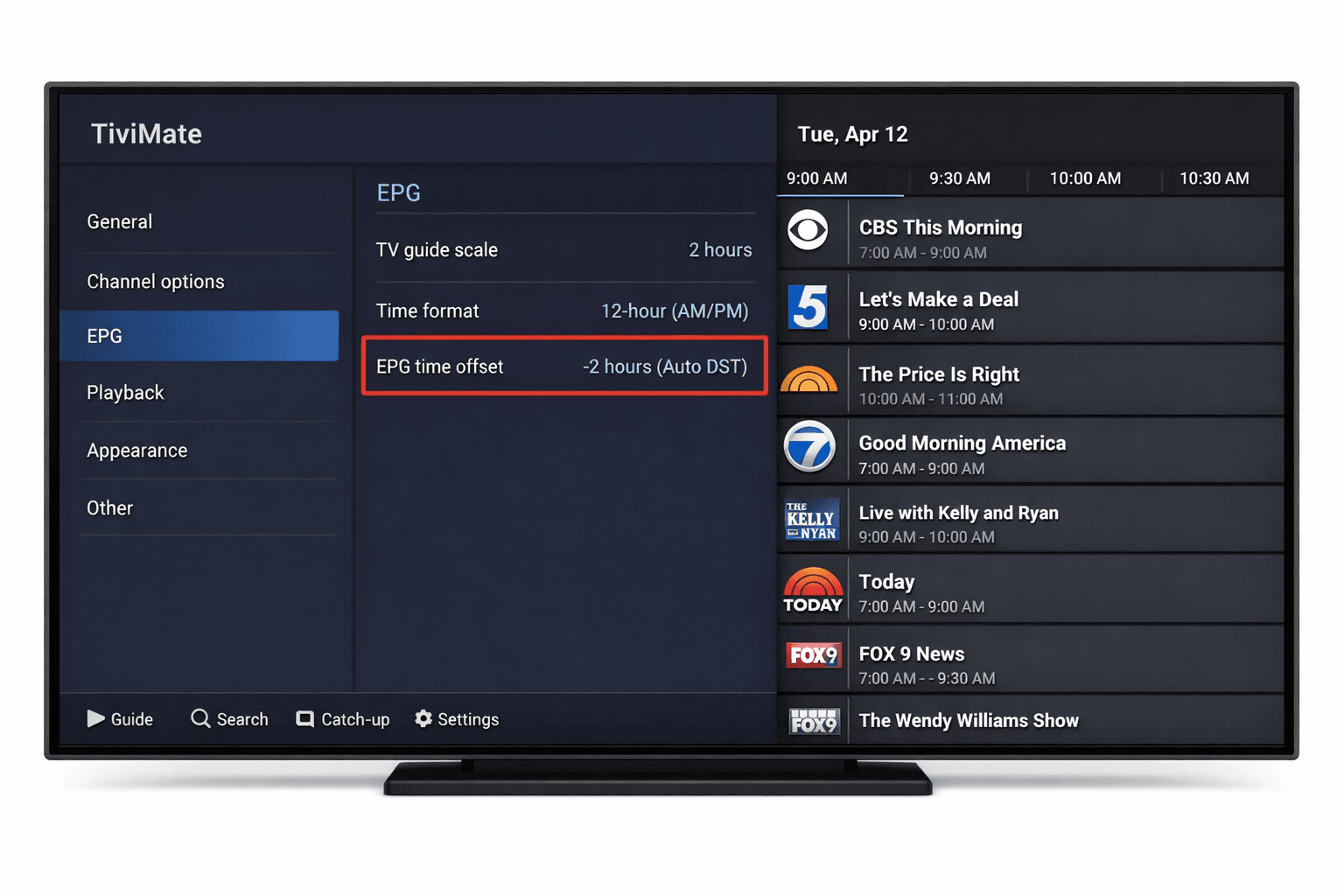
EPG Time Offset Wrong in TiviMate: Fixing Schedule Mismatches
If the program guide in your TiviMate app shows TV schedules that don't match your local time—like shows starting too early or too late—then your Electronic Program Guide (EPG) time offset is incorrect. Essentially, the app needs a time adjustment to sync the schedule with your actual timezone.
This mismatch usually occurs because the EPG data your IPTV provider supplies is based on a different timezone than where you live or where your device's clock is set. Fortunately, TiviMate includes a setting to shift the guide's times forward or backward by hours to correct this.
Adjusting your EPG time offset in TiviMate ensures your program guide accurately corresponds to local viewing times without affecting the live streaming itself.
What you'll learn
- What causes EPG time offset errors in TiviMate
- How to locate and configure the EPG time offset setting
- Troubleshooting common mistakes that cause wrong time displays
- When to check with your IPTV provider about EPG timezone data
- How to verify your fix and avoid future mismatches
Understanding EPG Time Offset in TiviMate
What is EPG and Time Offset?
EPG (Electronic Program Guide) is metadata that IPTV services provide to show TV schedules — what programs are airing and when. Because providers worldwide deliver EPG data geared to different regions and timezones, your local time may not automatically align.
The time offset is a user-configurable setting in TiviMate that shifts all EPG schedule times by a set number of hours forward or backward. For example, an offset of +1 means the guide shows all programs one hour later than the source EPG timestamp, aligning the guide to your local time.
Why is the Offset Sometimes Wrong?
- Your IPTV provider's EPG feed is based in a different timezone
- Your TiviMate device's clock or timezone is set incorrectly
- The EPG metadata itself contains incorrect or outdated time info
- Time zone changes like Daylight Saving Time (DST) are not accounted for
Knowing where the mismatch originates helps decide the right correction method.
How to Adjust EPG Time Offset in TiviMate
Here's a step-by-step guide to fix your EPG time mismatch:
- Open the TiviMate app on your device.
- Open the side menu by navigating to the left or pressing the menu button.
- Scroll down and select Settings.
- Inside Settings, choose EPG Settings (sometimes under Playlist or Guide).
- Find the option named Time Offset, EPG Time Shift, or similar.
- Use the selector or enter a number representing the number of hours to shift the guide times.
- Use positive numbers to shift the schedule forward.
- Use negative numbers to shift it backward.
- Save or confirm your changes.
- Refresh your playlist or EPG data manually from the main menu.
- Check that program times now match your local time.
If unsure about the exact offset, start with +1 or -1 and adjust incrementally until the guide aligns.
Common Mistakes and Troubleshooting
Typical Issues
- Neglecting to refresh the EPG after adjusting time offset: Changes won’t show until new data is loaded.
- Incorrect device timezone: Even with correct offset, device clock must be correct.
- Using offset when the playlist already includes timezone-correct EPG: This causes a double-shift.
Troubleshooting Steps
- Confirm your device's system time and timezone are correct.
- After changing the offset, manually refresh the playlist to reload EPG.
- Test multiple offset values, including zero, to find the correct time match.
- Restart TiviMate to ensure all settings apply.
- Check if your IPTV provider documents their EPG timezone for reference.
When to Seek Provider Support
If adjusting offsets doesn't fix the mismatch, the issue may be the EPG data itself (incorrect time stamps or outdated feeds). Contact your IPTV service about their EPG timezones and update procedures.
Who Can Use This Guide and When to Follow Different Paths
Applies To:
- Users of TiviMate player app on Android TV boxes, Fire TV devices, or Android smartphones/tablets
- IPTV users who manually add EPG data or playlists
- Those noticing a visible program time mismatch between live TV and guide
When to Use Different Help:
- If you are not using TiviMate but another IPTV app, consult that app’s specific EPG settings
- If the guide times are off only on certain channels or providers, the issue may be EPG source specific
- Device with incorrect system time (outside TiviMate) requires fixing the device OS clock rather than app offset
- If channel logos or program info are missing entirely, see other FAQs like How to Fix Channel Logos Missing in TiviMate
Verifying and Preventing Future EPG Time Offset Problems
How to Verify
- After applying offset, open various channel guides and compare start times with actual on-air times.
- Tune into a live program and make sure the guide corresponds to that program's start and end time.
- Compare with your IPTV provider’s schedule if available on their website.
Preventive Measures
- Regularly refresh playlists and EPG to get the latest accurate data
- Re-check your device clock and timezone settings especially after daylight savings or traveling
- Choose IPTV providers known for accurate, region-specific EPG data
Summary Checklist: Fixing EPG Time Offset in TiviMate
| Step | Action | Result |
|---|---|---|
| 1 | Confirm device clock and timezone | Avoid conflicts from device side |
| 2 | Open TiviMate EPG time offset | Access customization of guide time |
| 3 | Adjust offset hours | Shift guide schedule accordingly |
| 4 | Refresh EPG or playlist | Load updated schedule data |
| 5 | Verify guide times | Confirm alignment with local time |
| 6 | Contact IPTV provider if issues persist | Check EPG source time zone |
Frequently Asked Questions
What is an EPG time offset in TiviMate?
It’s a setting that adjusts program guide times by a certain number of hours to match your local timezone when the provided EPG data is not in local time.
Why are my TiviMate program times an hour off?
This usually happens because your IPTV provider’s EPG data is from a different timezone; adjusting the time offset corrects this.
Does changing time offset affect live channels?
No, it only changes displayed guide times, not actual live stream broadcast timing.
Can automatic timezone detection fix EPG offset issues?
TiviMate does not detect EPG timezone automatically, so manual adjustment is needed.
Conclusion
If your TiviMate Electronic Program Guide shows wrong times, the issue is almost always a time offset mismatch between your local time and the IPTV provider’s EPG timezone. Using the app’s built-in time offset setting to shift schedules hour-by-hour corrects this easily. Confirm your device clock is accurate, adjust offset settings, refresh the guide, and verify the fix. For persistent problems, consult your IPTV provider to clarify their EPG timezone data. Following these precise steps ensures your TV guide displays accurate program times, improving your viewing experience.
For related troubleshooting, see How to Fix Channel Logos Missing in TiviMate or learn more about EPG URLs.
Keep exploring
More explainers that connect naturally to this setup, workflow, or troubleshooting path.
TiviMate is a popular IPTV player app for Android TV and similar devices, known for its advanced channel management options. Organizing favorites and groups in TiviMate lets you customize your IPTV watching experience by categorizing.


When you switch channels on your IPTV service and the screen freezes or lags, it’s frustrating and disrupts your viewing experience. IPTV freezing during channel switching is most often caused by network delays, buffering, or the IPTV.

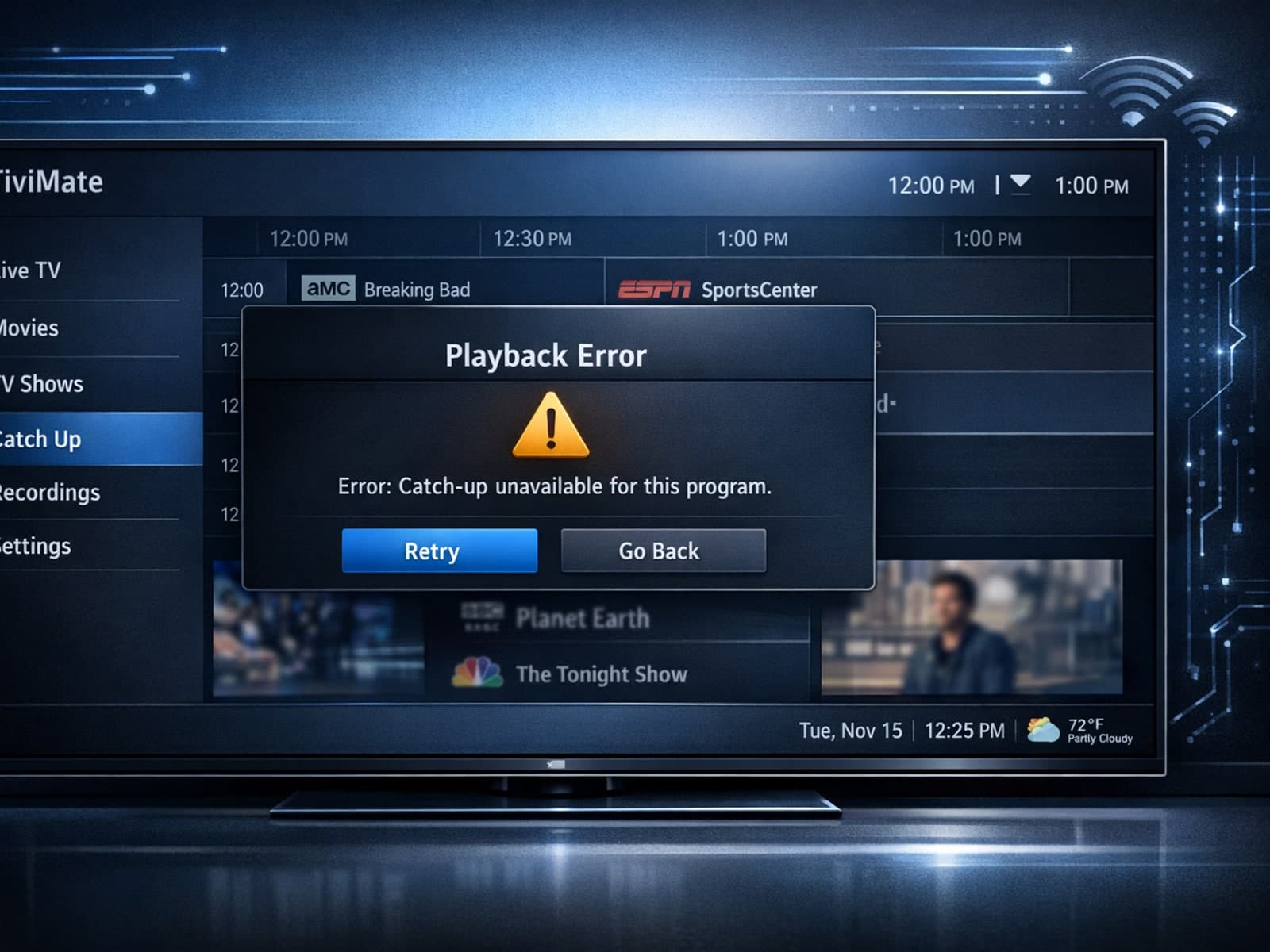
If your catch-up feature in TiviMate isn’t working, the fundamental reasons often lie in your IPTV playlist source or server configuration rather than the app itself.
