
EPG Time Offset Wrong in TiviMate: How to Correct Program Guide Times

Quick answer
If you notice that the channel program guide (Extended Program Guide, or EPG) in TiviMate shows incorrect times — for example, programs starting an hour early or late — this usually indicates a misaligned EPG time offset. Simply put, the EPG timestamps do not match your local...
Reviewed Against
• TiviMate playlist, EPG, and player-setting workflows
• XMLTV guide imports, refresh timing, and channel-guide matching
• Server-URL formatting, HTTP response handling, and account-entry failure patterns
Applies To
• TiviMate setups on Android TV, Google TV, or Fire OS style streaming devices
• Guide data issues such as missing listings, stale guide refreshes, or wrong time offsets
• Errors caused by malformed URLs, wrong credentials, expired tokens, or unreachable playlist endpoints
Does not apply when
• Your app uses a different menu layout or naming scheme than TiviMate.
• The stream itself will not play at all and you still need to verify login or playlist access.
• The provider confirms the service is down or the account has been deliberately blocked upstream.
Corroborating Resources
XMLTV file format referenceUseful when the issue comes from guide-source formatting, channel mapping, or XMLTV data freshness.
HTTP response status codesUseful when an IPTV app surfaces 401, 403, 404, or 5xx style errors during login or playlist refreshes.
URL structure referenceHelpful for checking server URLs, source links, and path/query mistakes in portal or playlist setups.
Topic Cluster
Part of the EPG cluster
Guide data problems, XMLTV and playlist matching, time-offset fixes, and TiviMate EPG recovery paths. This page sits in troubleshoot and fix for that topic path.
Start here in this topic
On this page
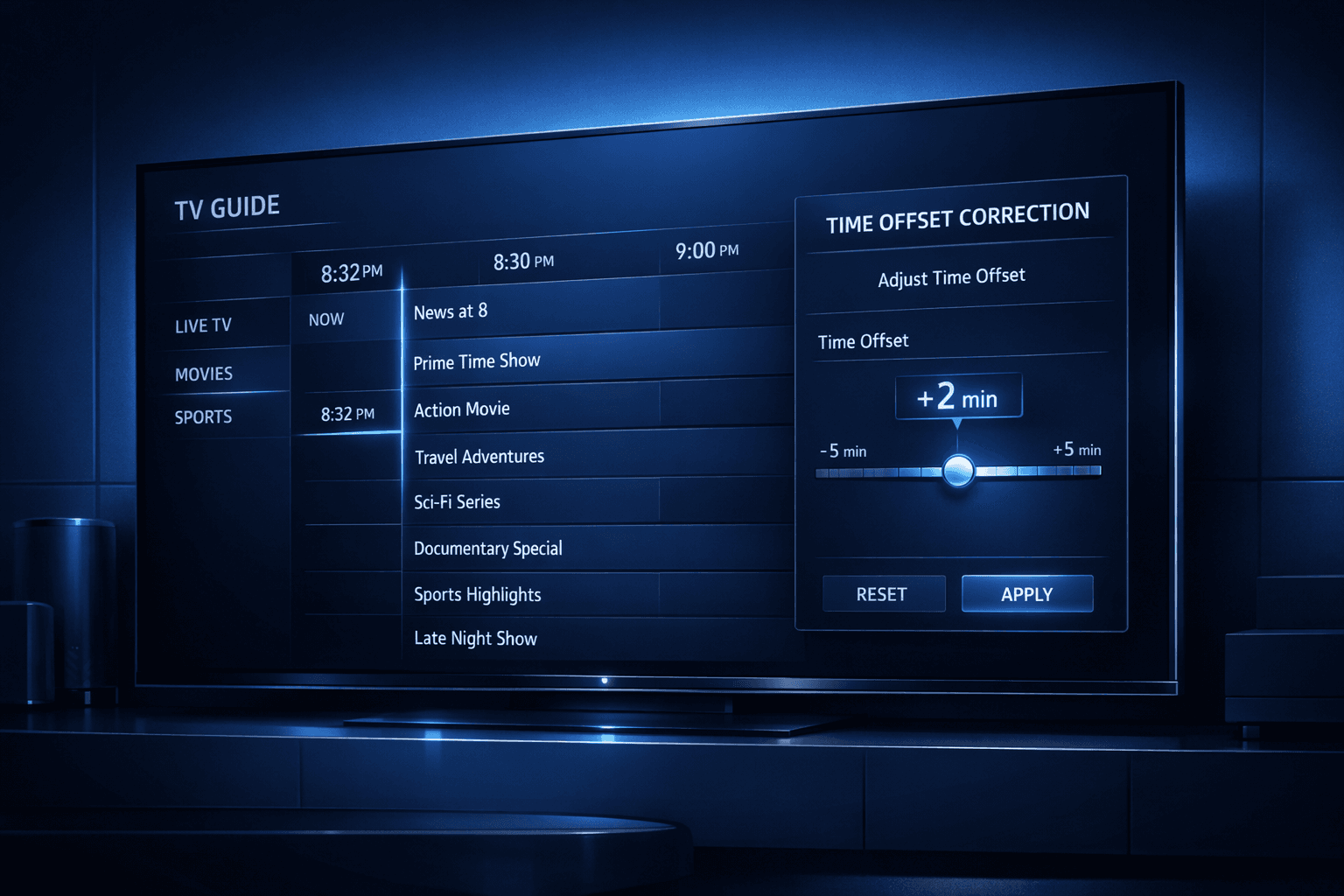
Understanding EPG Time Offset Issues in TiviMate
If you notice that the channel program guide (Extended Program Guide, or EPG) in TiviMate shows incorrect times — for example, programs starting an hour early or late — this usually indicates a misaligned EPG time offset. Simply put, the EPG timestamps do not match your local time zone, causing confusion when scheduling or viewing shows.
TiviMate allows users to manually adjust this offset to sync the guide accurately.
What you'll learn
- What causes EPG time offset problems in TiviMate
- How to adjust the EPG time offset setting
- How to verify your device and playlist time zones
- Common mistakes to avoid during correction
- When to seek alternative troubleshooting paths
What Causes EPG Time Offset Problems in TiviMate?
The EPG time offset problem arises because the time information embedded in your IPTV service's EPG data reflects a different time zone than your device's local time.
How EPG Data Works
EPG data is typically sourced from your IPTV provider and includes program start and end times.
- These times are often based on the provider's server time zone or a fixed standard time.
- Your device needs to interpret these times correctly in your local time zone.
If the time zones don't align, TiviMate will show program schedules at incorrect times.
Playlist and EPG Source Influence
- Some IPTV playlists embed time zone info or adjusted EPG data; others do not.
- Using an M3U playlist with separate EPG XML data can lead to time zone mismatch.
Understanding your IPTV provider's EPG time zone policies helps anticipate offset needs.
Adjusting EPG Time Offset in TiviMate
TiviMate includes a built-in setting to add or subtract hours from the EPG times.
Step-by-Step Adjustment
- Open the TiviMate app on your IPTV device.
- Access the main menu and navigate to Settings.
- Select the EPG settings section.
- Locate the EPG Time Offset option.
- Use the controls to increase or decrease the offset, usually in one-hour increments.
- Confirm and save the changes.
- Refresh or reload your guide data to see the effect.
Check if program times now match your actual local broadcast times.
Tips for Fine Tuning
- If you find the offset is off by minutes, TiviMate only supports hour increments, so consider whether the playlist or EPG source is incorrectly timed.
- Remember daylight saving time changes; you may need to adjust seasonally.
Verifying Device Time and Playlist Time Zones
Before adjusting the offset, ensure your device clock is set correctly to your local time zone:
- Go to your device's main settings.
- Check Date & Time.
- Enable automatic time zone if possible, or manually set the correct local zone.
Also, investigate your IPTV playlist and EPG source:
- Review any metadata or documentation your IPTV provider offers about their EPG time zone.
- If you can open the EPG XML file or equivalent, look for the time zone or UTC offsets.
If your playlist time zone differs significantly from your device time, adjustment in TiviMate becomes necessary.
Common Mistakes and Troubleshooting
Mistakes to Avoid
- Ignoring device clock settings: If your device clock is wrong, no offset will fix EPG times.
- Changing offset before checking provider info: Guessing offset values without understanding the IPTV provider's EPG time zone often leads to repeated errors.
- Confusing EPG refresh with offset changes: Refresh updates the data but does not affect time offsets.
Troubleshooting Tips
- If offsets fail to correct times, try fully restarting TiviMate after changes.
- Confirm that your playlist and EPG source are correctly linked and updating.
- If using third-party EPG URLs, test if they align with your time zone or need separate offset treatment.
When This Guidance Applies and Alternate Paths
This advice is designed for users running TiviMate on Android-based IPTV devices using standard M3U playlists and XML-based EPG sources.
- If you use Xtream Codes login, your EPG integration may handle time zones differently; consult When Xtream Codes Works Better Than M3U for IPTV Streaming for specifics.
- For device-specific issues, such as Fire TV Stick time or storage problems affecting channel updates, see related device troubleshooting.
- If your EPG does not appear at all or URLs fail to load, please review TiviMate EPG Source URL Not Working: Troubleshooting and Fixes.
FAQ
What causes the EPG time offset to be wrong in TiviMate?
EPG time offset errors usually stem from mismatches between the time zone of your IPTV provider's guide data and your device's local time settings.
Can I fix EPG time offset issues without changing my device time?
Yes. Adjusting the EPG time offset within TiviMate corrects the guide times without altering your device's clock.
Does every EPG source support time offset adjustment in TiviMate?
Most do, but exact options may vary depending on the EPG source format and playlist configuration.
Why does the EPG time offset keep changing?
Some IPTV providers update guide data with different time zones or daylight saving changes. Regular checks and adjustments may be needed.
Conclusion
The EPG time offset wrong in TiviMate is a common but fixable problem when the program guide times do not sync with your local zone. By verifying your device clock, understanding your IPTV provider's EPG time zone, and adjusting the offset setting inside TiviMate, you can restore accurate program schedules. Remember to refresh EPG data and restart the app after changes and revisit offset settings seasonally if needed. If problems persist, consider the type of playlist or EPG source as that might require a different troubleshooting approach.
| Aspect | Details | Notes |
|---|---|---|
| Cause | Mismatch between EPG times and local device time | Provider's EPG usually tied to server time zone |
| Fix | Adjust EPG Time Offset in TiviMate settings | Change in hour increments only |
| Required info | Correct device time zone setting | Check device date, time, and timezone |
| Refresh & Restart | Always refresh EPG and restart TiviMate app | Ensures new offset is applied |
| Alternate troubleshooting | Check playlist and EPG source times | Some playlists embed time zone info differently |
For further assistance, explore related guides on EPG URL issues and playlist updates to improve your TiviMate experience.
Keep exploring
More explainers that connect naturally to this setup, workflow, or troubleshooting path.
If the catch-up feature in your TiviMate IPTV player is not working, the cause usually lies in playlist compatibility, EPG (Electronic Program Guide) data issues, or app configuration problems.

When you see "Xtream Codes authorization failed" in TiviMate, it means the IPTV app cannot verify your login credentials with the IPTV server. This blocks access to your channels and streams, stopping playback.

If your TiviMate playlist isn't updating after you press refresh, it usually indicates issues with the playlist source, connectivity, or app functionality.
