
EPG Time Offset Wrong in TiviMate: How to Fix Guide Timing

Quick answer
If the program guide (EPG) in your TiviMate app shows incorrect times—programs starting earlier or later than the actual broadcast—the cause is usually an inaccurate EPG time offset. This means the electronic program guide data is out of sync with your local time, leading to c...
Reviewed Against
• TiviMate playlist, EPG, and player-setting workflows
• XMLTV guide imports, refresh timing, and channel-guide matching
• Server-URL formatting, HTTP response handling, and account-entry failure patterns
Applies To
• TiviMate setups on Android TV, Google TV, or Fire OS style streaming devices
• Guide data issues such as missing listings, stale guide refreshes, or wrong time offsets
• Errors caused by malformed URLs, wrong credentials, expired tokens, or unreachable playlist endpoints
Does not apply when
• Your app uses a different menu layout or naming scheme than TiviMate.
• The stream itself will not play at all and you still need to verify login or playlist access.
• The provider confirms the service is down or the account has been deliberately blocked upstream.
Corroborating Resources
XMLTV file format referenceUseful when the issue comes from guide-source formatting, channel mapping, or XMLTV data freshness.
HTTP response status codesUseful when an IPTV app surfaces 401, 403, 404, or 5xx style errors during login or playlist refreshes.
URL structure referenceHelpful for checking server URLs, source links, and path/query mistakes in portal or playlist setups.
Topic Cluster
Part of the EPG cluster
Guide data problems, XMLTV and playlist matching, time-offset fixes, and TiviMate EPG recovery paths. This page sits in troubleshoot and fix for that topic path.
Start here in this topic
On this page
EPG Time Offset Wrong in TiviMate: How to Fix Guide Timing
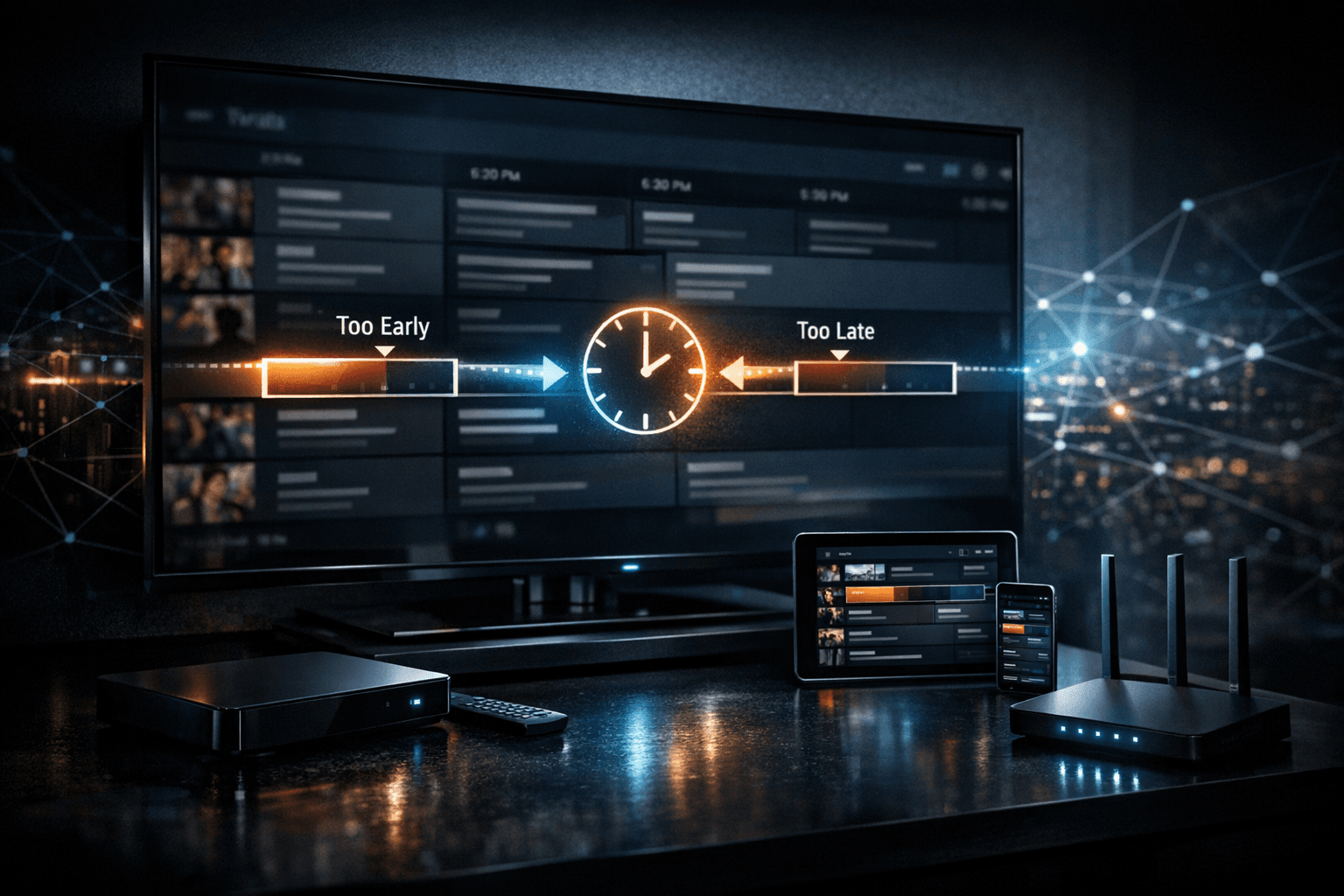
If the program guide (EPG) in your TiviMate app shows incorrect times—programs starting earlier or later than the actual broadcast—the cause is usually an inaccurate EPG time offset. This means the electronic program guide data is out of sync with your local time, leading to confusion when browsing channels.
Fortunately, TiviMate includes a setting to adjust the EPG time offset, allowing you to align the guide times correctly with your IPTV streams. This article explains why the offset issue happens and walks you through adjusting it properly.
What you'll learn
- What EPG time offset means and why it matters
- How to identify the correct offset needed for your setup
- Step-by-step instructions to change the offset in TiviMate
- Troubleshooting common mistakes and persistent offset problems
- How to check your IPTV source and playlist for related time zone discrepancies
Understanding EPG Time Offset in TiviMate
Electronic Program Guide (EPG) data provides the schedule for TV channels, showing program names and start/end times. IPTV providers supply this data along with channel streams.
However, the times in an EPG are typically based on a specific time zone, which may differ from your local time zone. For example, the EPG feed might use UTC or a different region’s zone. When TiviMate displays this data without correcting for your current time zone, programs appear shifted in time.
This time mismatch is managed by the EPG time offset, a setting that adds or subtracts hours from the EPG times inside TiviMate to match your local timing.
Identifying When Your EPG Time Offset Is Incorrect
If you notice:
- Program start times in the guide are consistently early or late by a fixed number of hours
- Programs appear in the wrong slots
- The channel list matches the stream but the guide times don’t align
then an incorrect EPG time offset is likely.
Sometimes, the offset issue can be subtle, such as a single-hour difference during daylight saving time changes or because your IPTV provider’s EPG source uses a different time zone.
How to Adjust EPG Time Offset in TiviMate
Follow these steps to correct the time offset:
-
Open the TiviMate app on your device.
-
From the main screen, navigate to Settings (usually found in the sidebar menu).
-
Scroll to and select EPG settings or Guide settings.
-
Find the parameter labeled EPG Time Offset (or similar).
-
Enter the offset value in hours:
- Use a positive number if your local time is ahead of the EPG’s time zone.
- Use a negative number if your local time is behind.
For example, if your local time zone is UTC+3 and the EPG uses UTC, set offset to +3.
-
Save the changes and return to the main guide.
-
Refresh the EPG data if necessary (sometimes requires restarting TiviMate).
Check the program times now to see if they align correctly.
Common Mistakes When Fixing EPG Time Offset
Using Incorrect Offset Values
Estimating the wrong hours difference causes the guide to remain off. Verify your local time zone and confirm the EPG source time zone (see next section).
Forgetting Daylight Saving Time Adjustments
Some regions switch to daylight saving time (DST). If your IPTV provider’s EPG doesn’t adjust, you may need to change the offset accordingly seasonally.
Modifying Offset Without Refreshing EPG
Changes don’t show immediately unless you refresh or reload the guide data.
Assuming Each Channel Has Different Offsets
TiviMate applies a uniform offset to all EPG data. If only some channels show time problems, the issue might be with your IPTV source.
Verifying IPTV Playlist and EPG Source Time Zones
If offset adjustments fail or the shifts are inconsistent, check:
- The IPTV playlist documentation or from the provider notes the EPG time zone used.
- Your EPG URL (in Settings) may provide clues; some URLs have timezone parameters.
If your playlist uses multiple EPG sources per group of channels, different offsets might apply per group, but TiviMate can only use one global offset.
Troubleshooting Persistent EPG Offset Problems
If after adjusting the offset and refreshing the guide you still see problems:
- Ensure your device clock is correct and set to the right time zone.
- Try updating TiviMate to the latest version.
- Test with another EPG source URL if possible.
- Contact your IPTV service for accurate EPG time zone info or updated playlist links.
Quick Checklist for Fixing EPG Time Offset in TiviMate
| Step | Action | Notes |
|---|---|---|
| 1 | Check your device's system time zone | Must be accurate |
| 2 | Identify EPG source time zone | From playlist or provider docs |
| 3 | Calculate offset (local - EPG time zone) | In full hours, positive/negative |
| 4 | Set EPG Time Offset in TiviMate | Enter calculated value |
| 5 | Refresh or restart TiviMate | To load new settings |
| 6 | Confirm guide matches actual program times | Watch a known live program |
FAQ
What causes the EPG time offset to be wrong in TiviMate?
The primary cause is a mismatch between the time zone used by your IPTV provider’s EPG data and your device's local time settings.
Can I fix the EPG offset without changing my IPTV playlist or EPG source?
Yes. You can adjust the EPG time offset setting in TiviMate to correct the displayed times without modifying your playlist URLs.
How do I know what value to set for the EPG time offset?
Find the difference in hours between your local time zone and the EPG source’s time zone and use that value, positive or negative.
Will adjusting the EPG time offset affect all channels?
Yes. TiviMate applies the offset uniformly to the entire program guide.
What if timing is still off after adjustment?
Verify your device clock, update TiviMate, check the EPG URL and time zone information, or try contacting your IPTV provider.
Conclusion
Incorrect EPG time offset in TiviMate is a common but easily resolved problem. By understanding how the offset works and properly adjusting it in the app’s settings, you can ensure your electronic program guide accurately reflects the actual broadcast times. Always confirm your device’s time zone and the time zone your EPG source uses, then enter the corresponding offset in hours. If problems remain, verify your IPTV playlist and EPG URLs or seek updated information from your provider.
For further reading on managing EPG in TiviMate or troubleshooting related IPTV issues, check out Organizing Favorites and Groups in TiviMate for IPTV, and the general EPG topic.
Keep exploring
More explainers that connect naturally to this setup, workflow, or troubleshooting path.

When choosing an Amazon Fire TV device for IPTV streaming, two popular options are the Fire TV Cube and the Fire TV Stick 4K Max. Both devices support IPTV apps and 4K streaming, but they differ in hardware, features, and user experience.

Using a VPN (Virtual Private Network) on your Amazon Firestick can sometimes slow down IPTV streaming, resulting in frustrating buffering issues.

If your TiviMate EPG (Electronic Program Guide) source URL is not working, it means TiviMate cannot retrieve the program guide data from the specified web address. This usually results in missing or empty channel grids inside the app.