
TiviMate Playlist Not Updating After Refresh: Causes and Fixes

Quick answer
When your TiviMate playlist doesn't update after hitting refresh, it means the app is failing to download new or updated channel data from your playlist source. This can be frustrating because it prevents you from accessing recently added or changed IPTV channels and EPG (Elec...
Reviewed Against
• TiviMate playlist, EPG, and player-setting workflows
Applies To
• TiviMate setups on Android TV, Google TV, or Fire OS style streaming devices
Does not apply when
• Your app uses a different menu layout or naming scheme than TiviMate.
Topic Cluster
Part of the IPTV cluster
Browse practical IPTV articles about IPTV, including setup choices, troubleshooting paths, and follow-on guides. This page sits in more in this topic for that topic path.
On this page
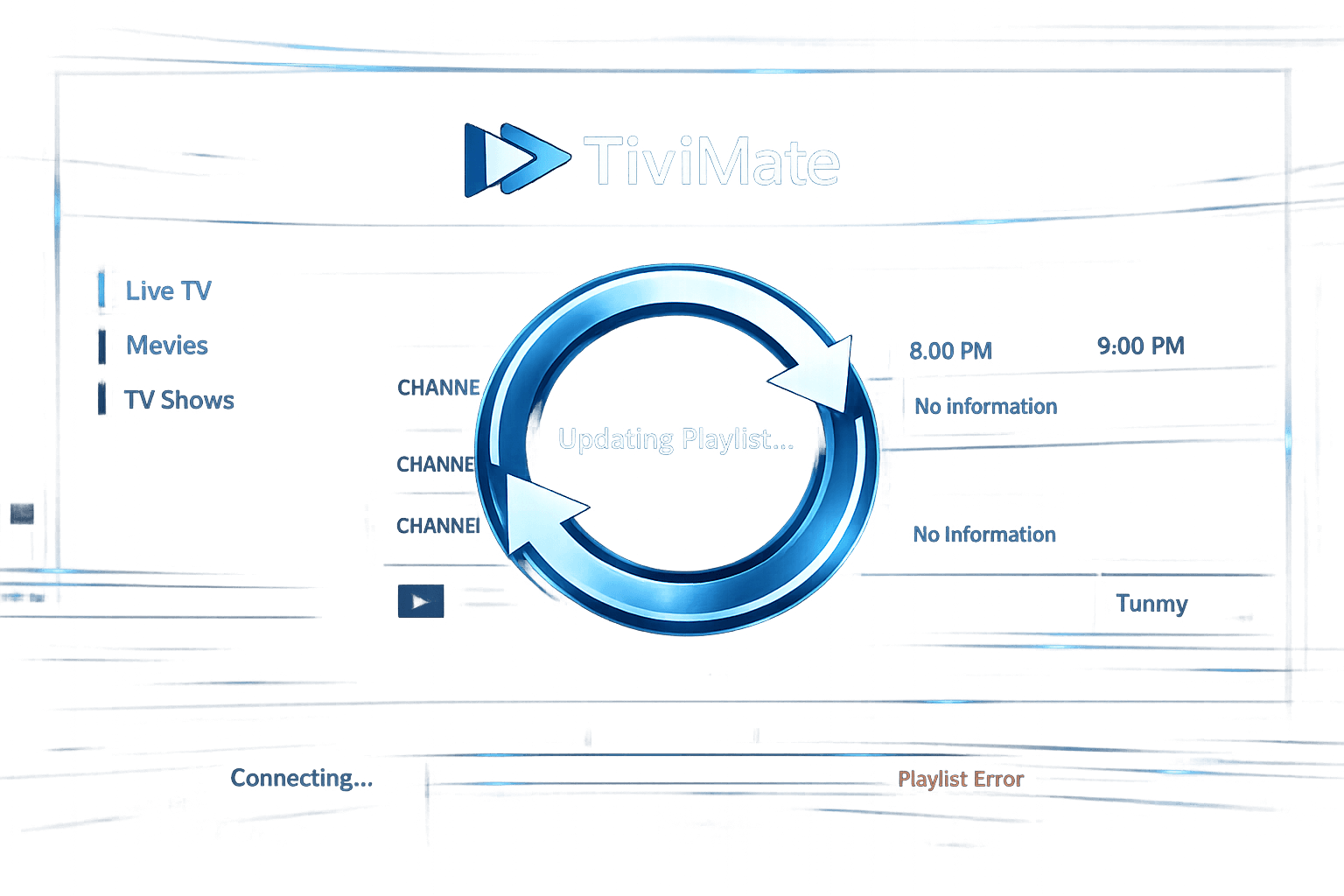
TiviMate Playlist Not Updating After Refresh: Causes and Fixes
When your TiviMate playlist doesn't update after hitting refresh, it means the app is failing to download new or updated channel data from your playlist source. This can be frustrating because it prevents you from accessing recently added or changed IPTV channels and EPG (Electronic Program Guide) information. Fortunately, the causes are usually related to network connectivity, playlist URL issues, or app cache problems, all of which can be diagnosed and fixed with systematic troubleshooting.
What you'll learn
- Why TiviMate might not refresh your playlist content
- How to check network and playlist URL accessibility
- How to clear app cache and restart TiviMate safely
- When to test playlist functionality in other apps
- Device and user scenarios that may require different approaches
Understanding Why TiviMate Playlist Does Not Update After Refresh
Refreshing a playlist in TiviMate means the app attempts to fetch the latest XML or M3U playlist and update its channel list and metadata. The "Refresh" button commands TiviMate to retrieve the raw playlist file anew from the internet, parse it, and refresh the displayed channels and EPG.
If this process silently fails or shows no changes after refresh, the root cause can be one or more of the following:
- Network connectivity problems: Your device might not have internet access or the connection is unstable.
- URL accessibility issues: The playlist URL might be incorrect, misspelled, expired, or temporarily down.
- Playlist provider server issues: The source server hosting the playlist may be offline or blocking your IP.
- App-level problems: TiviMate's cache or data files might be corrupted or out-of-date.
Properly diagnosing these reasons helps you fix the "playlist not updating" problem efficiently.
Checking Network and Connectivity Issues
Ensuring Your Device Is Online
TiviMate relies entirely on internet access to retrieve updated playlists. Without connectivity, refresh commands cannot succeed. To verify:
- Open a browser or another streaming app on your device.
- Try to load a website or video stream to confirm the internet is active and fast enough.
- Switch between Wi-Fi and mobile data (if supported) to isolate network issues.
Testing Network Speed and Stability
- Use speed test apps or services to check latency and bandwidth.
- High latency or intermittent dropouts can interrupt playlist downloads.
If your network is unstable, try restarting your router or switching to a 5 GHz band if your device supports it and your router offers one. See the 5 GHz Band topic for details on optimizing Wi-Fi for IPTV.
Verifying the Playlist URL and Source
The playlist URL is the core of your IPTV streaming setup with TiviMate. It points to the online file that the app reads to populate channels.
Steps to Validate Playlist URL
- Double-check the URL spelling carefully for any typos.
- Test the URL in a desktop browser or alternative IPTV player app.
- If the URL downloads or loads the playlist file correctly, it's likely valid.
- If it triggers an error or returns an empty file, the URL or server is the issue.
Playlist Expiry or Restrictions
Some IPTV providers use time-limited URLs or IP-restricted access tokens. If your URL contains parameters like expiration timestamps or is tied to an IP address, it may expire or fail when accessed from different networks.
Contact your IPTV source or provider to confirm if the URL is active or if you need an updated link.
Clearing Cache and Restarting TiviMate
TiviMate stores temporary data to speed up loading and playback. Sometimes this cache can become corrupted or stale, preventing the app from properly processing fresh playlist data.
How to Clear Cache in TiviMate
On most Android-based devices (including Amazon Fire TV), to clear cache:
- Go to Settings on your device.
- Navigate to Apps or Applications.
- Find and select TiviMate.
- Choose Clear Cache (do not clear data unless absolutely necessary).
Restart the App and Device
After clearing cache:
- Close TiviMate completely.
- Restart your streaming device.
- Open TiviMate and navigate to your playlist.
- Use the refresh option to attempt updating again.
Clearing cache does not delete playlists or saved settings, only temporary files.
Testing the Playlist on Another IPTV Player
To isolate whether the problem is with TiviMate or your playlist source, try loading the same playlist URL in a different IPTV player app such as IPTV Smarters or VLC.
If the playlist updates successfully there:
- The problem likely lies with TiviMate's app installation or configuration.
If the playlist still fails:
- The issue is likely with the playlist URL, server, or your network.
Troubleshooting Specific User Scenarios
When Using Fire TV or Similar Devices
If you use TiviMate on Amazon Fire TV sticks or Cube, network configuration issues such as VPN use or DNS problems can interfere with playlist updates.
Consult Fire TV Cube vs Fire TV Stick 4K Max for IPTV and Firestick VPN Causing IPTV Buffering for guidance on network optimization.
Who Should Follow This Guide
This guidance is aimed at users of TiviMate who manually add IPTV playlists via URLs and experience failures updating those playlists after pressing "Refresh".
If you use provider-integrated or subscription-based IP solutions with credential logins or smart platforms, different troubleshooting methods may be necessary.
Also, if your issue arises during Electronic Program Guide (EPG) updates but channels load fine, refer instead to the article specifically about TiviMate EPG Source URL Not Working.
Common Mistakes That Prevent Playlist Updates
- Forgetting to check the internet connection before refreshing.
- Using expired or IP-locked playlist URLs without re-acquiring valid ones.
- Clearing app data instead of just cache, which forces playlist re-adding.
- Assuming that playlist changes reflect immediately without testing multiple refresh attempts.
- Not rebooting the device after clearing cache.
Avoid these to save time and effectively resolve the issue.
| Step | Action | Purpose |
|---|---|---|
| 1 | Verify internet connectivity | Ensure device is online |
| 2 | Check playlist URL validity | Confirm source availability |
| 3 | Clear TiviMate cache | Removes corrupted temporary data |
| 4 | Restart the app and device | Resets app processes |
| 5 | Test URL on another IPTV player | Isolates app vs source issue |
| 6 | Contact playlist provider | Get updated or working playlist URL |
FAQ
Q: Why does TiviMate playlist not update after refreshing?
A: Usually because of network issues, an incorrect or expired playlist URL, or app cache problems preventing new data from loading.
Q: How can I tell if the problem is with TiviMate or my playlist provider?
A: Try using the same playlist URL in another IPTV app; if it also fails to update there, the issue likely lies with the playlist source.
Q: Does clearing TiviMate cache delete my play data or settings?
A: Clearing cache removes temporary files and data but does not delete your saved playlists or app settings.
Q: Are there device-specific fixes for playlist update issues in TiviMate?
A: Most troubleshooting steps apply broadly, but specifics might vary slightly on Fire TV devices or Android-based boxes.
Conclusion
When TiviMate's playlist doesn't update after refresh, it signals a block in fetching and applying new playlist data. By systematically checking your internet connection, verifying the playlist URL, clearing app cache, and testing in other IPTV players, you can pinpoint and resolve most issues. Always keep your playlist URLs up to date and ensure your device’s network environment is stable to maintain smooth IPTV playback.
Refer to related articles to address deeper issues like EPG update failures or user authorization errors for more comprehensive IPTV management support.
Explore our resources on Channel Groups management and solving Authorization Errors for advanced TiviMate troubleshooting.
Frequently Asked Questions
Why does TiviMate playlist not update after refreshing?
Usually because of network issues, an incorrect or expired playlist URL, or app cache problems preventing new data from loading.
How can I tell if the problem is with TiviMate or my playlist provider?
Try using the same playlist URL in another IPTV app; if it also fails to update there, the issue likely lies with the playlist source.
Does clearing TiviMate cache delete my play data or settings?
Clearing cache removes temporary files and data but does not delete your saved playlists or app settings.
Are there device-specific fixes for playlist update issues in TiviMate?
Most troubleshooting steps apply broadly, but specifics might vary slightly on Fire TV devices or Android-based boxes.
Keep exploring
More explainers that connect naturally to this setup, workflow, or troubleshooting path.
If catch-up (the ability to watch past broadcasts on demand) is not working in your TiviMate app, the issue is usually related to your IPTV playlist's support for catch-up, connection hiccups, or app configuration.

When TiviMate displays an "Xtream Codes Authorization Failed" message, it means the app cannot successfully log in to your IPTV provider’s server using the Xtream Codes credentials you entered.

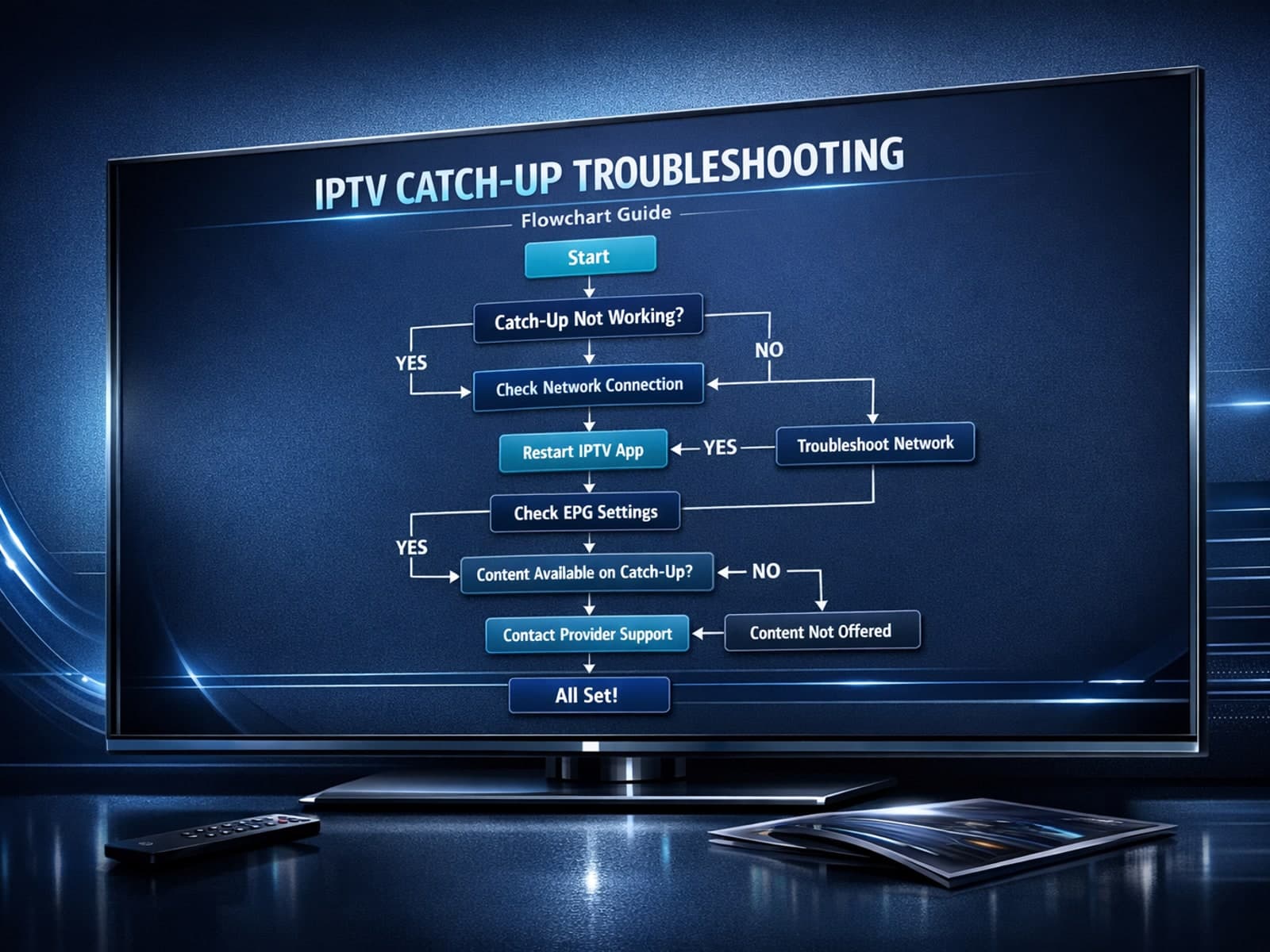
If you use the TiviMate IPTV player, you might occasionally find that the catch-up TV feature isn't working as expected. Catch-up allows you to watch previously aired content on demand, making it a valuable part of your viewing experience.